SharePoint Online Monitoring (TryHackMe)

Introduction
SharePoint Online is one of the most targeted M365 services, as it often stores sensitive files and can be used to propagate the attack. This room will explore the most common attack scenarios on SharePoint Online and explain how to monitor for them as a SOC team.
Learning Objectives
Learn Entra ID and SharePoint audit log formats
Explore how attackers exfiltrate data from SharePoint
Discover how SharePoint can become an attack tool
Practice the learned topics through an attack scenario
Prerequisites
SharePoint Overview
SharePoint Overview
SharePoint Online is a service within the Microsoft 365 suite that lets you store, organize, share, and access corporate information through a web browser. It is widely used by organizations that use the Microsoft stack to keep team documentation and collaborate on documents, spreadsheets, and presentations. It is basically a business version of Google Drive and Microsoft OneDrive:
Google Drive: A cloud service to store and collaborate on files through the web
Microsoft OneDrive: Microsoft's analogue of Google Drive, built for personal files
Microsoft SharePoint: A more powerful version of OneDrive for corporate use
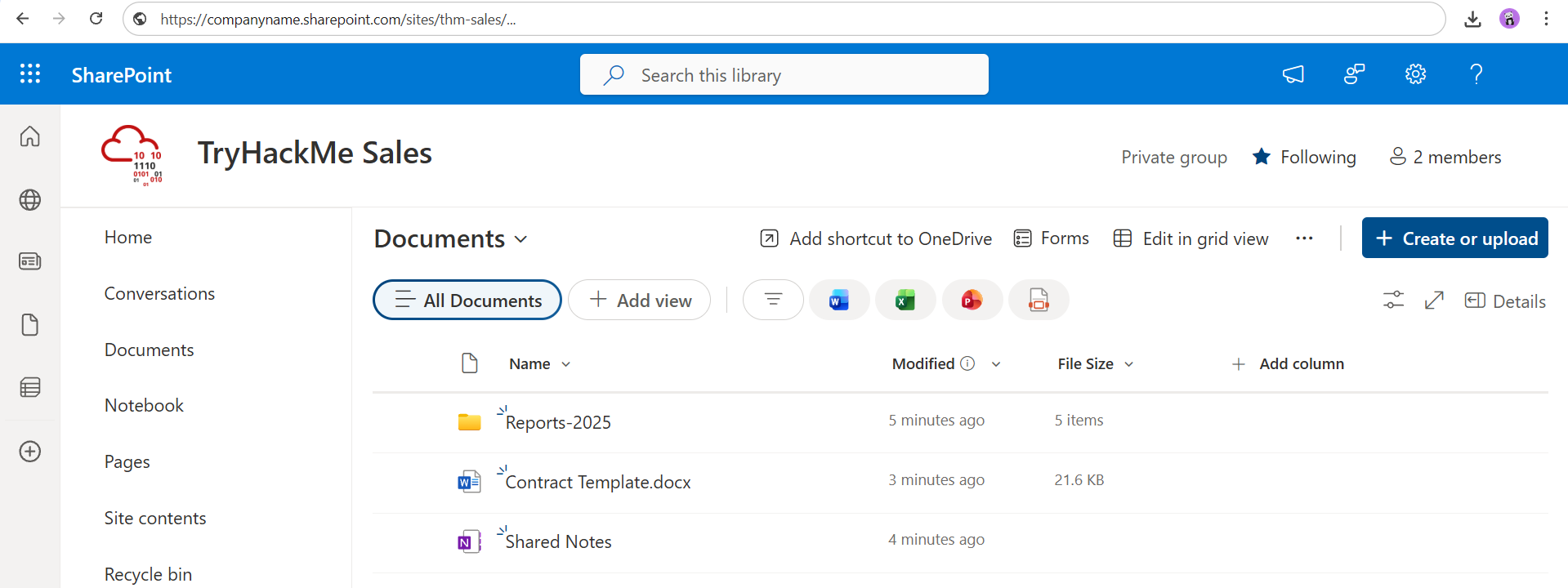
For future reference, SharePoint organizes data into top-level containers called sites, where each site is tied to an email group (e.g. sales@tryhackme.thm) and contains files, folders, or web pages. Also, note that there is an on-premises version of SharePoint. It is rarely used and relies on Active Directory authentication. This room will only explain SharePoint Online, a cloud-based service.
SharePoint and M365
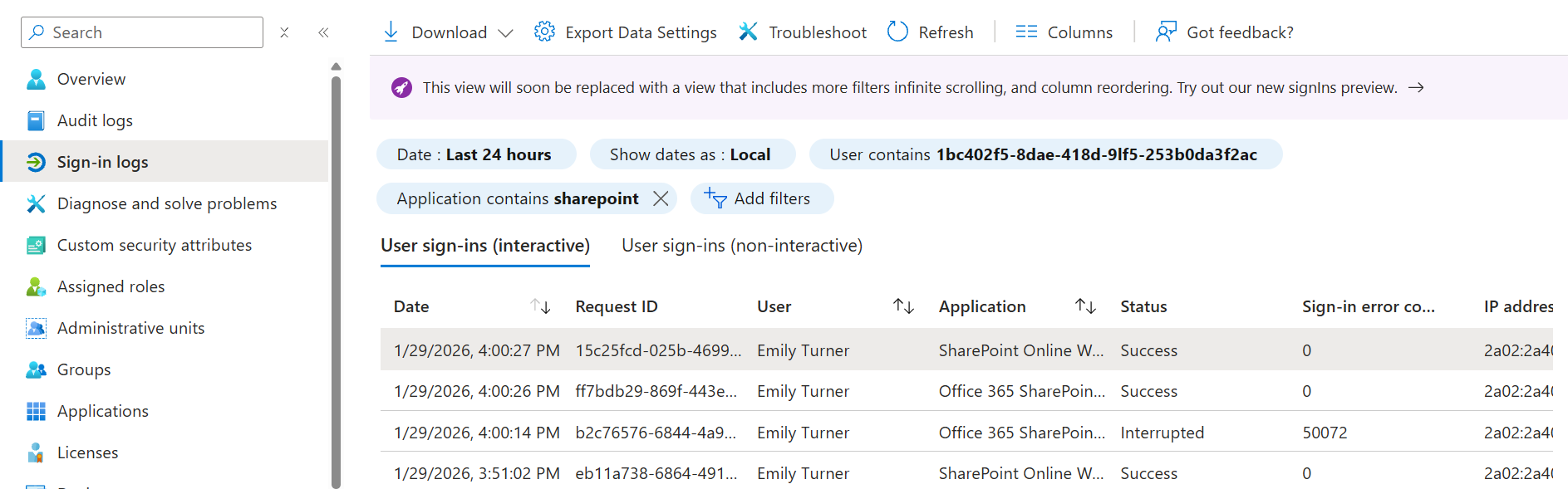
SharePoint is deeply integrated into the Microsoft 365 suite. For example, authentication to SharePoint is performed via an Entra ID login, so if an adversary breaches a corporate Microsoft account with the right permissions, they automatically get access to all the SharePoint files the victim has access to. Fortunately, you can always audit SharePoint logins in the Entra ID console:
SharePoint Risks
IT sites may contain network diagrams, application source code, or even keys
Finance sites may contain internal reports and confidential documents
Sales sites typically contain big spreadsheets of partners and customers
In short, SharePoint is one of the most important M365 services to monitor
Answer the questions below
Which of the mentioned Microsoft services is like SharePoint, but for personal use? OneDrive
How do you call the SharePoint top-level container that holds objects, such as files? Site
SharePoint Logging
SharePoint Sign-In Logs
Same as with other M365 services, you need to combine Entra ID and M365 logs to monitor SharePoint properly. Entra ID sign-in logs show authentication attempts to SharePoint, and M365 unified audit logs show file operations: access, modification, and sharing. Let's start with the sign-in logs. Below is a chain of sign-in events you will see during a legitimate SharePoint access of Emily Turner:
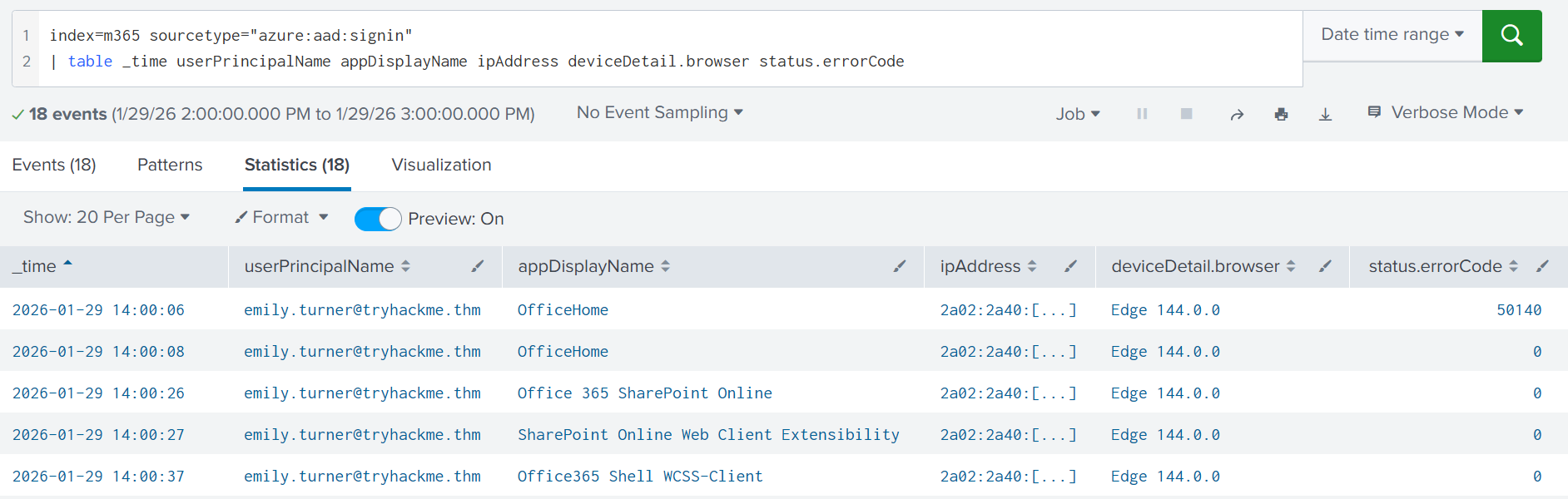
The first two events from the image indicate that Emily logged in to the M365 home portal (m365.cloud.microsoft). From there, she accessed the corporate SharePoint portal. The last event, login to Office365 Shell WCSS-Client, occurs automatically whenever a user navigates in M365 apps. If you want to monitor SharePoint logins, focus on sign-in events #3 and #4. Also, please remember that logins from IPv6 can still be malicious. Never assume that IPv6 equals False Positive!
SharePoint File Operations
After signing in, Emily will interact with the site. You would see all her activities in M365 audit logs, with the Workload field always set to SharePoint. Let's see the simplest example, access to the Contract Templates document through SharePoint:
{
  "CreationTime": "2026-01-29T15:08:32",
  "OrganizationId": "755c8cb5-4ddf-4c5e-[...]", // MS365 tenant ID
  "Operation": "FileAccessed",                  // Event name (action)
  "Workload": "SharePoint",                     // Target service
  "UserId": "emily.turner@tryhackme.thm",       // Source user email
  "AuthenticationType": "OAuth",
  "Site": "66c03890-ed18-42b3-[...]",           // SharePoint site ID
  "UserAgent": "MSWAC",                         // Internal SharePoint user-agent
  "ClientIP": "20.54.165.63",                   // IP of M365 server, not Emily's!
  "DeviceDisplayName": "20.54.165.63",          // Again, this is not Emily's IP!
  "SourceRelativeUrl": "Shared Documents",      // Folder of the file
  "SourceFileName": "Contract Template.docx",   // Accessed file name
  "SourceFileExtension": "docx",
  "ApplicationDisplayName": "WebWord",
  "SiteUrl": "https://tryhackme.sharepoint.com/sites/thm-sales/",
  "ObjectId": "https://tryhackme.sharepoint.com/sites/thm-sales/Shared Documents/Contract Template.docx"
}
The event below follows a similar M365 log structure, where Workload, Operation, and UserId fields are always present, and other fields depend on the event. Note that you shouldn't blindly trust IPs and user agents in the logs, as they often refer to SharePoint servers rather than the actual clients. Overall, you should focus on the file operations below (Documentation(opens in new tab)):
FileCreated/FileUploaded: Useful to track suspicious file uploadsFileDeleted/FileRecycled: Essential for audit and compliance purposesFileAccessed/FileDownloaded: Helpful for many types of cyber incidents
File Sharing in SharePoint
Another important monitoring aspect is file sharing. Microsoft reports both when sharing settings were changed and whenever a sharing link was used. That's great since file sharing can be abused in various scenarios that you will learn in the next tasks. Let's assume Emily shared a sensitive file with an external, untrusted email. You can start the hunt as:
| List SharePoint sharing events (Splunk) |
|---|
index=* Workload=SharePoint Operation IN(AddedToSecureLink, AnonymousLinkCreated)
If there is a match, you will see which file was shared (ObjectId) and with whom (TargetUserOrGroupName). Note that it's only valid for external sharing. For internal sharing, better hunt for the SharingSet events and refer to the documentation(opens in new tab) for technical details. Next, you might want to check if the target user has already accessed the link, or if you have time to revoke the sharing before it's too late:
| List SharePoint sharing events (Splunk) |
|---|
index=* Workload=SharePoint Operation IN(SecureLinkUsed, AnonymousLinkUsed)
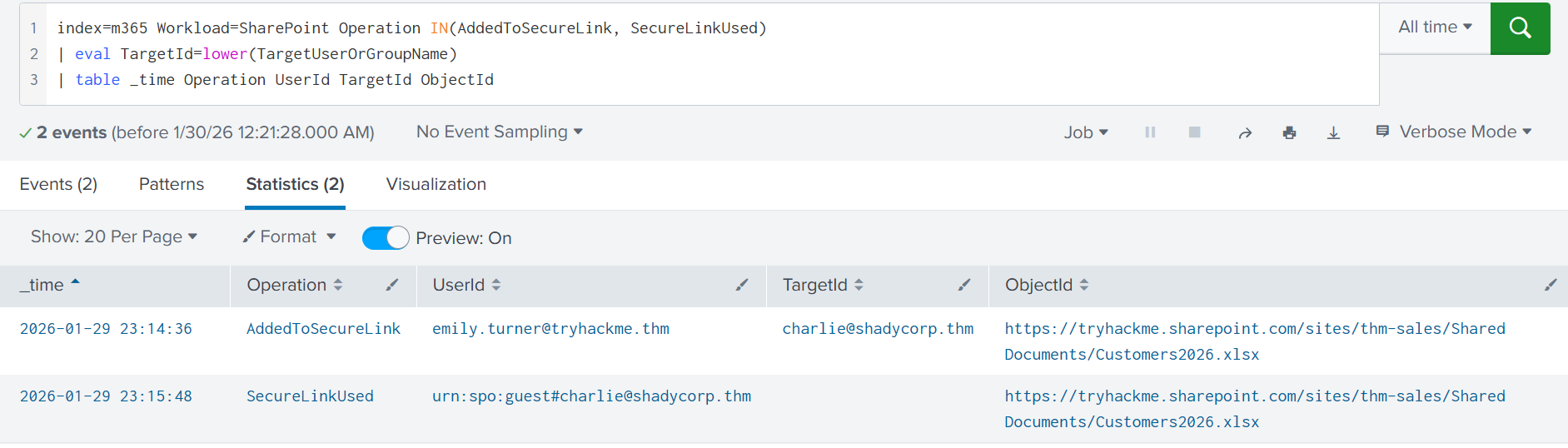
In Splunk, you can analyze both events in a single timeline. Below is an example showing how Emily shared a sensitive file with an external user (AddedToSecureLink), and how the user accessed the file a minute later (SecureLinkUsed). In most cases, these events are also followed by a FileAccessed event.
Practice
For this task, open the Splunk console(opens in new tab) in your web browser.
You will need both data sources from the index=practice query.
Search for All Time and investigate the activity of Emily Turner.
Answer the questions below
Refer to the Entra ID sign-in logs (azure:aad:signin).
What is the event ID that confirms Emily's login to SharePoint?
index=practice user="emily.turner@tryhackme.thm" action=success login

Move on to the SharePoint logs (o365:management:activity).
What PDF file did Emily upload to the SharePoint?
index=practice pdf user="emily.turner@tryhackme.thm"

Soon after, Emily shared the PDF with an external user.
What is the email of the target user?
index=practice instructions.pdf action=shared

Detecting Data Exfiltration
SharePoint Data Access
SharePoint is one of the primary targets for threat actors. After an account is compromised, the adversary may explore the contents of their SharePoint and exfiltrate files of interest, such as contracts, reports, internal wiki pages, or source code. Depending on the type and size of data, the adversary may:
Open the file in the browser and read it without downloading. Generates the FileAccessed event for every file.
Download the needed file or folder. Generates a FileDownloaded or similar event for every downloaded file.
Share the file with anyone and access it anonymously via a link. Still generates share events and FileAccessed.
Data Exfiltration via GUI
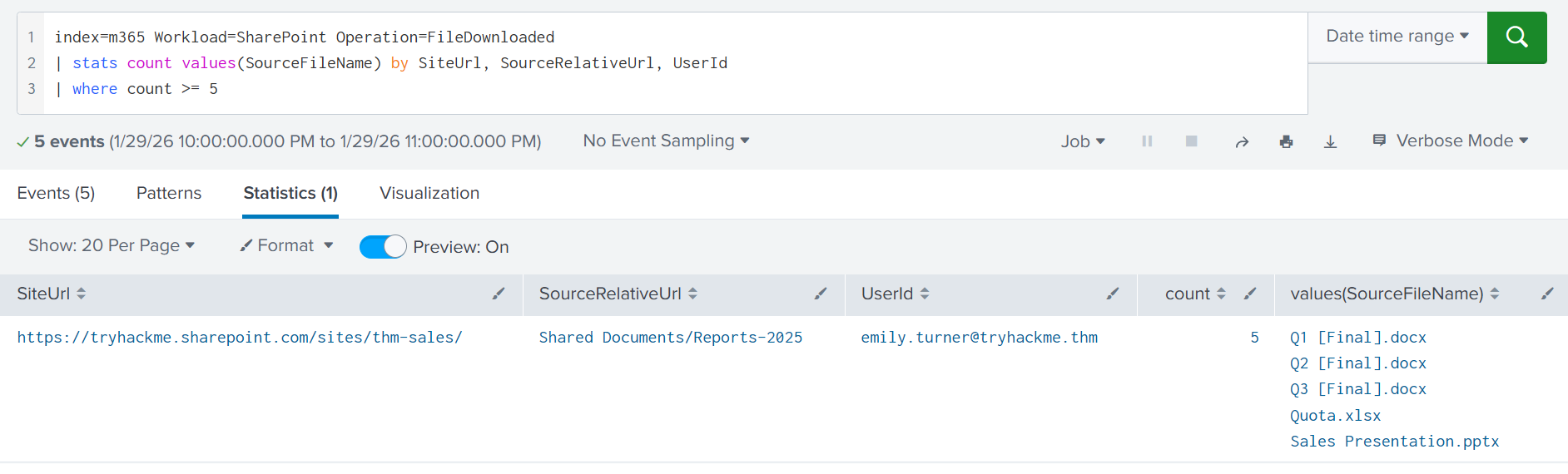
The simplest way to view SharePoint data is through the M365 portal. Like legitimate users, attackers can browse folders, open files, and download sensitive data. Unfortunately, if attackers act cautiously, their activity is hard to distinguish from normal SharePoint usage. Still, you can alert on a spike in FileDownloaded events, since downloading a folder generates one event per file inside. The search below shows how a single Reports-2025 folder download resulted in five events:
Data Exfiltration via App
The M365 portal does not allow full site export and does not support advanced search. Therefore, if attackers want to dump gigabytes of data, they must resort to external tools. Examples include the OneDrive app, the Rclone CLI utility, and many more paid solutions that allow you to sync SharePoint content with your local PC or another cloud location. For Rclone, the data export will look like this:

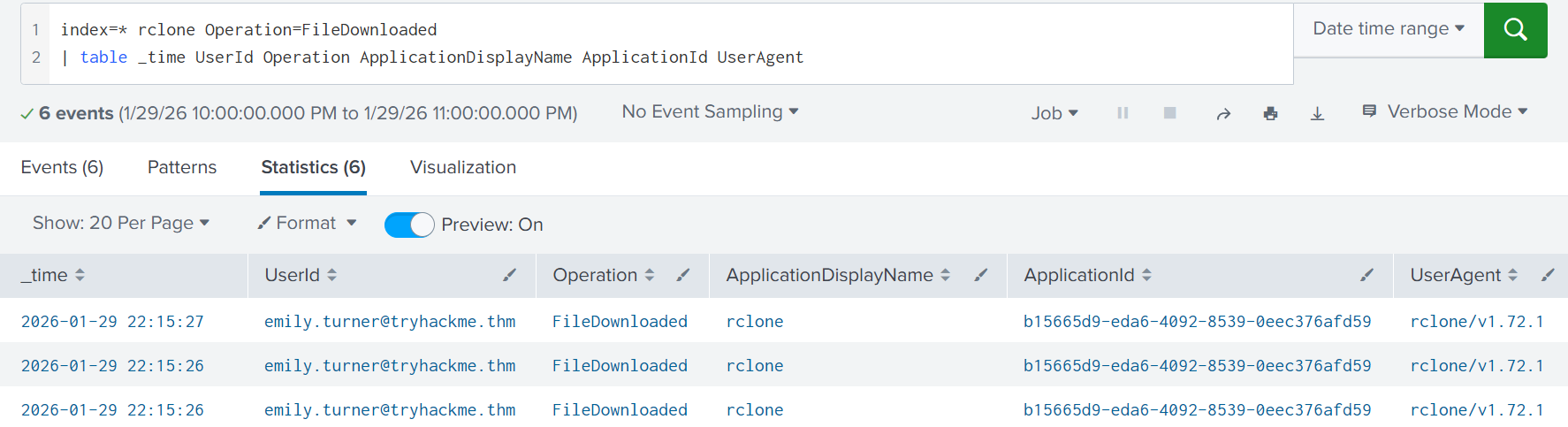
Regular users rarely use external applications to interact with SharePoint, especially CLI tools like Rclone. Thus, you can start by alerting on new applications on a per-user basis. To do this, focus on the ApplicationDisplayName and UserAgent fields, which are present in all file-related records. Below are the logs generated when running the Rclone commands shown in the illustration above:
| List Rclone downloads (Splunk) |
|---|
index=* rclone Operation=FileDownloaded
| table _time UserId Operation ApplicationDisplayName ApplicationId UserAgent
Answer the questions below
Which M365 event is generated every time the file is downloaded? FileDownloaded
Which M365 field can you use to identify the application behind the event? ApplicationDisplayName
Detecting SharePoint Abuse
SharePoint as an Attack Tool
Imagine you are an attacker who has compromised the account of a B2B Sales Lead. You discover a CSV file containing hundreds of partner email addresses, including contacts from large, well-known companies. How can this be abused? You could launch a phishing campaign on all addresses while impersonating the Sales Lead. And to bypass anti-phishing controls, you can send the emails via SharePoint!
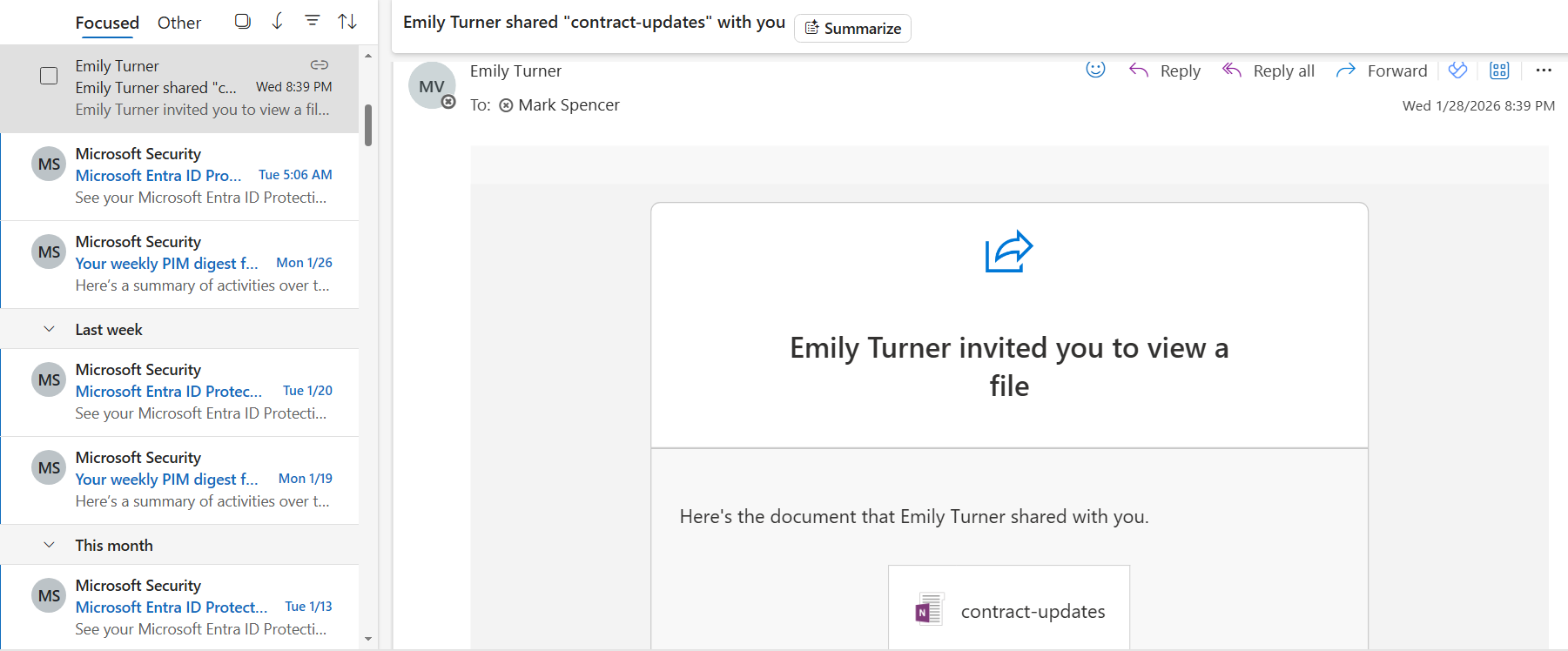
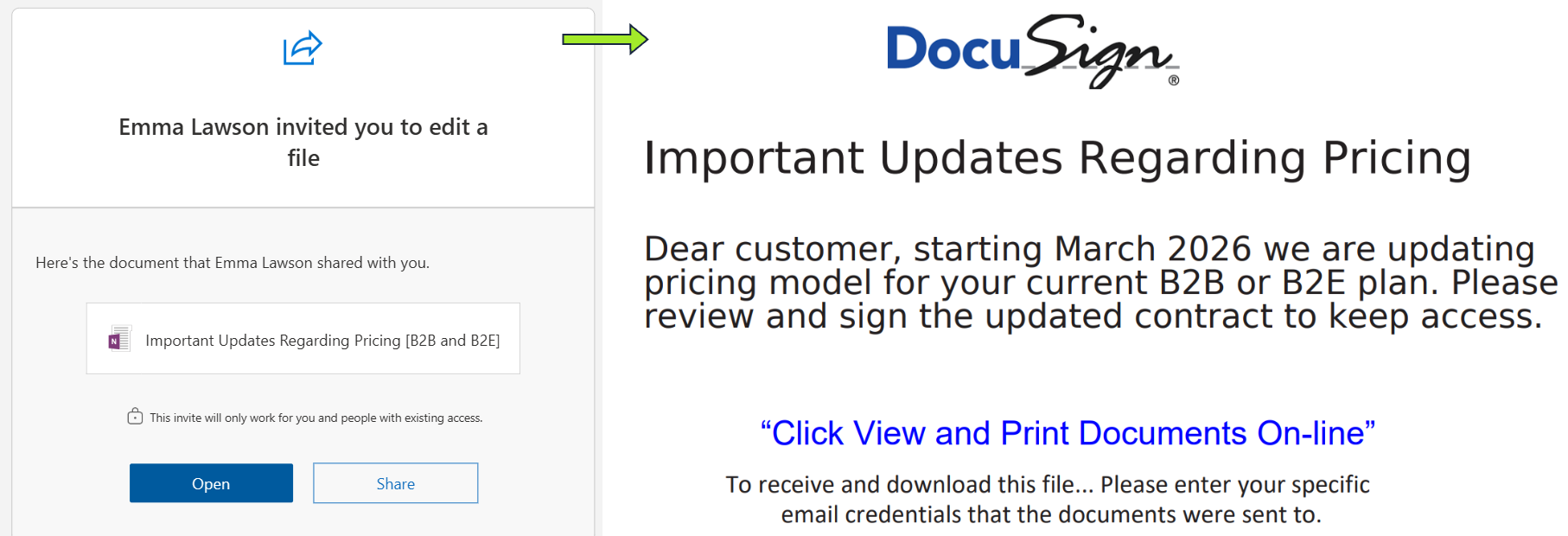
Whenever you share a file via SharePoint, the recipient receives a notification email sent from your account. An attacker can abuse this by creating a document inside the compromised SharePoint (often a OneNote file), embedding malicious instructions or links, and sharing it with targeted victims. Because both email servers and users usually trust these notifications, SharePoint becomes a tool for distributing malware or phishing. The screenshot above is a classic example of this attack.
Detecting SharePoint Abuse

If you fail to notify all sharing recipients in time, your company may start a supply chain attack. For example, if an IT firm in Europe is breached, attackers may share malware with its retail clients in the USA. If lateral movement succeeds, the same attack can then spread from the retailer to its supplier, a larger manufacturer in Asia. It is essential to secure not only yourself, but also all partners and clients your company could affect.
Advanced SharePoint Abuse
Note that M365 logging can be confusing at times, and attackers are often very creative. For example, instead of creating a new file, they may backdoor an existing one (which results in a FileModified event). They can also lure other users into creating and sharing malware, which will mess up the logs. This is why, during an incident, you should review all activities in a chronological timeline instead of simply searching for specific events or indicators.
Answer the questions below
Which file type is often abused to share phishing through SharePoint? OneNote
Which event is generated when someone shares a file with an external user? AddedToSecureLink
Real-World Scenario
The phone rings, it's the SOC manager:
"Hey, quick one: our CEO, Michael, wants us to look into a OneNote file that was just shared by Emma Lawson, our Head of Customer Relationships. The file seems suspicious, and he can't recall approving any pricing updates. Before your shift ends, could you take a look and make sure everything is clean? I'll forward you the screenshots Michael sent me; check your inbox:"
Practice
For this task, start with the index=challenge query and search for All Time.
You will need all the knowledge you have acquired to handle the incident!
Answer the questions below
When did Michael open the shared OneNote file?
Answer Example: 2026-02-01 12:30:45
index=challenge user="michael.els@tryhackme.thm" shared

With which three external emails did Emma share the file, too?
Answer Format: Emails via comma, alphabetical order
index=challenge user="emma.lawson@tryhackme.thm" action=shared
returned the internal emails, but we need the external ones, which it doesn't show with this query
index=challenge AddedToSecureLink user="emma.lawson@tryhackme.thm"

index=challenge user="emma.lawson@tryhackme.thm" AddedToSecureLink
| stats count by TargetUserOrGroupName
| sort -count

One of the users from Question 2 already accessed the malicious file.
What CorrelationId value proves that the sharing link has been opened?
index=challenge Operation IN(*LinkUsed, FileAccessed) ObjectId="https://tryhackme.sharepoint.com/sites/marketing/Shared Documents/Important Updates Regarding Pricing [B2B and B2E]"
| stats values(UserId)

index=challenge Operation IN(*LinkUsed, FileAccessed) ObjectId="https://tryhackme.sharepoint.com/sites/marketing/Shared Documents/Important Updates Regarding Pricing [B2B and B2E]"

Before sharing the malicious file, attackers reviewed Emma's SharePoint.
Which PowerPoint presentation file did they exfiltrate?
Remember the file extension of powerpoint presentation file is .pptx so this helps us narrow down the search in the search query
index=challenge pptx

According to Entra ID logs, from which city was the malicious login performed?
index=challenge location

Conclusion
Congratulations on completing the room! With this final knowledge piece on SharePoint monitoring, you are now equipped to onboard, monitor, and protect Entra ID and M365 environments against a wide range of emerging threats. We hope you enjoyed both this room and the entire module!