Microsoft Intune Monitoring (TryHackMe)

Introduction
Microsoft Intune is one of the most widely used Mobile Device Management (MDM) platforms in the enterprise. It is a powerful tool in the hands of IT and security teams, but it can also become a weapon for attackers, as proven by the recent wiper attack on Stryker. In this room, you will explore how Intune can be abused, how to harden it against attack, and how to monitor it effectively in a SOC.
Learning Objectives
Learn Microsoft Intune features and applications
Discover the use of Intune by SOC and security teams
Explore how Intune is exploited based on a Stryker incident
Practice monitoring Intune from Splunk and the host perspective
Prerequisites
What Is Microsoft Intune
Overview
Microsoft Intune is a cloud-based Mobile Device Management platform (MDM). It lets your organization audit how Windows, Linux, MacOS, and mobile devices are used across your environment and remotely control their password policy, disk encryption, OS settings, application allowlist, and much more. Other popular MDM vendors you might have heard of are Jamf, JumpCloud, Atera, and Manage Engine.
How Intune Works
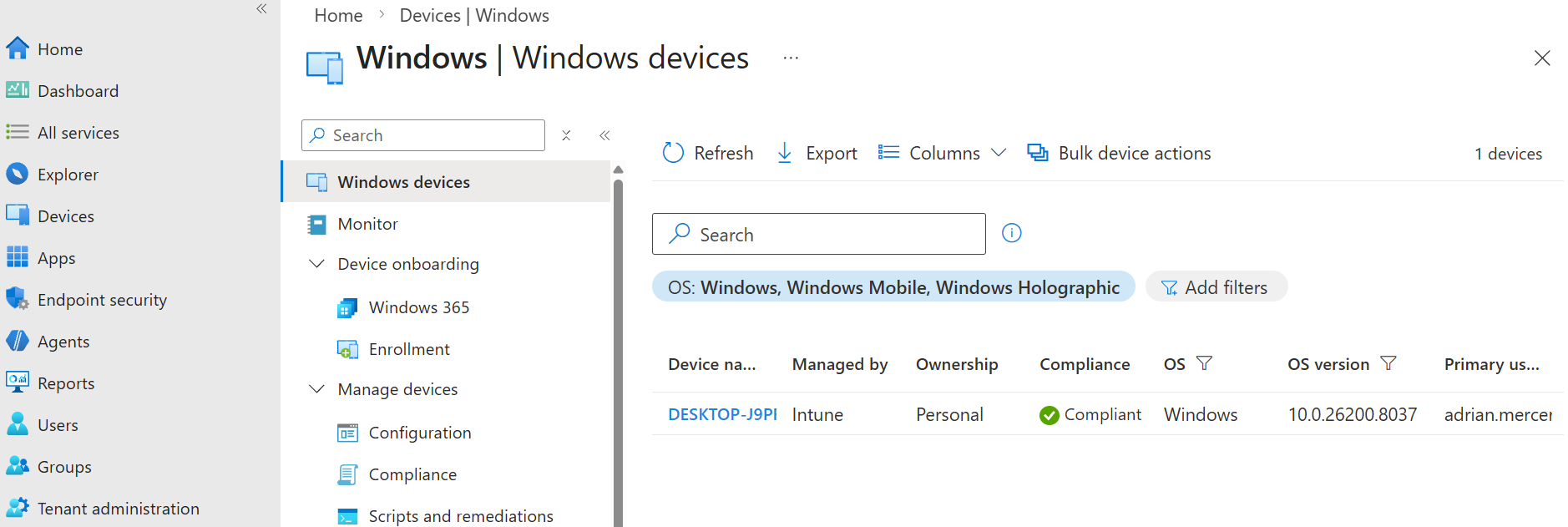
First, you need to enroll devices into Microsoft Intune, either manually via physical device access or remotely. Luckily, most OS support remote enrollment through the built-in OS capabilities, such as ADE in MacOS and Google Play services in Android. On Windows, that's even simpler. All you need to enroll is to log in to your device with your corporate email (1) and see your device in the Entra ID console (2). MDM will be deployed automatically:
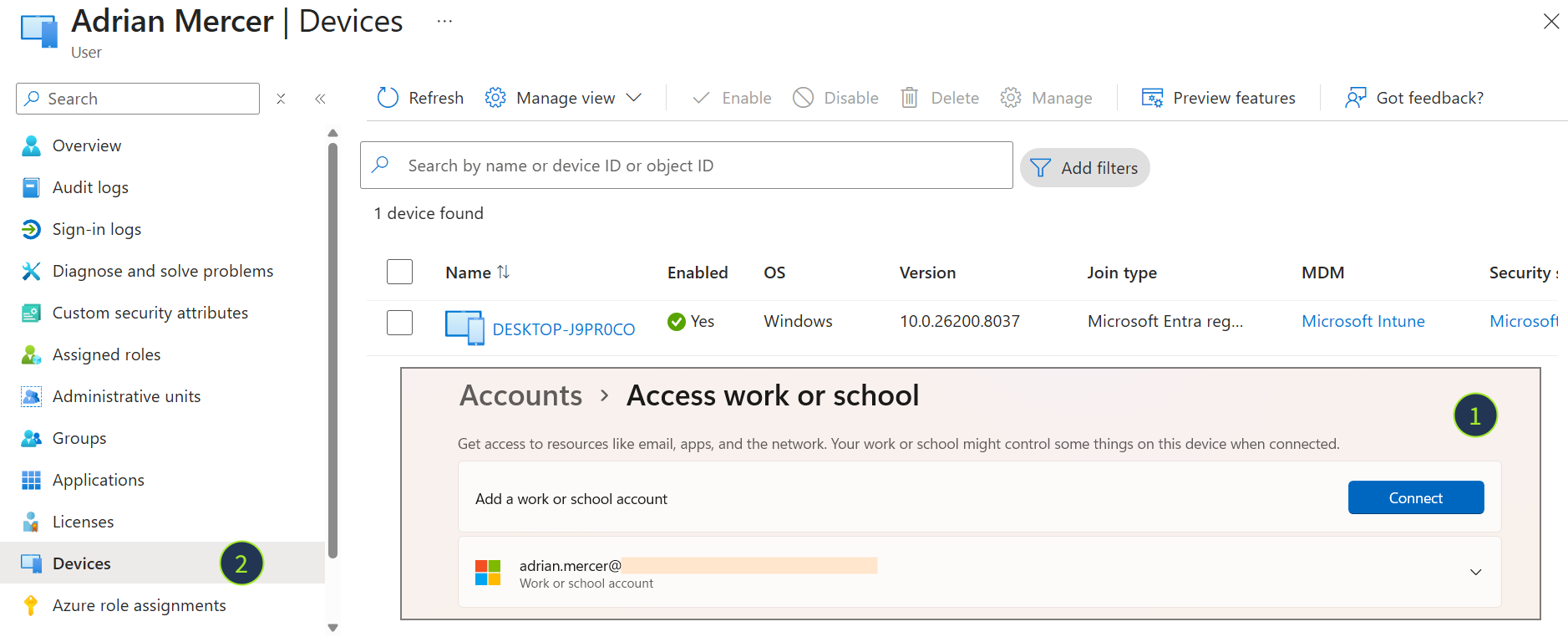
Next, the MDM agent is being deployed. Marketing-wise, Intune is agentless and doesn't need you to install MSI or PKG packages on every device. But process-wise, it's always some kind of an agent that is automatically installed in the background on your behalf. Very similar to EDR, MDM agents will connect to the central console and listen for instructions.
Intune Capabilities
Intune has a broad range of features, especially for Windows and MacOS:
Build an asset inventory of all corporate devices
Push configuration policies to devices remotely
Deploy and manage applications across your fleet
Wipe devices in case of malware infection or physical theft
Enforce compliance rules (e.g. require encryption or OS update)
Integrate with Microsoft Entra ID (formerly Azure Active Directory)
Why It Matters to You
As a SOC L2 analyst, you will encounter Intune in many scenarios:
As an asset inventory database to get more information about the device
To quickly patch or uninstall software during major supply chain incidents
To apply policies, run security checks, or bulk-install EDR/SIEM agents
To isolate devices from the network or reimage the OS in case of theft
Answer the questions below
Is Intune a cloud-based or self-hosted MDM solution? Cloud-based
What identity platform does Intune closely integrate with? Entra ID
Intune for Security Teams
Intune Portal
You can organize the onboarded devices into groups and manage them from the Intune cloud console (https://intune.microsoft.com/)(opens in new tab). From there, you can define policies, deploy scripts, install apps, configure auto-enrollment, and much more. Note that the Intune license is currently included in Microsoft 365 E3 and E5 subscriptions, which means you may use Intune at no additional cost if your enterprise already manages users in Entra ID.
Device Management
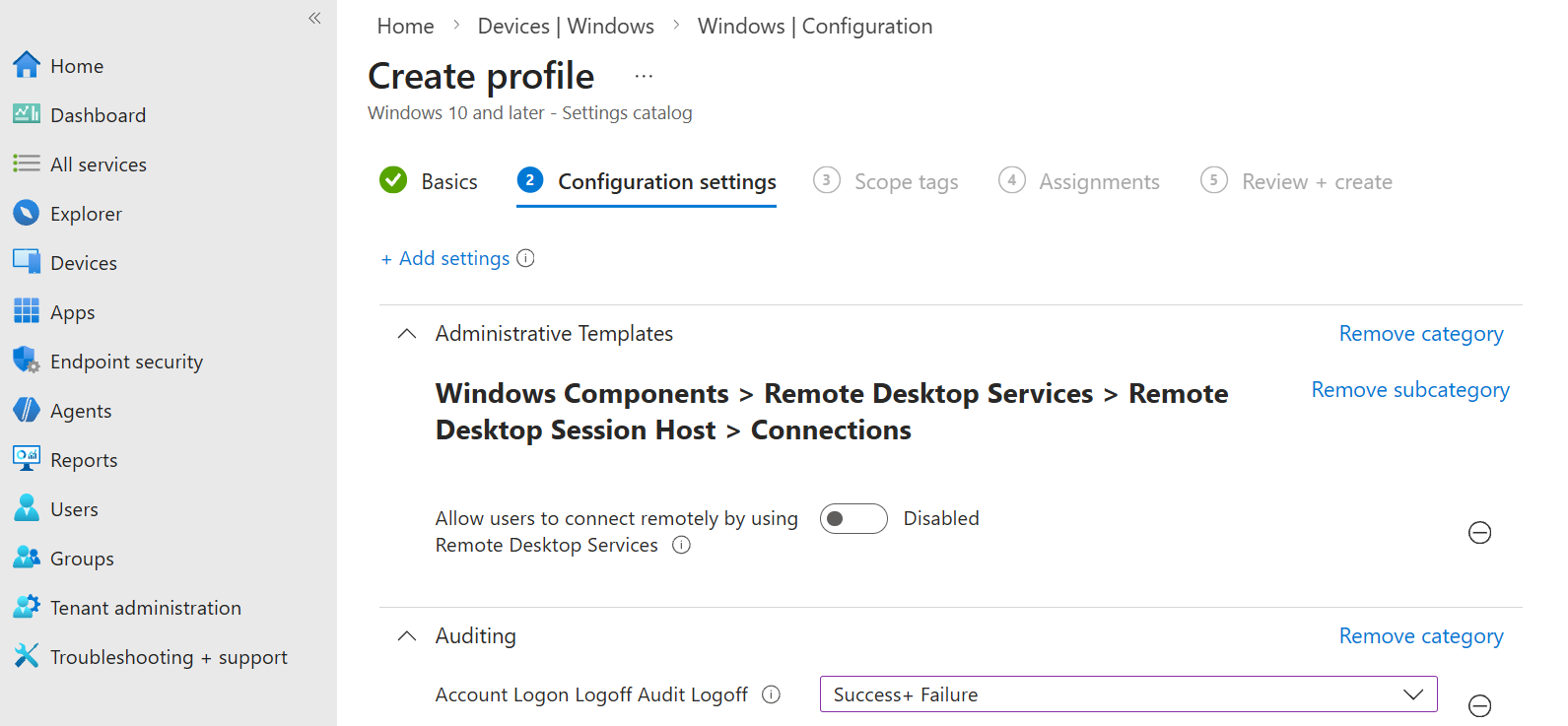
As a SOC analyst, you are unlikely to apply settings in Intune yourself, but you should know that most OS configurations can be applied remotely via Intune. For example, the Devices > Configuration feature allows you to apply security best practices, such as disabling RDP on regular user workstations or enabling Logon/Logoff auditing across all endpoints:
Device Compliance
Intune also supports labeling assets as compliant/non-compliant and even restricting access to cloud resources via two features: Compliance and Conditional Access. This feature is extremely useful for securing critical apps, such as the mailbox and SharePoint. Imagine a practical use case where your goal is to ensure only known and hardened devices can access corporate M365.
First, you start by creating an Intune compliance policy
The policy labels enrolled devices as non-compliant if:
BitLocker encryption is not enabled
MS Defender EDR is not installed
User password isn't strong enough
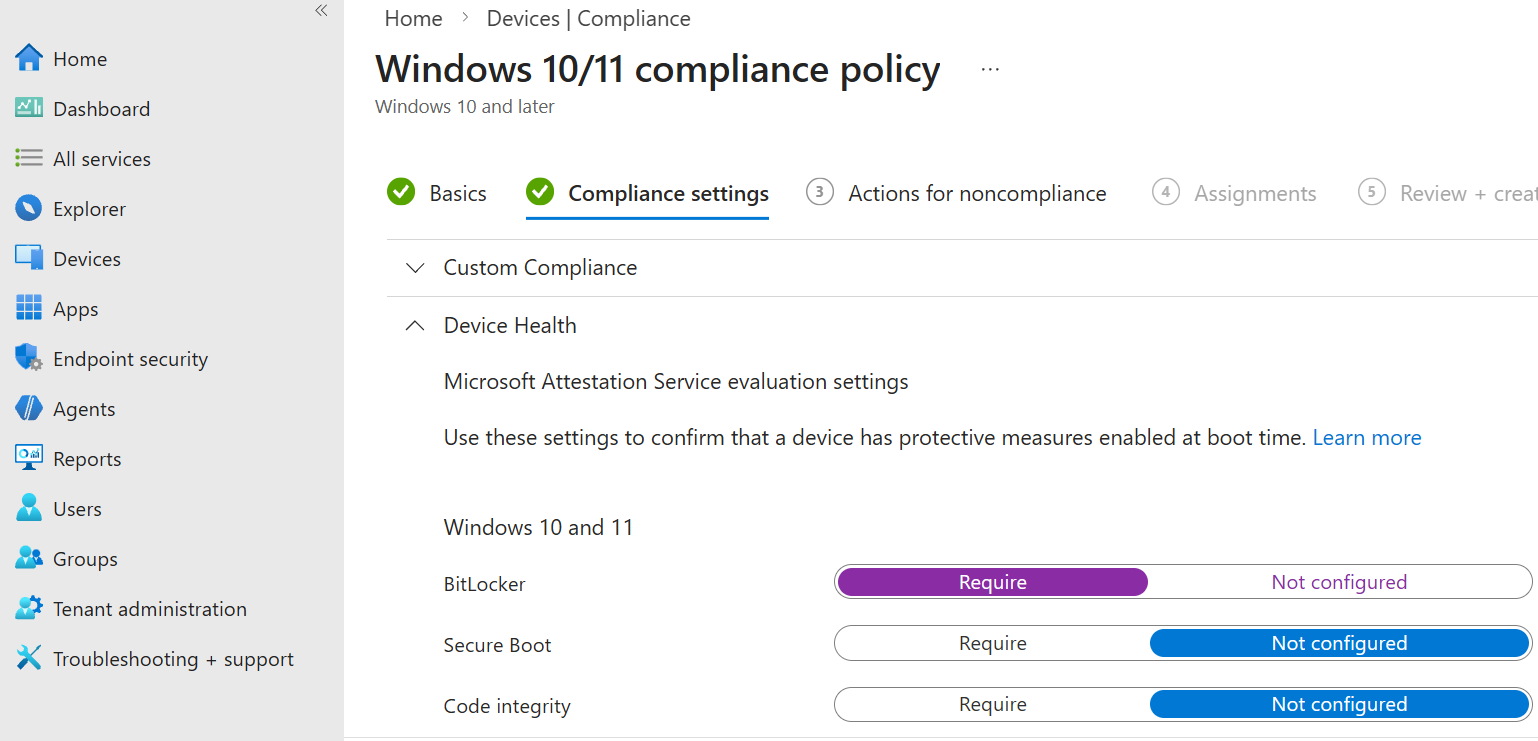
Then, you create a Conditional Access policy for all or selected users
The policy will block access to M365 if the user is trying to log in from:
An unknown device (not enrolled into Entra ID or Intune MDM)
Or a non-compliant device (according to the conditions we defined)

Device Context and SIEM
Whenever a user logs in to a cloud app via Entra ID, Microsoft includes the device details in its audit logs. This is a huge benefit for SOC, since you will know whether the user used an unmanaged device (deviceDetail will be empty), a device joined to Entra ID (trustType subfield), or a trusted device, managed by Intune (isCompliant and isManaged subfields).
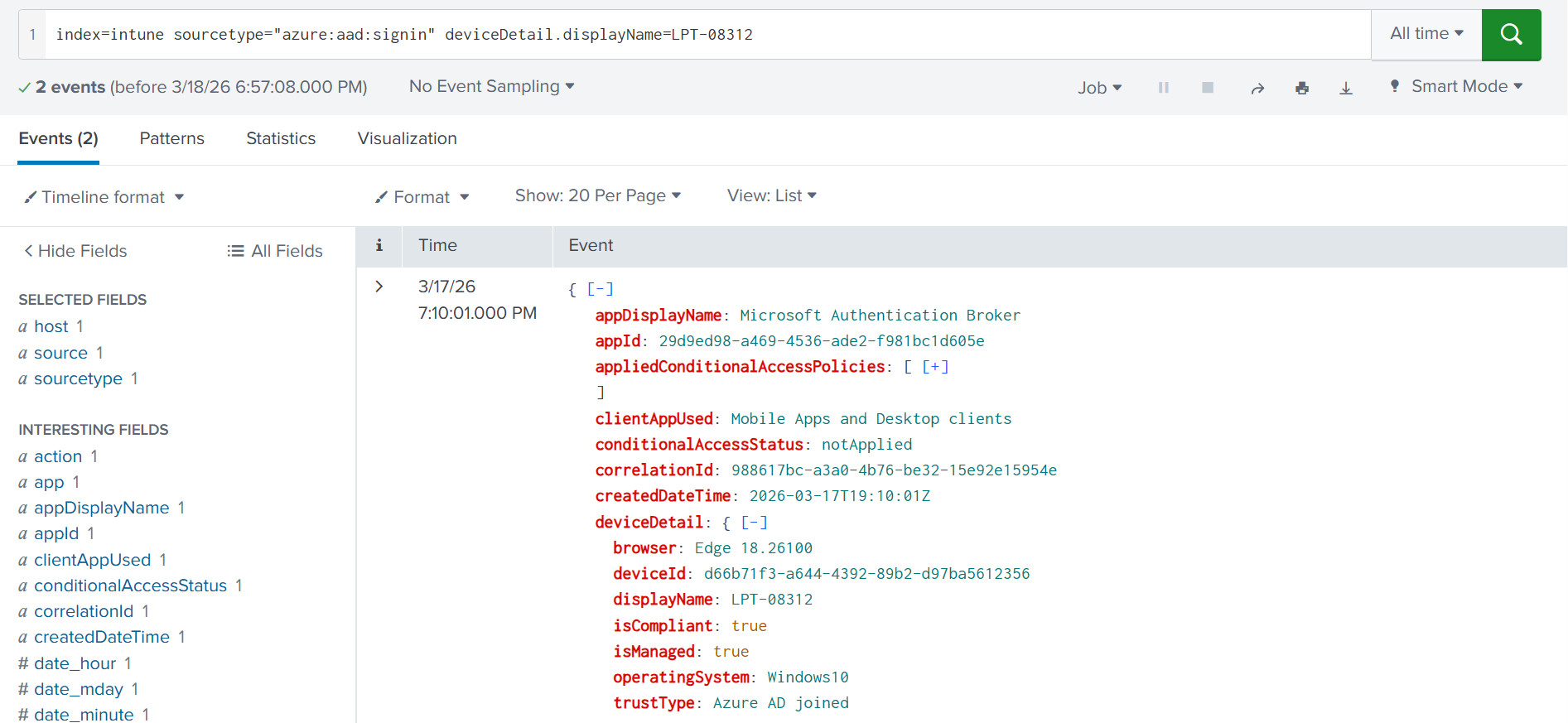
*9 out of 10 M365 attacks originate from unmanaged devices (the deviceDetail field is empty)
An attack from a managed device typically indicates an insider threat or that the device is infected/stolen
*
Answer the questions below
What Entra ID and Intune feature controls access based on conditions? Conditional Access
Which log field in SIEM shows if the device is managed or not? deviceDetail
Intune Risks: Remote Wipe
Wiper Attack on Stryker
In the wrong hands, the Intune console can become a fully-featured Command & Control server, or a weapon for mass destruction of corporate data. On March 11, 2026, the threat actors allegedly compromised(opens in new tab) an administrative M365 account of Stryker, a US-based medtech giant, and issued a remote wipe Intune command across nearly 80,000 enrolled devices. Within hours, data was erased, causing a major disruption to Stryker's operations. How was this possible?
Intune Bulk Device Actions
Intune supports bulk actions across enrolled devices: restart, rename, and wipe, among them. With administrative access to the Intune console, any user can issue a wipe command against the selected devices, across all platforms except Linux. The moment the agent receives the command, it immediately resets the device to factory settings, erasing local data. This exact functionality was weaponized to destroy data across nearly 80,000 devices.
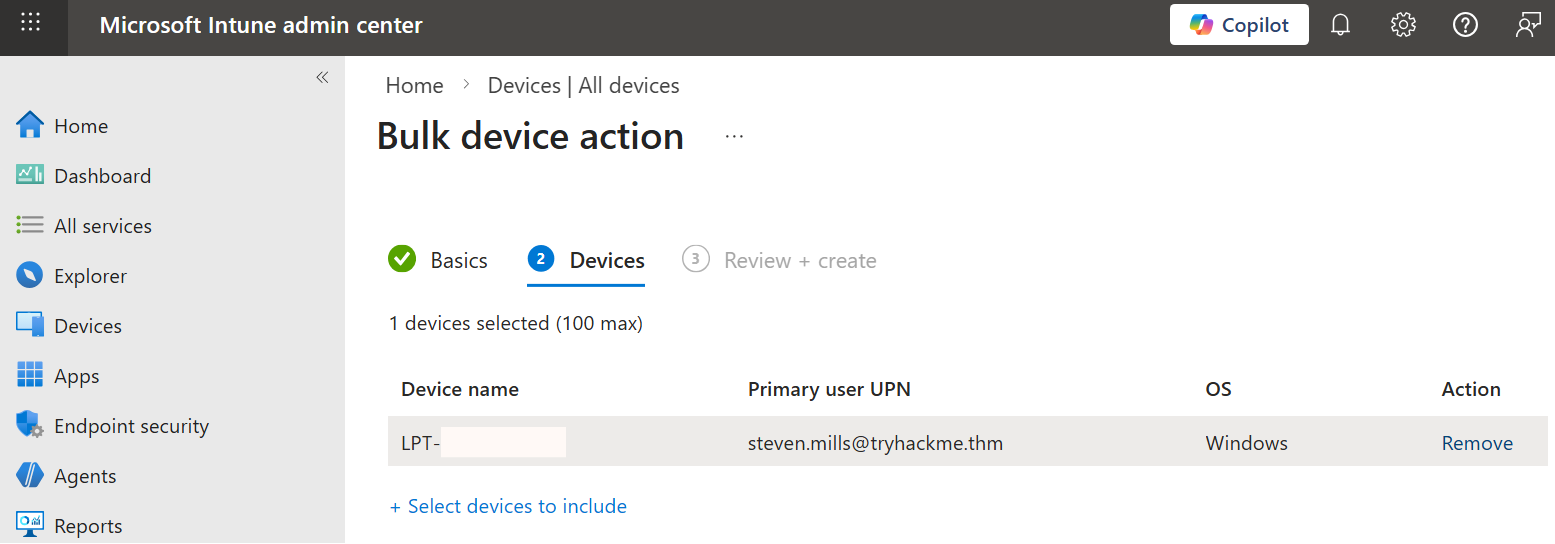
Devices > Bulk device action > Wipe
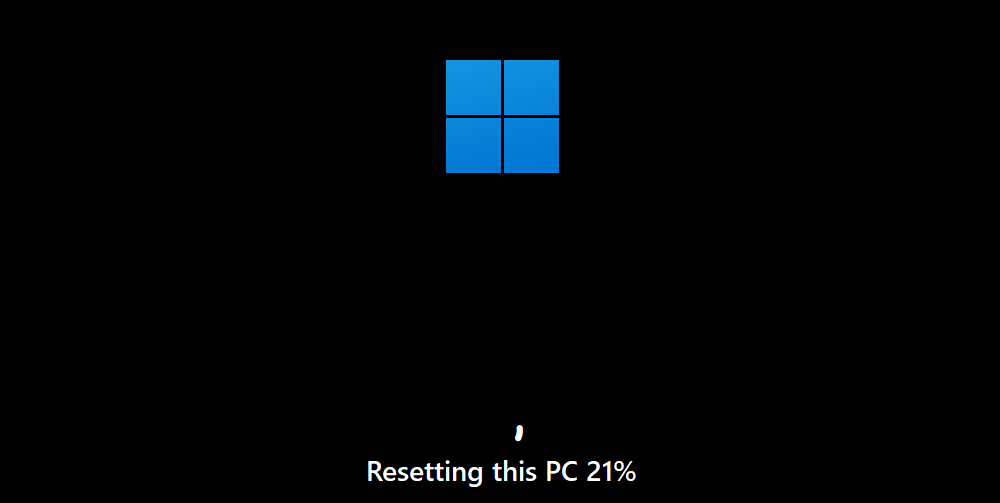
The state of the target laptop after around 1 minute
Monitoring Remote Wipes
First of all, remember that there is no sense in building SIEM rules like "Mass Device Wipe via Intune", because by the time your SOC triages the alert, the wipe will already finish (there is no documented way of aborting the Intune command). Still, let's see a timeline of events leading to wiper attacks:
Intune Login
The first stage is to detect logins to the Intune portal. At a minimum, you should alert on logins of Intune administrators from unmanaged devices, suspicious IPs, or outside of working hours. Regular Entra ID sign-in logs record every Intune login with appDisplayName set to "Microsoft Intune portal extension".
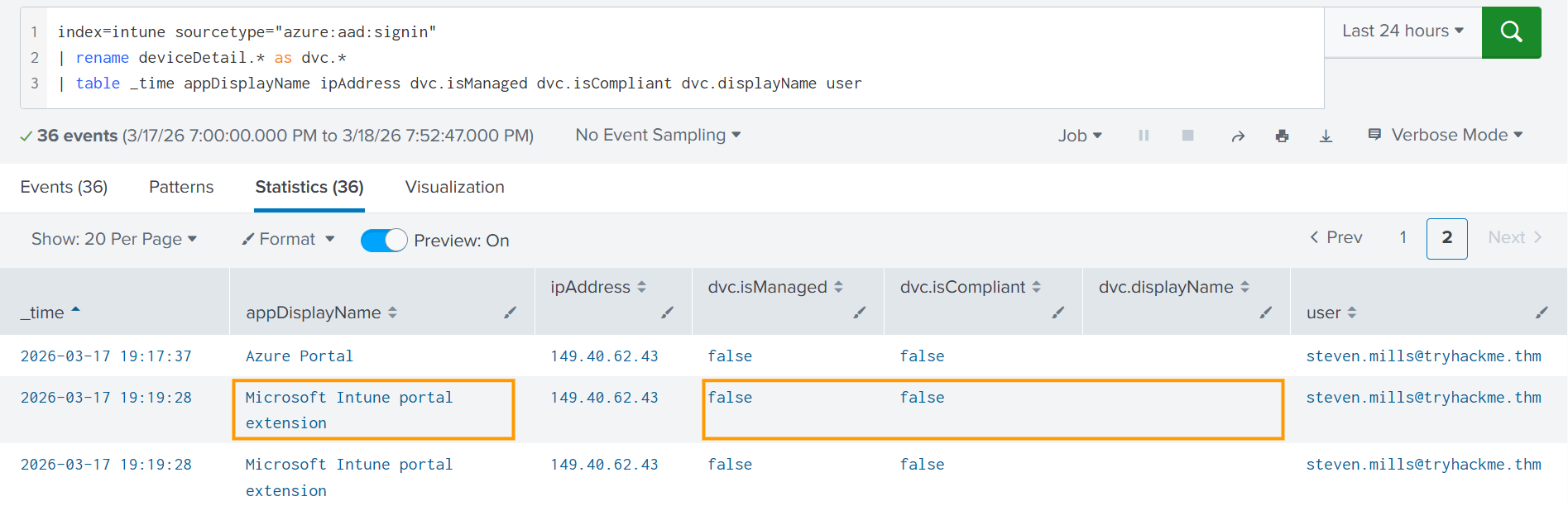
An advanced adversary can also use Intune via Graph API instead of a web browser. You can detect it whenever someone consents to the app with DeviceManagementManagedDevices.* or DeviceManagementConfiguration.* OAuth permissions (Mandiant example(opens in new tab)). But for this room, let's focus on the more common attack path, Intune access via a web browser. You can use the query below to list all Intune console logins from unmanaged devices:
Splunk query to detect Intune logins from unmanaged devices
index=intune sourcetype=azure:aad:signin appDisplayName=Intune deviceDetail.displayName=""
| rename deviceDetail.* as dvc.*
| table _time appDisplayName ipAddress dvc.isManaged dvc.isCompliant dvc.displayName user
Wipe Command
Unfortunately, the next and final point where you can catch Intune abuse is already the remote wipe. Whenever a user initiates a remote command, you see the corresponding logs in Tenant admin > Audit logs Intune panel in real time. Note that, unlike in Entra ID and M365, you can't ingest Intune logs directly into SIEM. You'd need to use the Graph API or route the logs through Azure Event Hub (Documentation(opens in new tab)).
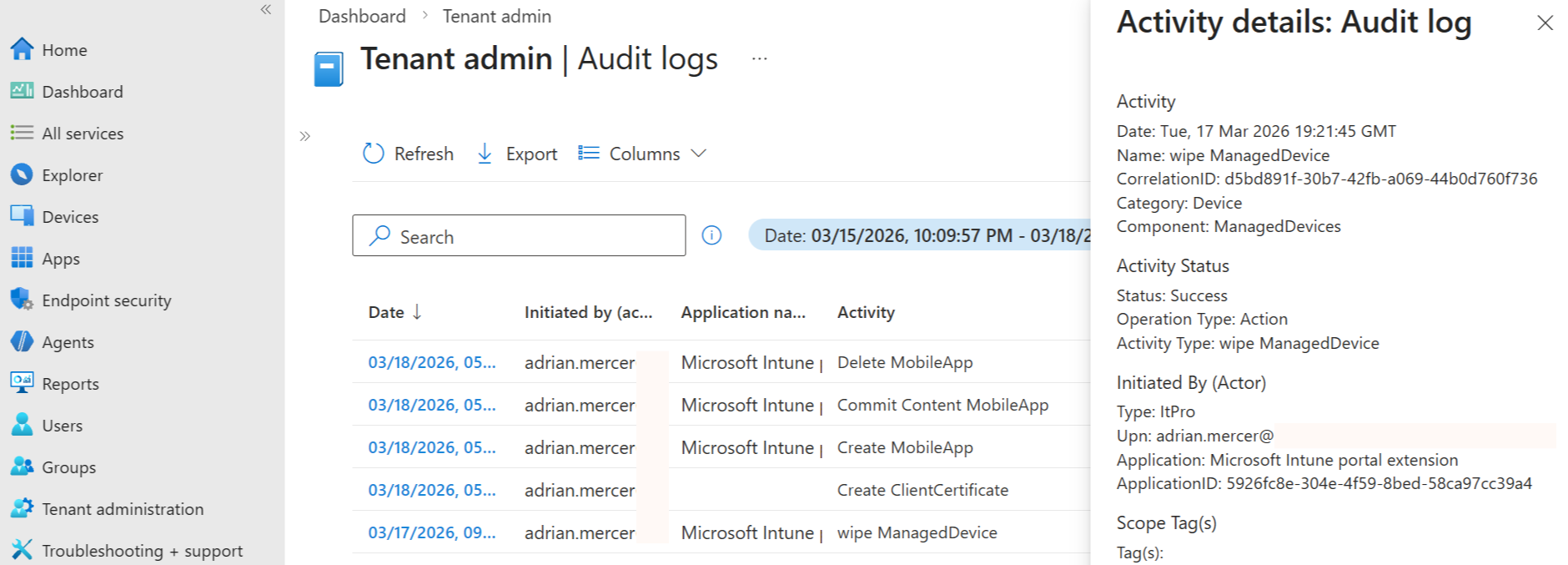
Every log record contains the actor and the activity type. For wipe events, the activityType field is wipe ManagedDevice. You won't see the name of the wiped host, but you will see its device ID. This field can then be correlated with other historical events, such as Add device within Entra ID audit logs, to identify the hostname, hardware ID, and OS version of the wiped device.
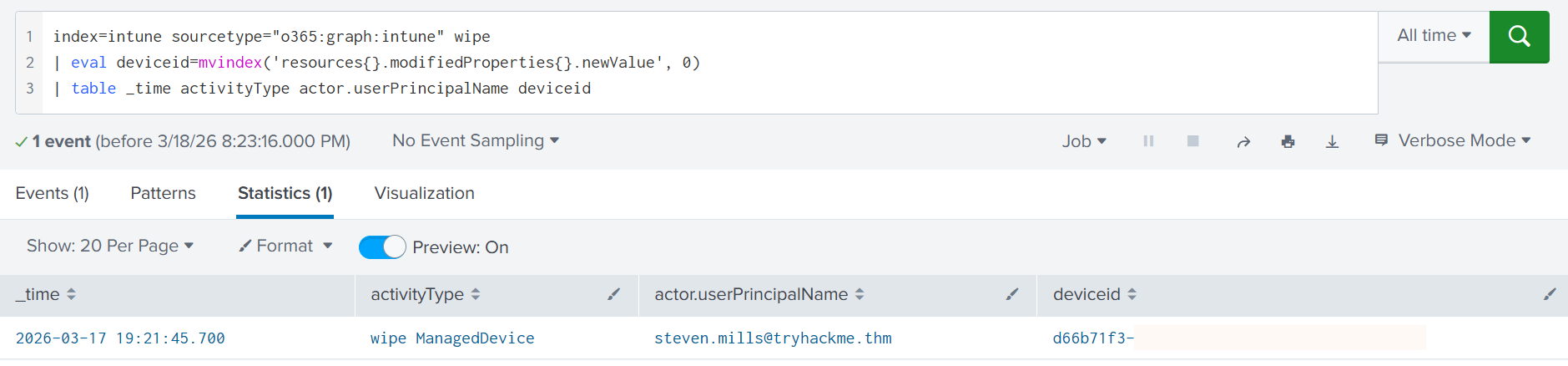
| Splunk query to detect remote wiper (Note that the sourcetype is custom) |
|---|
index=intune sourcetype="o365:graph:intune" wipe
| eval deviceid=mvindex('resources{}.modifiedProperties{}.newValue', 0)
| table _time activityType actor.userPrincipalName deviceid
Practice
In this task, you will investigate a remote wipe of a Windows device in Splunk.
Search for All Time and start from the index=intune SPL query.
Answer the questions below
What is the device ID of the wiped device?
index=intune wipe

What is the hostname of the wiped Windows device?
index=intune d66b71f3-a644-4392-89b2-d97ba5612356

From which IP did the admin perform the remote wipe?
index=intune steven.mills@tryhackme.thm

Intune Risks: Apps & Scripts
Intune Platform Scripts
Remote wipe is not the only weapon available to an attacker with Intune access. The platform also allows administrators to deploy custom scripts (Platform scripts), such as PowerShell, and execute them under the context of the logged-in user or the local SYSTEM account. The Platform scripts feature lets IT administrators push one-time commands in bulk, useful for tasks that aren't covered by built-in templates and configuration policies:
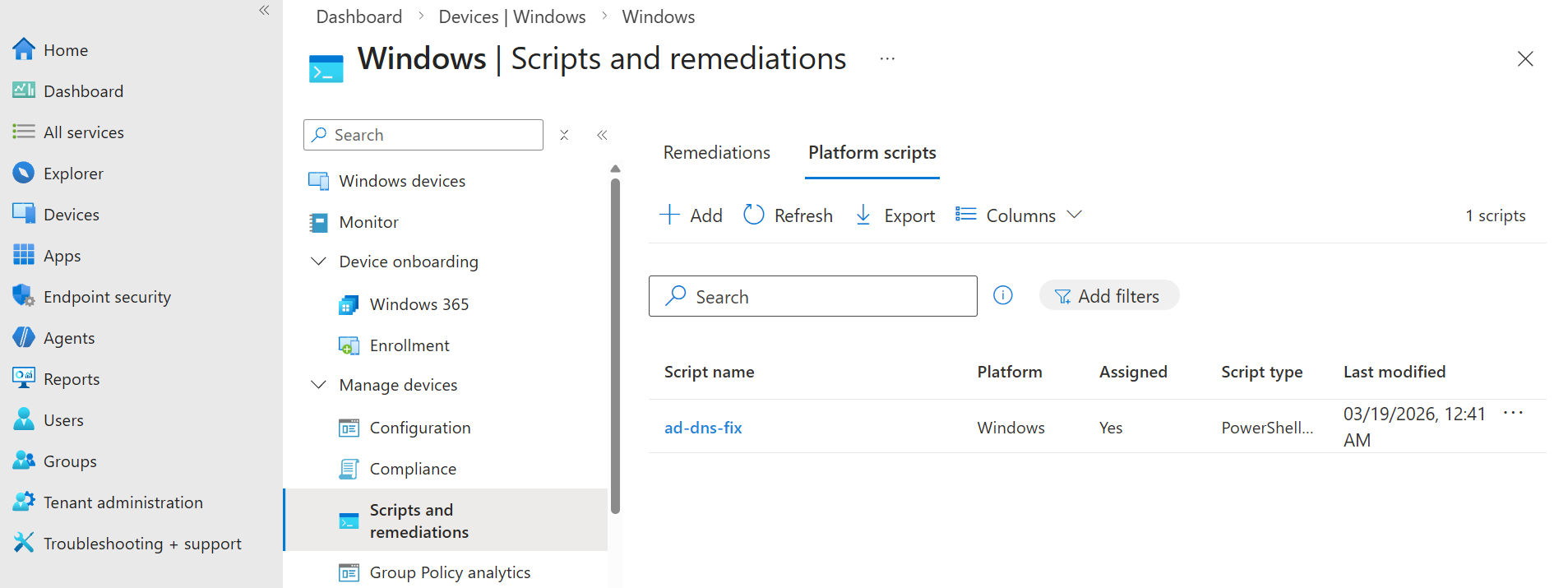
The Platform scripts feature might also be interesting for threat actors, as it is easy to write a PowerShell data stealer or deploy it on all devices. Check out this(opens in new tab) SANS presentation for a deep dive and a real-world attack example. Also, note that there are no safeguards against malicious commands and no email notification to the IT team, so vigilant log monitoring is the way to go!
SIEM Artifacts
Script lifecycle consists of four stages: Script is created in the Intune console, assigned to the selected devices, executed on the devices (not logged), and deleted from Intune by IT at some point. You can see these stages in SIEM by starting from this query: activityType=*DeviceManagementScript*.
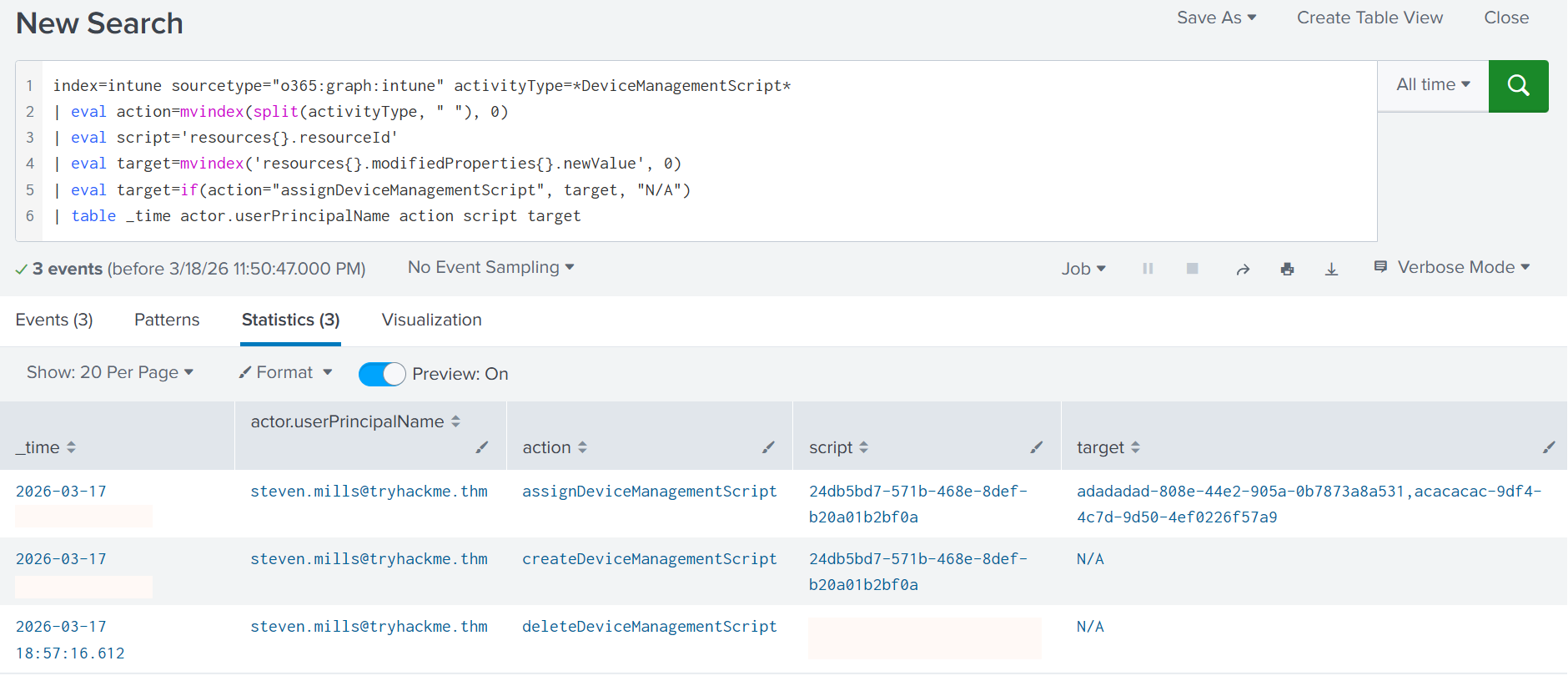
The image above shows that some script was deleted, another one was created instead, and then assigned to two targets. Note that some target IDs are unique to your environment (e.g. group ID or host ID), while others are well-known. For example, adadadad-808e-44e2-905a-0b7873a8a531 ID means All Devices. You can always try googling or retrohunting the IDs to find the readable name of the targets.
| Splunk query to detect platform scripts (Note that the sourcetype is custom) |
|---|
index=intune sourcetype="o365:graph:intune" activityType=*DeviceManagementScript*
| eval action=mvindex(split(activityType, " "), 0)
| eval script='resources{}.resourceId'
| eval target=mvindex('resources{}.modifiedProperties{}.newValue', 0)
| eval target=if(action="assignDeviceManagementScript", target, "N/A")
| table _time actor.userPrincipalName action script target
Host Artifacts
As mentioned in Task 2, all MDMs are agent-based, regardless of how the marketing frames it. On Windows, Intune executes Platform Scripts through a process tree below, which can be monitored via Security event 4688, or better, Sysmon event 1. You will see a similar chain on Linux and macOS, just with platform-specific process images instead of the Windows ones:
Process Tree: Intune Platform Script
C:\Program Files (x86)\Microsoft Intune Management Extension\Microsoft.Management.Services.IntuneWindowsAgent.exe
└── C:\Program Files (x86)\Microsoft Intune Management Extension\AgentExecutor.exe
    └── ...\powershell.exe" -NoProfile -executionPolicy bypass -file `
        "C:\Program Files (x86)\Microsoft Intune Management Extension\Policies\Scripts\<random-uuid>.ps1
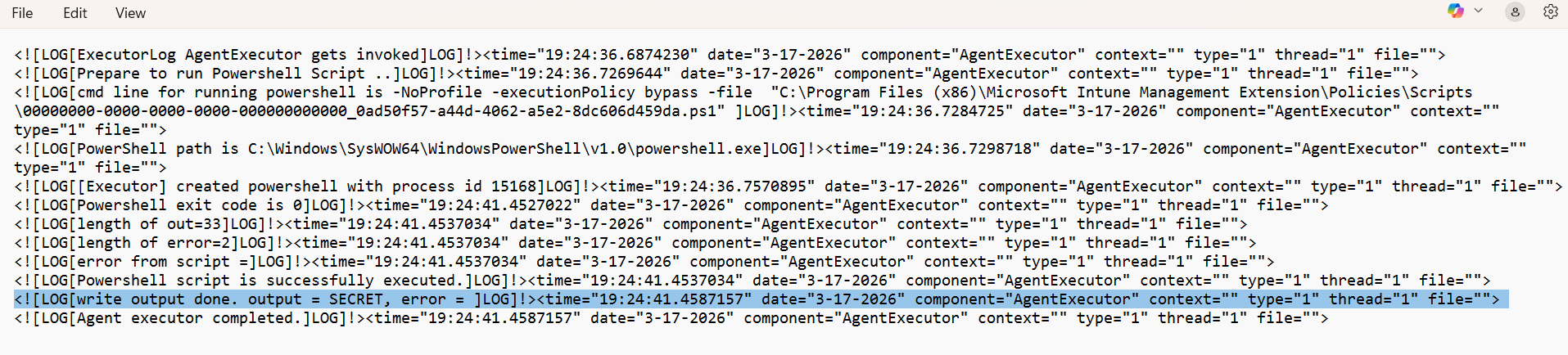
After execution, the script is automatically removed from the staging directory, but traces remain in debug logs. Execution output and metadata are written to the local Intune logfile, specifically AgentExecutor.log under C:\ProgramData\Microsoft\IntuneManagementExtension\Logs. From a forensic standpoint, this file is extremely valuable, as it captures:
After execution, the script is automatically removed from the staging directory, but traces remain in debug logs. Execution output and metadata are written to the local Intune logfile, specifically AgentExecutor.log under C:\ProgramData\Microsoft\IntuneManagementExtension\Logs. From a forensic standpoint, this file is extremely valuable, as it captures:
Time of the script execution | In my attempts, the delay between script creation and execution was approx. 30 minutes. |
Duration of the script run | You will see separate events once the script is deployed, starts, and finishes execution. |
Plaintext output or error | See the screenshot below; there was no error in the script, and the output is "SECRET" |
Intune App Deployment
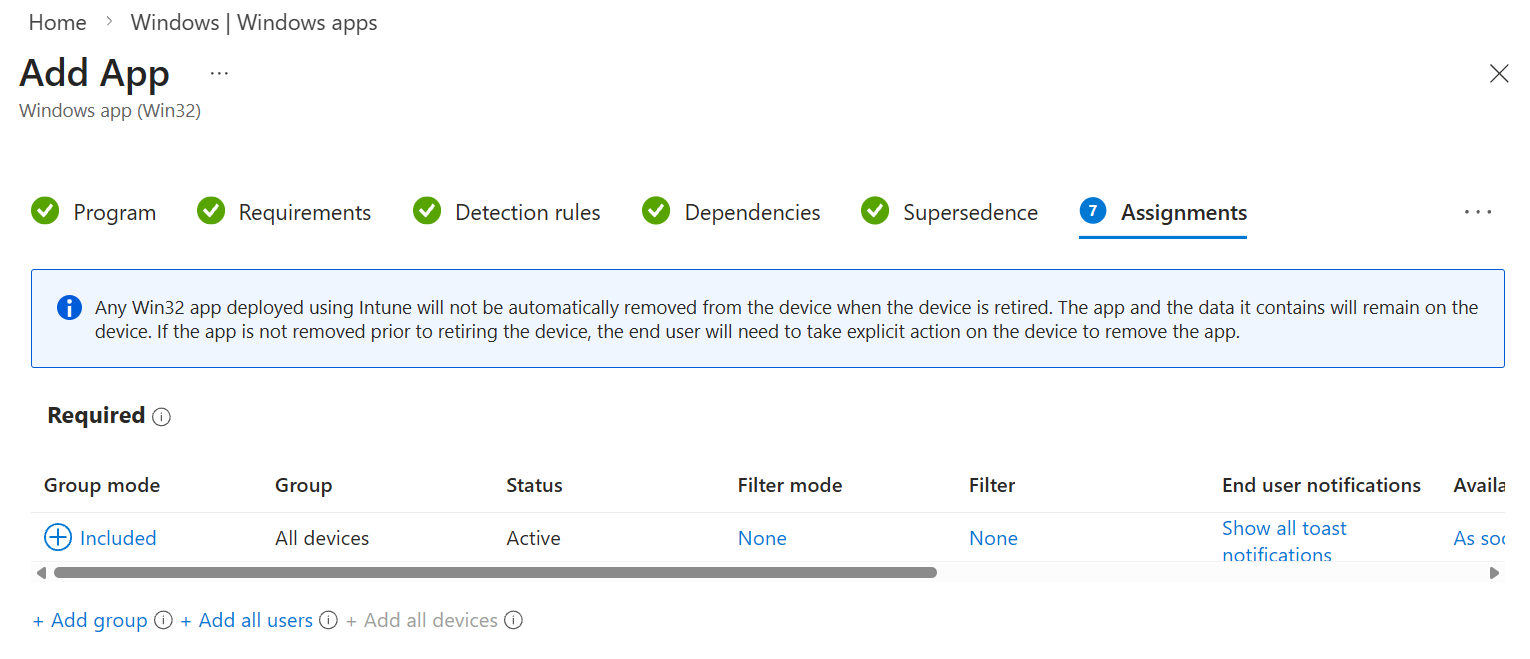
A more advanced attack scenario would be to package malware inside an app and compile it into the .intunewin format using a Microsoft tool(opens in new tab), or classic .dmg/.pkg for MacOS. Intune can then be used to deploy the compiled application on the selected devices with the highest privileges, even if the app isn't signed by a trusted authority. For threat actors, this opens a whole range of possibilities: from ransomware and cryptocurrency miner deployment to data exfiltration at scale.
| Splunk query to detect application events (Note that the sourcetype is custom) |
|---|
index=intune sourcetype="o365:graph:intune" activityType=*MobileApp*
Practice
In this task, you will investigate a script deployment on PC-096.
Search for All Time and start from the index=intune SPL query.
Answer the questions below
What is the ID (resourceId) of the deleted Intune script?
index=intune delete

When was the other script deployed to the targets?
Answer Example: 2026-01-15 12:30:45
index=intune DeviceManagementScript

What is the output of the deployed script?
Note: Use the logs from the PC-096 device.
index=intune THM

Intune Security Hardening
Lessons Learned (Stryker Case)
The wiper attack covered in Task 4 was devastating in impact yet trivial to execute. All the attackers needed were valid credentials for a single Stryker employee with administrative access to the Intune portal. While unconfirmed, Internet users have already found(opens in new tab) compromised Stryker admin credentials in the wild, making it believable that the adversaries simply used the credentials via AiTM phishing or from infostealer dumps. If you don't want to repeat the same mistake:
| Protect your administrator accounts! |
|---|
Protecting Admin Accounts
The first line of defense against a mass wipe event is controlling access to privileged accounts: Global Administrators, Intune Administrators, and any other role that grants wipe permissions. You have already learned how to monitor admin accounts in the Entra ID monitoring room, but let's revisit the key suggestions:
Use Conditional Access to prevent logins from unexpected devices and countries
Use Identity Protection to alert on risky sign-ins, or auto-disable high-risk accounts
Use Entra ID sign-in and audit logs to alert on unreal travels and other anomalies
Have less than 5 Global Administrators, no matter the company size
For all privileged accounts, enforce passkeys or hardware MFA
Use Privileged Identity Management (PIM(opens in new tab)) for administrative tasks
Intune Security Features
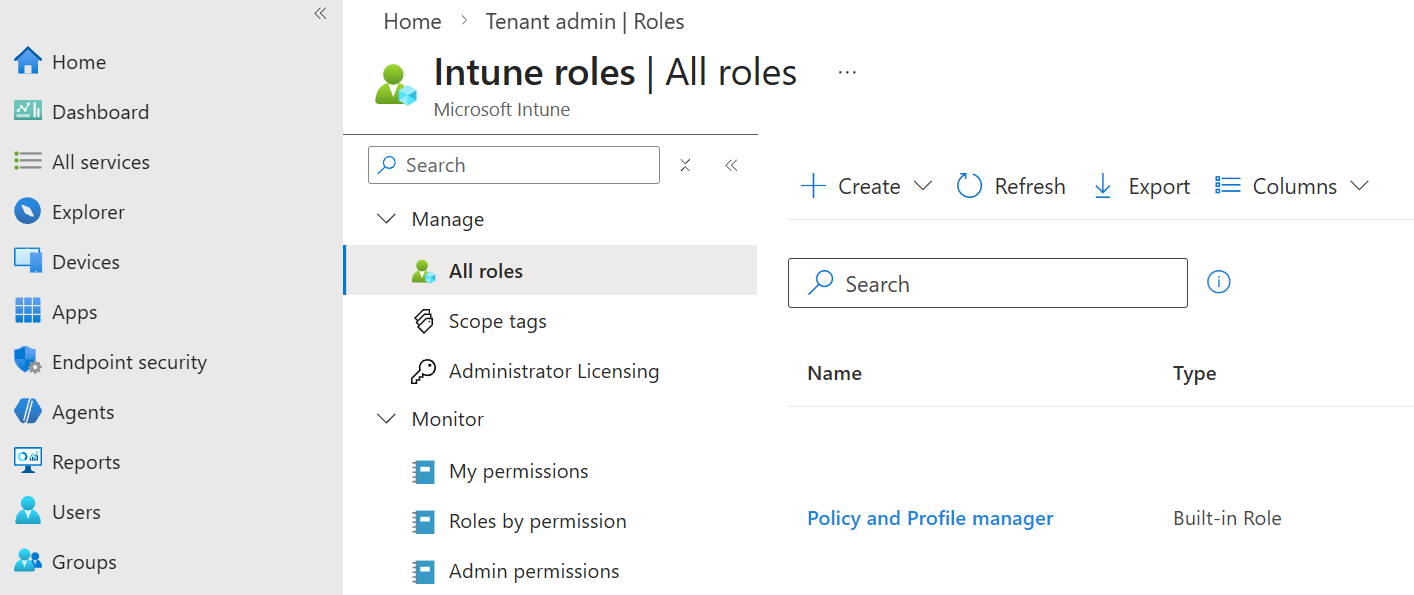
No matter how mature your SOC is, incidents happen, and accounts get compromised. A single control is never enough. To limit the impact when a breach does occur, you should prefer custom Intune roles over Intune's default ones - default roles are broad, and that breadth might be abused by an attacker. Consider the following company structure:
The security team (4 people) runs a remote wipe on stolen devices around once a year
The global IT (6 people) occasionally uses Intune platform scripts, around once a month
The EU helpdesk (10 people) often installs apps and changes policies across EU-based devices
The US helpdesk (10 people) has the same workflow, but works exclusively with US-based devices
Each of these tasks requires a distinct set of Intune privileges, so companies often take the path of least resistance, assigning the Intune Administrator role to every IT and helpdesk member. As a result, they maintain 30 accounts, each capable of initiating a mass wipe. A far more secure alternative is to define four custom roles:
Security: Allowed to wipe devices
Global IT: Allowed to run platform scripts
Helpdesk Operator: Allowed to install apps
Helpdesk Admin: Installs apps and changes policies
Scope Tags
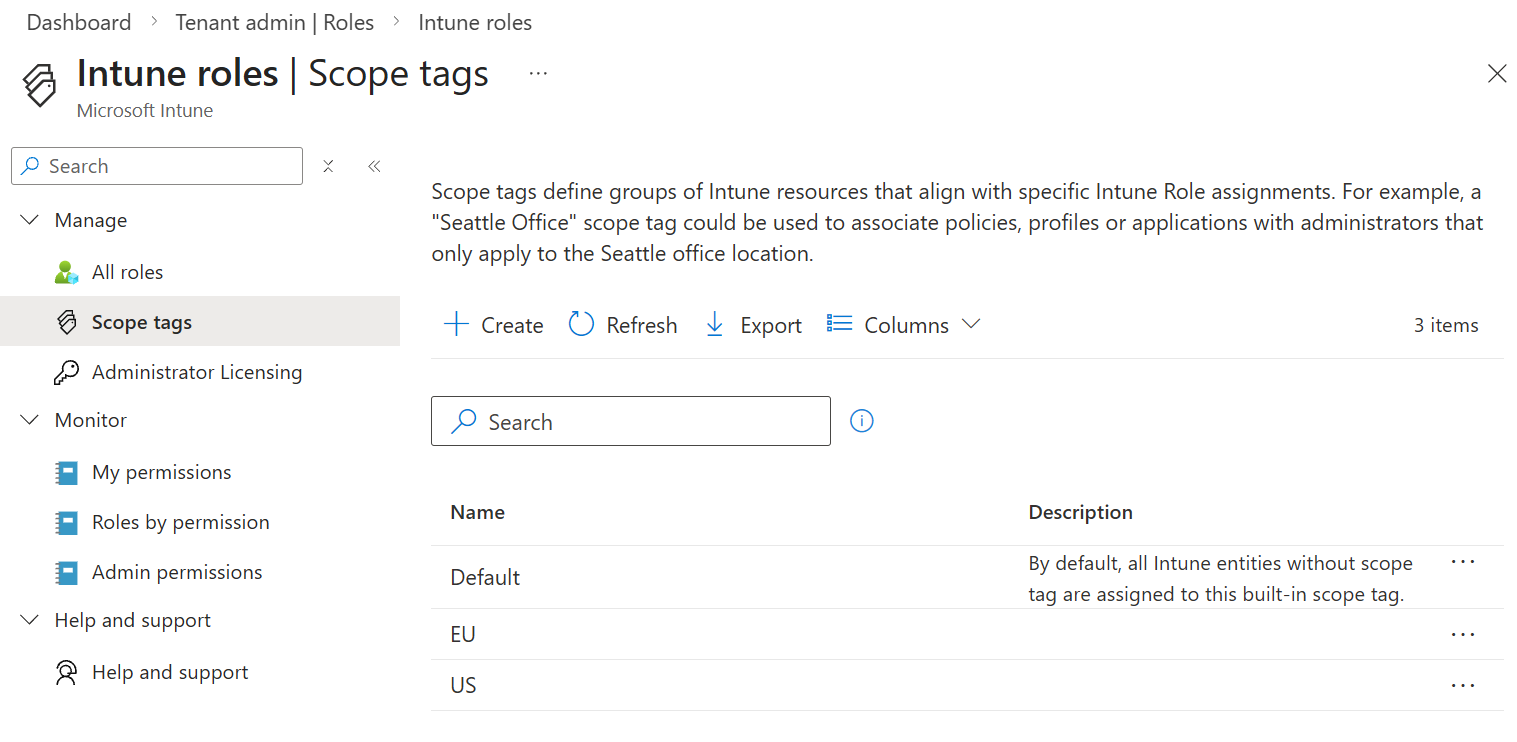
Privileges can be reduced further through scope tags, an Intune feature that labels specific resources and restricts access based on those labels. In our scenario, since the EU helpdesk operates exclusively with EU-based hosts and the US helpdesk with US-based ones, workstations can be tagged by region. The Helpdesk Operator and Helpdesk Admin roles are then split into four groups: EU and US variants of each, each scoped to only the assets they need to manage.
Multi Admin Approval
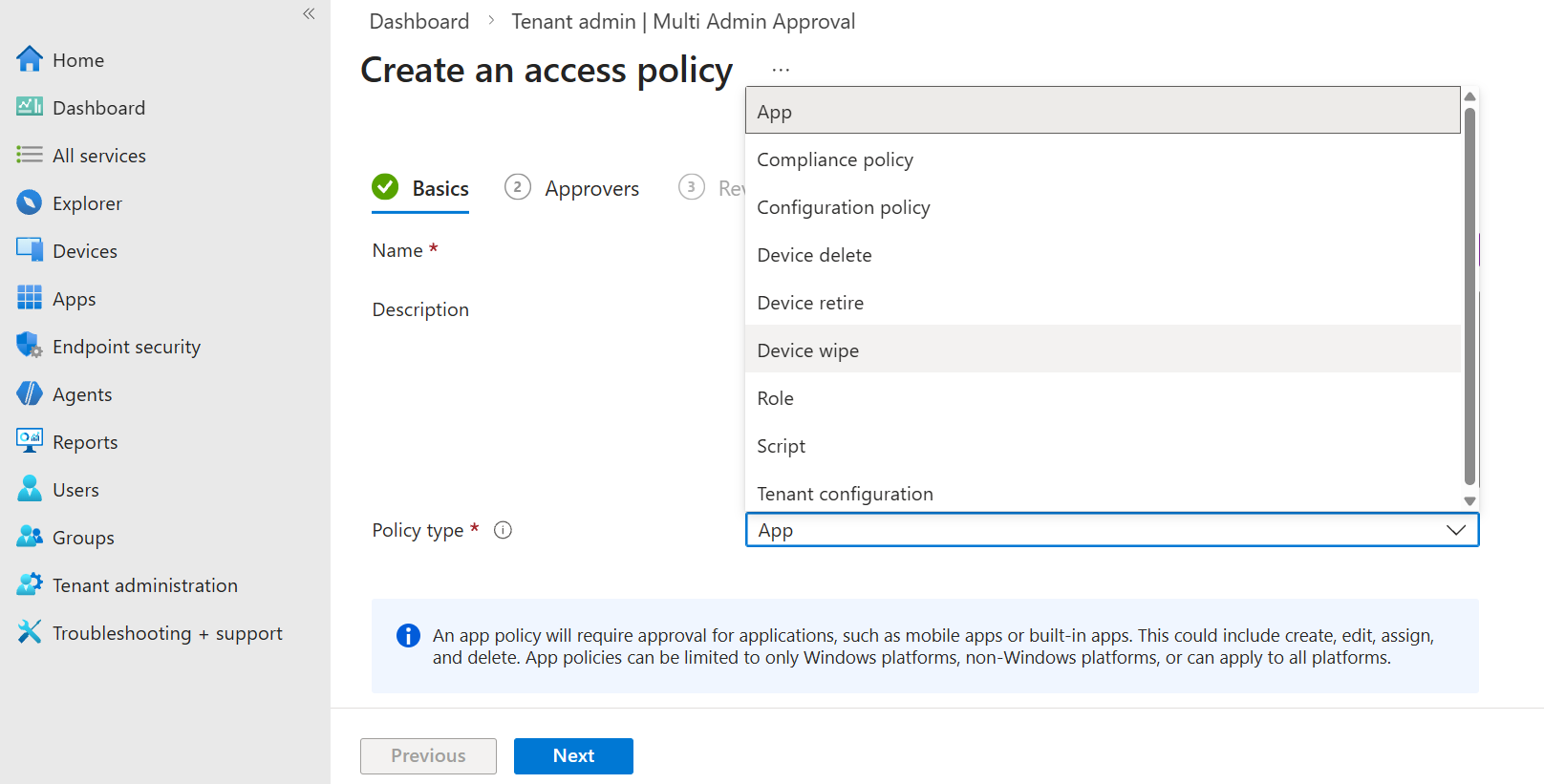
Lastly, for rare and critical operations such as platform scripts and remote wipes, you can set up multi admin approval. In our scenario, it might be a good idea for the IT team to approve device wipes, and for the Security team to approve platform scripts. Just make sure there is only one or two Global Admins who can edit the approval policies, not the whole IT!
Answer the questions below
Would you rather use a single shared Intune role in your company (A),
or create multiple focused roles for each team or job position (B)? B
What Intune feature requires multiple users to approve a dangerous action? Multi Admin Approval
Conclusion
Microsoft Intune MDM is vital for IT and security teams to centralize device management and remotely apply security policies. In the wrong hands, however, it can become a dangerous attack tool, similar to other tools such as EDR and RMM. In this room, you have explored how to monitor Intune and how to protect it against core risks. Hope you enjoyed the room!