Inside a Computer System (TryHackMe)

In this write-up, I'll walk through my experience completing the Inside a Computer System room on TryHackMe. This is the first room in the pre-security path, providing essential foundational knowledge about computer hardware and the boot process. The room uses helpful analogies (comparing computer components to the human body) to make the concepts easier to understand.
The main learning objectives include:
Understanding the function of core computer components (CPU, RAM, storage, etc.)
Learning how components connect via the motherboard
Understanding the boot process from pressing the power button to loading the OS
Completing hands-on component placement exercises
Introduction
Welcome to the first room of the pre-security path! Before we can talk about security, we need to first understand what we are securing. Consider the following analogy:
Before protecting a castle, we need to know the layout of the castle: where the treasure room, the food storage, and the commander's quarters are. We need to know who enters and how they enter the castle. Also important is who can enter these rooms and take or put treasure or food, for example.
The bottom line is: Trying to defend what you don't understand is like defending a castle you have never seen.
In this room, we will explore our "castle". We will cover what a computer is, its building blocks, and how they are connected. After completing this room, you will have a general idea of how the components of a computer system interact with each other to provide services to its users. Don't worry about too much technical jargon or depth; we'll take this nice and easy and focus on the fundamentals.
Learning Objectives
- After completing this room, you will be able to recognize and understand the functions of various computing components.
Prerequisites
Motivated to step into the digital world of computing
Inside a Computer System
Nearly every computer system that you can think of includes, in one way or another, the same building blocks. Each part has its own job, and together they make the computer work. Let's have a look at each of these building blocks.

Throughout this task, we will use a very relatable analogy: the human body. The image above shows the different PC components and its human counterpart. To learn more about each component, open the "Static Site" by clicking on the green "View Site" button below. The static site should open in split-screen view.
Answer the questions below
Give in the flag you received after completing the exercise on the static site.

Motherboard
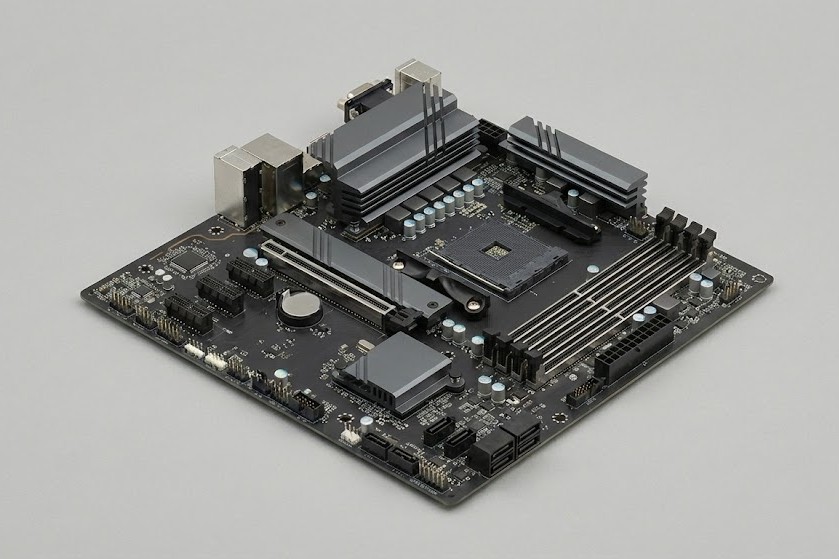
The motherboard is like our body's skeleton and nervous system. It holds all the different components in place and connects them. On a typical desktop motherboard, you'll see different connectors that house all your components - CPU socket, RAM slots, expansion slots, and various ports. Every other component plugs into or connects through the motherboard. The image below shows a typical desktop motherboard.
CPU
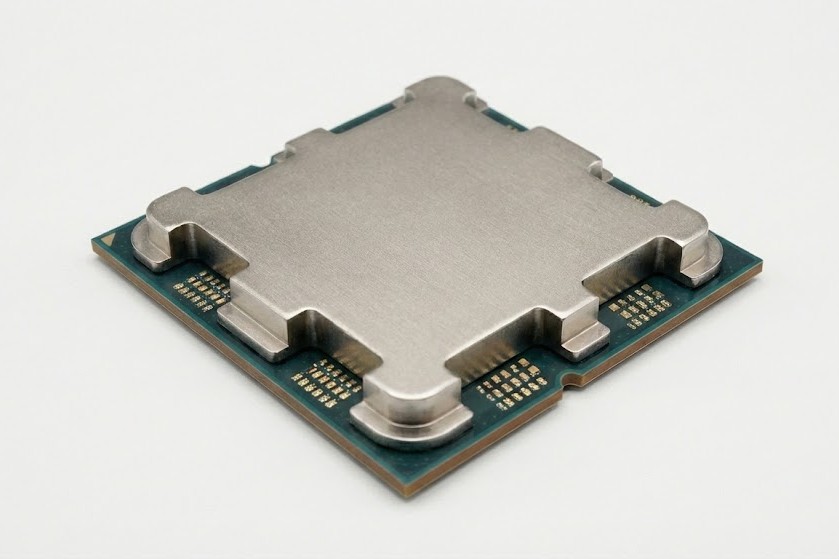
The CPU (Central Processing Unit), often called the processor, is comparable to a part of our brain. Just like our brain continuously executes instructions (add numbers, pour milk in a bowl, and so on), a CPU does the same for a computer. Modern CPUs have multiple cores that handle instructions in parallel. The CPU connects to the motherboard via the CPU socket. The image below shows a typical CPU for a desktop.
RAM
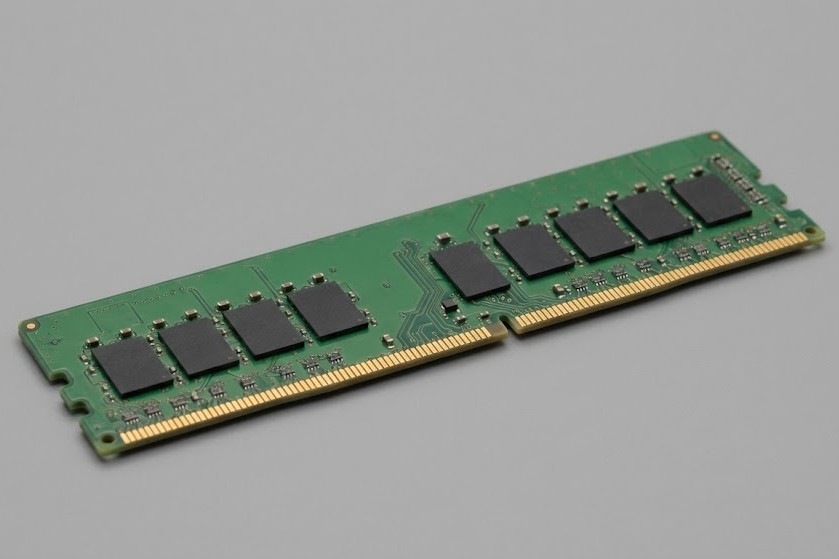
RAM (Random Access Memory) is comparable to our brain's short-term or working memory. When working on a task, we keep relevant information in mind temporarily. RAM does the same - it holds data that the CPU needs quick access to. RAM is volatile: when power is lost, all contents are gone. Modern RAM modules use technologies like DDR5 or DDR6 for increased speed and performance. The image below shows a RAM module for a desktop.
Storage (SSD/HDD)
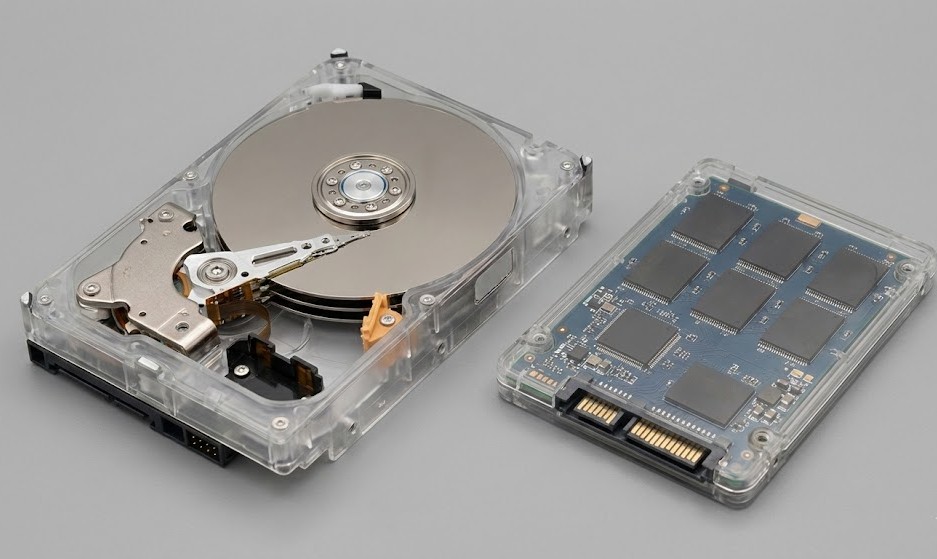
SSDs and HDDs are storage devices, comparable to our long-term memory. Just like fond memories are remembered permanently, data is saved long-term on storage devices. HDDs use older technology with moving parts, limiting performance. SSDs have no moving parts and use memory chips, allowing much faster speeds. HDDs remain popular for their large capacity at low cost. Storage connects via SATA cables or PCI Express slots. The image below shows an HDD on the left-hand side and an SSD on the right-hand side.
Network Adapter
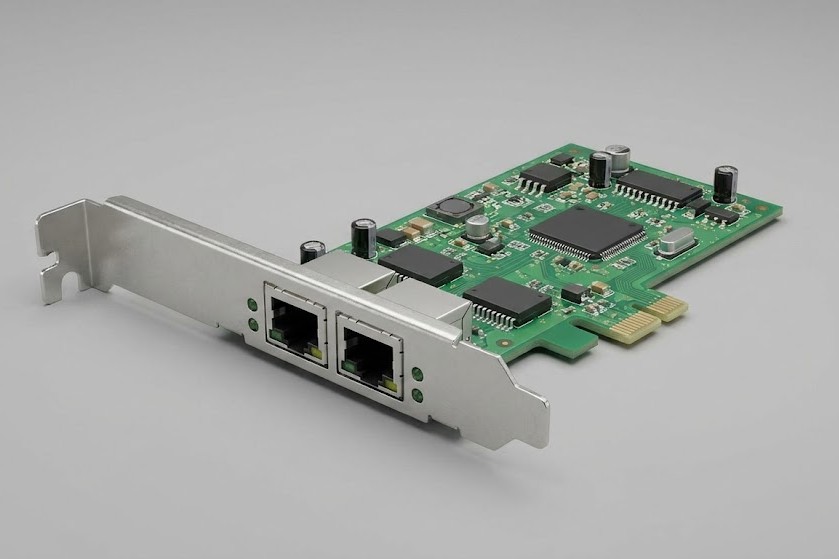
Just like we use our vocal cords to communicate with our environment, a network adapter lets computers communicate with other systems. Network adapters come in wireless and wired variants. Often they're embedded in the motherboard, but they can also be added as expansion cards. Network cards typically connect via PCI Express ports. The image below shows a plugin network card, typically used in desktops.
Power Supply (PSU)
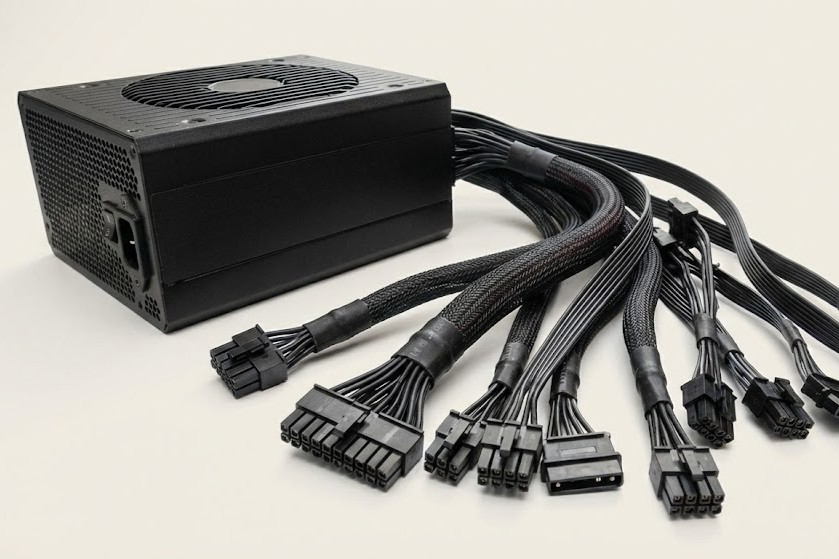
Every system needs power. Just as our heart pumps blood to our organs, a PSU supplies energy to all system components. The PSU is essential and requires careful consideration - if components need more power than the PSU can provide, the system will fail. The PSU takes power from an outlet and distributes it via various connectors like the main motherboard connector and Molex connectors. The image below shows a PSU used in desktops.
Graphics Card
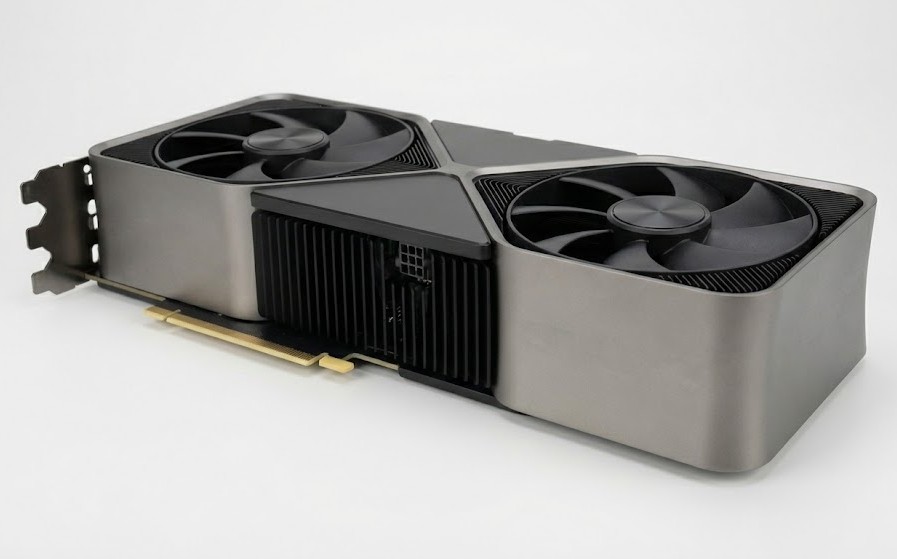
The graphics card is comparable to the visual cortex of our brain. Our eyes pick up information and the visual cortex processes it into images. Similarly, the graphics card receives information from the operating system and programs, then outputs processed visual data to a monitor. Graphics cards connect to PCI Express slots on the motherboard. The image below shows a modern day graphics card used in desktops.
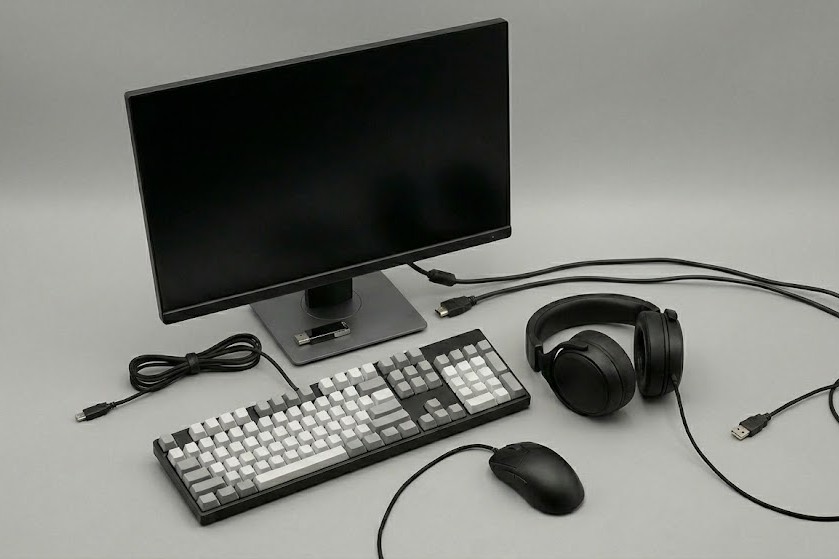
Input/Output
Just like we have senses to obtain information for our brains to process and then act on, computers have input and output devices. Input devices include keyboards, microphones, mice, and scanners. Output devices include monitors, printers, and speakers. Common connectors for these peripherals include USB, HDMI, and DisplayPort. The image below shows a few of the basic I/O devicesbasic
It was a challenge for me to arrange the Inside of the computer challenge. I tried for some time, then reset the challenge, and it happened that step two allows to hover for hints and that was of help:


What Happens When You Press the Start Button?
Now that the core components are installed in the computer system, it is time to boot up the system. We can compare this to how we wake up in the morning and do a quick check to see if everything is working. Only when everything is OK, do we get up and start our day. The image below shows the steps a computer system goes through before it shows you a working interface (in the form of an Operating System).

Step 1: Press the Power Button
When we press the power button on our computer system, a signal is sent to the PSU to allow power to flow. Imagine our body being powered off when we sleep. Once we wake up and receive oxygen, our body starts pumping blood and boots up.
Step 2: Firmware starts
Continuing our analogy from step 1, once the body has started up, our core components are up and running, but our brain is not yet conscious. Like our bodies, a computer system contains firmware that allows all its components to start up. The central system that manages this is called the Unified Extensible Firmware Interface (UEFI). Note: We will often see the term BIOS mentioned instead of UEFI. BIOS does the same as UEFI, but has mainly been replaced by UEFI
Step 3: Power-On Self Test
Now that our body is up and running, it is time to test if everything is functioning as it should. If something isn't, there will be some alarm signals. One of the routines that the UEFI loads is the Power-On Self Test, which tests if every required component is present, configured correctly, and functioning.
Step 4: Select Boot Device
Once our body is up and running, configured correctly and fully functional, our system searches for the location of our bootup routine to start our consciousness. In our computer system the UEFI holds an ordered list which prioritizes on which device to look first for the boot up routine for the Operating System.
Step 5: Initiate Bootloader
Now that our system knows the part of our brain where our consciousness is located, it initiates the "load routine" to start it. Our computer systems follow a similar process: On the selected boot device, the bootloader is initiated. This bootloader transfers the Operating System from the selected boot device to the Random Access Memory. Once the OS is transferred, the UEFI gives control over the different components to the OS.
Now that we know how a computer system boots, let's have a little exercise. Open the static site in this task by clicking the green "Static Site" button and follow the instructions to answer the question below.
Answer the questions below
What is the flag that you received after completing the exercise?


Conclusion
We have covered the core components of a computer system and how it boots up. At the moment, you won't realize this, but further on, when learning cyber security concepts, you will often need to recall the function of each of these core components and how they interact with each other. The boot process is a very important concept later on, as it is sometimes targeted by hackers.
Now that we know the insides of a computer, the next step is to see how the different combinations and specializations of these components lead to diverse types of computer systems. Continue to the next room Computer Types (coming soon) to find out.
This room provided an excellent foundation for understanding computer hardware components and their interactions. The human body analogy made complex concepts accessible, and the interactive component placement exercise reinforced the learning through hands-on practice.
Key Takeaways:
The motherboard serves as the central connection point for all components
Each component has a specific role in the system's overall functionality
Understanding the boot process (UEFI/BIOS → POST → Boot Device → Bootloader → OS) is crucial for cybersecurity
Proper component placement and connection is essential for system functionality
The component placement challenge was initially tricky, but using the hover hints on the second attempt helped clarify the correct positions. This foundational knowledge will be valuable as I progress through more advanced security concepts in the TryHackMe learning path.