Monitoring AWS Logins (TryHackMe)

Monitoring AWS Logins room teaches you to:
Monitor AWS authentication - who's logging in, from where, and with what credentials
Understand IAM components - users, roles, policies, and access keys
Detect real-world attacks - phishing, leaked keys, role abuse
Use CloudTrail + Splunk - filter logs and investigate incidents
Key takeaway: Authentication monitoring is the first line of defense in cloud security.
Introduction
Monitoring the control plane is the first step in securing your cloud environment. And within the control plane, authentication is the first area to focus on: who is logging in to AWS, from where, and which credentials they are using. This room walks you through the most common attacks against AWS identities and the defenses used to protect them.
Learning Objectives
Understand the concept of IAM, access keys, roles, and policies
Learn how CloudTrail logs different methods of logins in AWS
Explore real-world cloud breaches and learn how to avoid them
Practice the acquired knowledge in a series of mini-challenges
Prerequisites
Preferably, Introduction to AWS module
Preferably, SOC Level 1 Analyst path
IAM and User Credentials
IAM and AWS Credentials
AWS Identity and Access Management (IAM) is a service, or rather a core AWS feature, that allows you to create cloud users, define policies and permissions, manage access to AWS resources, and much more. In this task, you will explore three methods to authenticate into AWS with IAM credentials, but first, remember its key components:
IAM User: A person or application that needs AWS access. Just like the Active Directory user
IAM Group: A collection of IAM Users, such as "EU DevOps Team" or "IT Support Contractors"
IAM Role: An AWS identity that can be assumed by users or AWS services, more on it soon
IAM Policy: A JSON document that defines permissions attached to users, groups, or roles
AWS Management Console
How do you securely access AWS resources via a web browser? First, you don't want to use the root user every time, so you create a new IAM user (e.g. steven.carter). Then, you attach an IAM policy to the user (e.g. AdministratorAccess). Finally, you open the AWS website, enter your account ID, username, password, and, hopefully, MFA. Once you log in, you will appear in a Management Console, from which you can launch VMs and manage your cloud account.

IAM Access Keys
If you need to access AWS resources programmatically, such as in your Python code (SDK) or through the Bash terminal (CLI), you would need AWS access keys. Each user can have up to two access keys, and each access key grants you the same permissions as you'd have in the Management Console. The key consists of two parts: a safe-to-share access key ID and a confidential access key secret. Refer to the examples below.
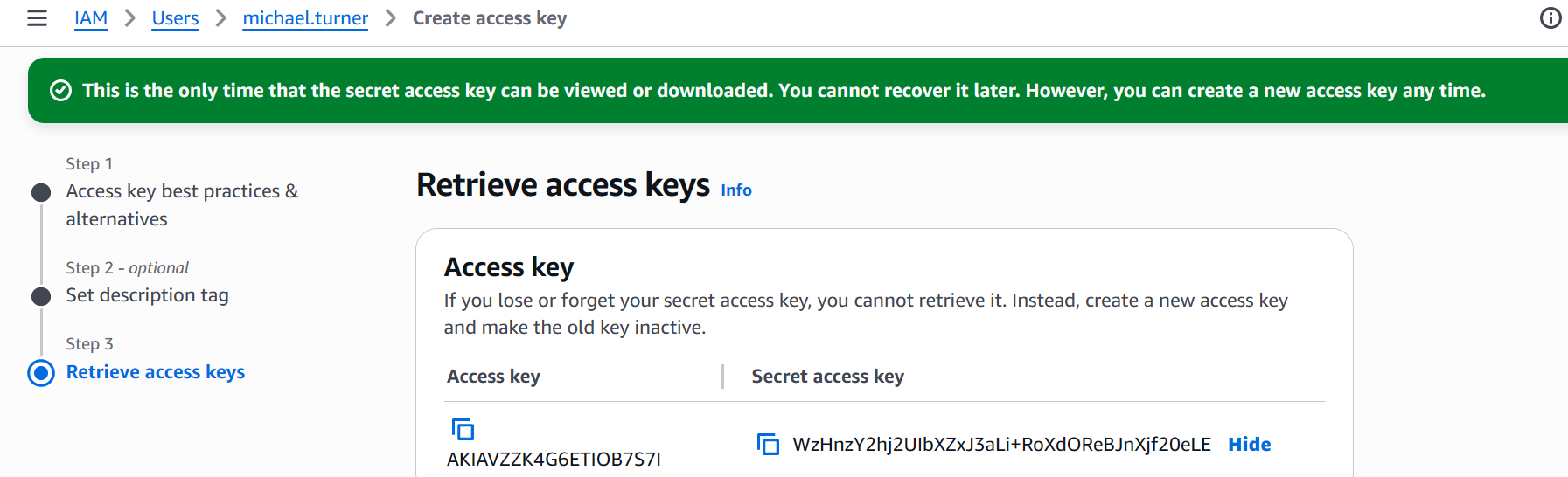
Access Key Usage inAWSCLI
admin@it-srv:~$ aws configure                           # Setting the access key
AWS Access Key ID [None]: AKIAVZZK4G6ETIOB7S7I
AWS Secret Access Key [None]: WzHnzY2hj2UI[...]
admin@it-srv:~$ aws s3 ls                               # Listing all S3 buckets
2025-12-09 20:30:30 aws-cloudtrail-logs
2024-11-24 17:41:10 thm-db-backups
admin@it-srv:~$ aws s3 ls thm-db-backups --recursive    # Viewing the S3 bucket
2024-11-25 22:26:37             0   prod/
2025-12-17 01:07:14        790984   prod/backup.meta
2025-12-17 02:08:56   12089789743   prod/backup.tar.gz
IAM Roles and Policies
Imagine you have a few EC2 instances that resize uploaded images in the user-avatars S3 bucket. Would you create a new IAM service user, assign the correct permissions, generate a long-term access key, and hardcode it in EC2 in your application's source code? No, since it's tedious and insecure. Instead, you can create a UserAvatarsProcessor role, define its policy, and link it to the EC2 instances. No passwords or keys required! See an example in the image below:

The roles are extensively used by AWS services to perform actions on your behalf, allow SSO or cross-account access, and other common scenarios. With roles, you don't worry about credentials, as everything is controlled by policies and trust policies. Behind the scenes, AWS generates short-lived STS credentials whenever you assume a role. While STS tokens can still be stolen (for example, from a compromised workload), doing so is much harder than compromising long-lived access keys. Below are the key benefits of using IAM roles:
| #1 | STS tokens are temporary and valid for a few hours, unlike the permanent passwords and access keys |
| #2 | Roles and STS tokens aren't hardcoded in files by design, reducing the risk of credential leaks (e.g. from GitHub) |
| #3 | Roles can be restricted to specific IP addresses, resources, or identities, which allows for granular access control |
Other Sign-In Methods
There are also more advanced sign-in methods, such as via Google Workspace SSO, Active Directory, Amazon Cognito, and IAM Identity Center. Each introduces its own security risks and requires specific detection. However, at a high level, all of them rely on temporary STS credentials and the same role assumption mechanism you already read about. For more details and future reference, check out this AWS blog post.
Answer the questions below
What type of credential is used to access AWS resources via CLI/SDK?
Access KeyWhich IAM identity type allows you to gain AWS permissions temporarily?
IAM Role
Monitoring Console Logins
Monitoring Console Logins
Brute-forcing in AWS is rare, and most users are protected with MFA anyway. So is it worth monitoring logins to the Management Console? Absolutely! Attackers often run phishing campaigns to lure victims into entering their AWS credentials into fake login forms, leading to data exfiltration, miner infections, or cloud ransomware attacks. Many companies were breached this way. Refer to the Wiz blog post for a good example:
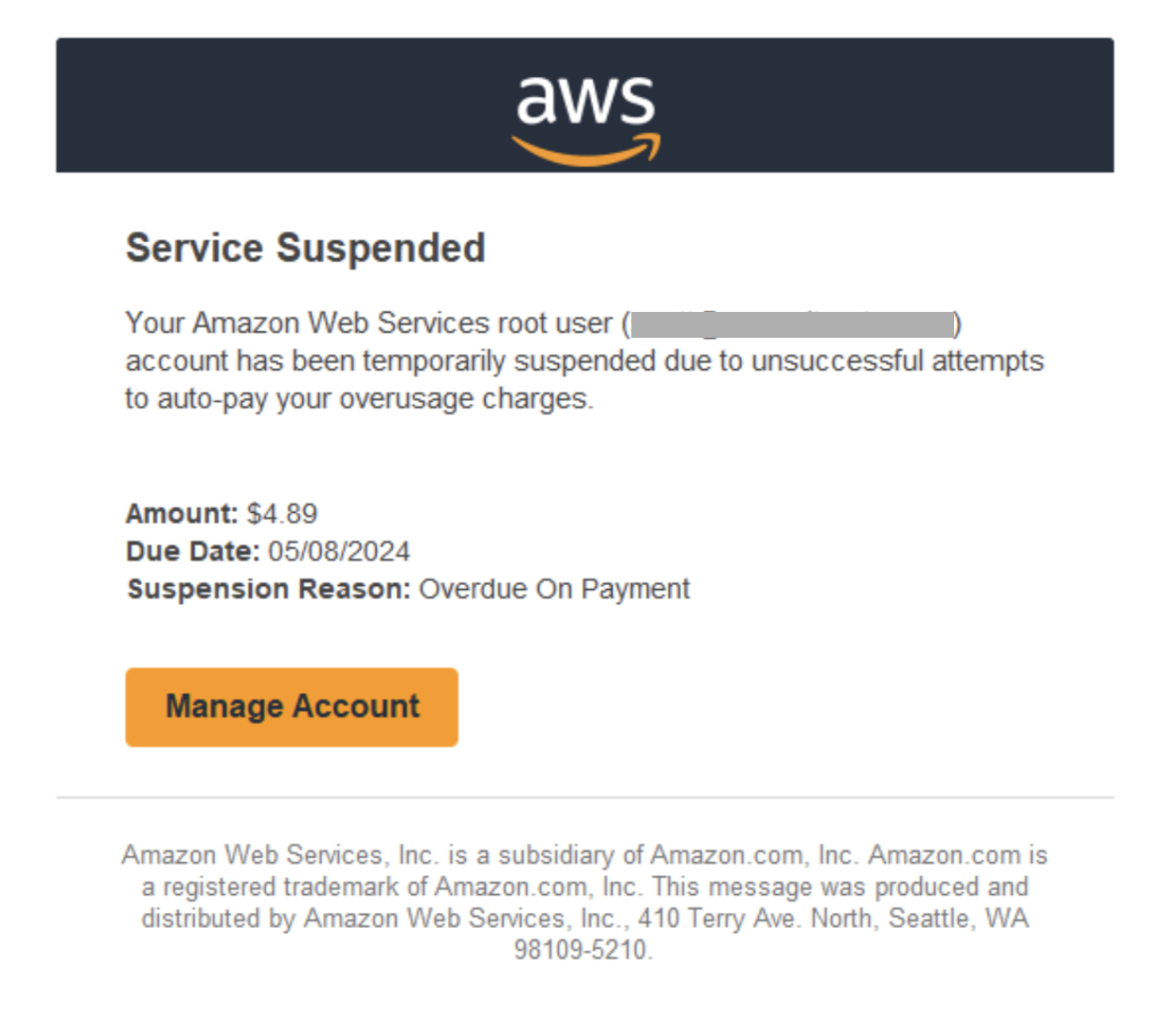
A phishing email leading to a fake AWS login page (Wiz)
Console Logins and CloudTrail
Management Console logins are the easiest to monitor, as CloudTrail logs every sign-in as the ConsoleLogin event. You can filter CloudTrail events using eventName=ConsoleLogin query and apply the regular investigation approach: verify whether the source IP is trusted or malicious, assess if the login time, user agent, and geolocation are typical for the user, and look for any unusual activity following the login. Below is an example of the ConsoleLogin event and a table that clarifies some of the fields:
// Most important fields of the ConsoleLogin event
{
  "eventTime": "2025-12-18T16:48:27Z",
  "eventName": "ConsoleLogin",
  "errorMessage": "Failed authentication",
  "userIdentity": {
    "type": "IAMUser",
    "principalId": "AIDAVZZK4G6EYIICHBXXX",
    "arn": "arn:aws:iam::398985017225:user/john.doe",
    "accountId": "398985017225",
    "userName": "john.doe"
  },
  "sourceIPAddress": "12.42.87.160",
  "userAgent": "Mozilla/5.0 [...]",
  "requestParameters": null,
  "additionalEventData": {
    "LoginTo": "https://console.aws.amazon.com/console/[...]",
    "MobileVersion": "No",
    "MFAUsed": "Yes"
  },
 "recipientAccountId": "398985017225"
}
| Field Name | Explanation |
| errorMessage | If this field exists, it means the authentication was unsuccessful. |
| userIdentity.arn | A unique user identifier across all AWS accounts worldwide. |
| additionalEventData.MobileVersion | Whether the user logged in from the AWS mobile application. |
| additionalEventData.MFAUsed | Whether the user used MFA. It should always be set to "Yes"! |
Key Monitoring Tips
Monitor logins on the root user. Your IT team should use root for emergencies, not the daily routine
Monitor console logins from service users. They are expected to use roles or access keys instead
Monitor successful logins from VPN, Tor, cloud hostings, or otherwise suspicious IP addresses
A focused, aggressive brute force might indicate that adversaries target your company
Practice
For this task, access the VM and search the task3 Splunk index.
You can start from the index=task3 eventName=* Splunk query.
Search for All Time and note that field ordering may vary from the example.
Answer the questions below
How many times did Thomas fail to log in to the AWS console?
index=task3 eventName=*
index=task3 eventName=* user="thomas.bennett"
Which other user logged in to the AWS console without MFA?
index=task3 eventName=*authentication_method=SFA action=successselected
authentication_methodthat wasn’t MFA

Monitoring Access Keys
Risks of Access Keys
For programmatic access, you use access keys instead of passwords: to integrate with third-party services, deploy infrastructure with Terraform, or send CloudTrail logs to a SIEM. Because access keys must be included in every API call, developers often store them in plaintext in source code, databases, or configuration files. The risk is that if any of these locations are compromised, the access keys will be stolen. In fact, leaked AWS access keys remain the most common cause of cloud breaches. Here are some real-world examples:
| Cloud Email Abuse Campaign (Wiz) | In May 2025, threat actors abused AWS access keys, previously harvested by data stealers or discovered through public dorking, to start a phishing campaign. Using these keys, they configured Amazon Simple Email Service (SES) to mass-deliver phishing messages directly from the victims' AWS accounts. Save the blog post for future reading, it's very insightful! |
| Large Scale Cloud Extortion Operation (Unit 42) | In this global campaign, more than 70,000 AWS access keys were obtained from publicly accessible .env files. The keys were then used to exfiltrate and delete S3 objects from the target's S3 buckets. Finally, the threat actors uploaded a ransom note to the empty S3 buckets, urging the victims to pay a ransom to prevent the threat actors from selling the data. |
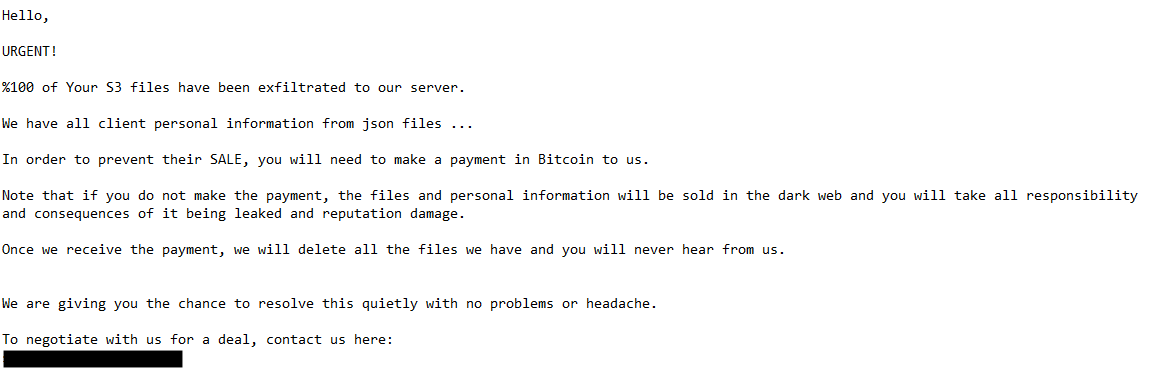
Ransom note left by the threat actor (Unit 42)
Monitoring Access Keys
The first difference you should know about is that the ConsoleLogin event is not logged when using access keys, as programmatic access does not have a login stage - your credentials are included with each API call. Also, compare the evidence of deleting the RDS database via console and via CLI. Within the console session, it's always a bunch of Get*, List*, and Describe* events. But with access keys, it's only what you explicitly asked for:

In other respects, CloudTrail logs are almost identical whether you use access keys or the console. The more interesting challenge is figuring out how the action was performed: from the console (GUI) or via an access key (CLI/SDK). This distinction matters for root cause analysis: was it a phished console session, or a leaked access key? Let's look at the differences using an example from the DeleteDBInstance event:

// Splunk query to filter only for access key logins
index=aws userIdentity.accessKeyId=AKIA*
// Alternative query to filter out console actions
index=aws NOT userIdentity.sessionContext.attributes.creationDate=*
SOC Pain Points
Investigating CLI events performed by human employees is usually straightforward, since the intent behind their actions is often easy to understand. The real challenge comes when analyzing activity coming from DevOps scripts or other automations, the purpose of which is often unknown to SOC. To help you identify whether an action is likely benign or malicious, consider the three practical tips below:
**Correlate user purpose and action
**If the svc-s3-backup user suddenly starts launching EC2 instances instead of uploading objects to S3, this is a strong attack indicator. Especially if for the previous 90 days it never did such an action before. You can get more context about the user from the company documentation, AWS tags, or its interactions with other AWS services.**Investigate the source IP address
**If the svc-gitlab-cicd user suddenly logs in from a DigitalOcean IP after years of operating from the GitLab IP range, this is a strong breach indicator. Service users don't change their location unless the service is migrated to another data center. You can get IP context on various TI services, such as iplocation.net.**Investigate the AWS client (user-agent)
**If your company heavily uses Java in AWS, you may see a lot of events with the aws-sdk-java/* user-agent. But if you see a sudden switch to, let's say Boto3/* (Python) or aws-cli/* (CLI) user-agent, it's either your team switched to another AWS client, or the user is compromised. If you can't recognize the user-agent, always google it first, and then confirm with your IT!
Practice
You will investigate a compromise of michael.turner's access key.
The compromise led to an extortion attack on a private S3 bucket.
Search for All Time and start from the index=task4 query.
Answer the questions below
What access key ID of Michael was used in the attack?

index="task4" user="michael.turner"
What is the name of the S3 bucket accessed by the attackers?
index="task4" eventSource="s3.amazonaws.com"

How many files were exfiltrated and deleted by the adversary?
index="task4" user="michael.turner"Then checked:
eventNamewith focus onDeleteObject&GetObject
Which file was uploaded to the bucket at the end of the attack?
index="task4" eventSource="s3.amazonaws.com" eventName=PutObjectcheck under
requestParameters
Which AWS service was used most by the user who did not use access keys?
Answer Example: Amazon Redshiftindex="task4" user="thomas.bennett"check the
eventSource
Detecting IAM Role Abuse
IAM Roles for Services
The primary use of IAM roles is to allow AWS services to interact with each other. Let's continue with the example from task 2, where a Python script on your EC2 instance has to process user avatars in one of the S3 buckets. To make it happen, you link the UserAvatarsProcessor role to the instance. Then, the instance will automatically assume the role and use it whenever needed. In CloudTrail, EC2 actions would look like this:
// Simplified GetObject request made by the UserAvatarsProcessor role
{
  "eventTime": "2025-12-29T20:28:48Z",
  "eventSource": "s3.amazonaws.com",
  "eventName": "GetObject",
  "sourceIPAddress": "98.93.221.113",                       // Public IP of the EC2 instance
  "userAgent": "Boto3/1.34.46 md/Botocore#1.34.46[...] ",   // Boto3 is AWS client for Python
  "userIdentity": {
    "type": "AssumedRole",                                  // Is always set to "AssumedRole"
    "principalId": "AROAVZZK4G6ERIIVB7K4M:i-123456789",
    "arn": "arn:aws:sts::398985017225:assumed-role/UserAvatarsProcessor/i-123456789",
    "accountId": "398985017225",
    "accessKeyId": "ASIAVZZK4G6E7I2DBMBB",                  // Always starts with "ASIA"
    "sessionContext": { [...] }
  },
}
Take a look at the last part of the ARN field, i-123456789. This is a role session name, and its meaning can vary depending on who assumes the role. By default, AWS sets it to the instance ID for EC2 and a user name for IAM users. However, it is possible to customize the session name and name it, for example, MyCustomSession. In this scenario, you won't know who assumed the role and will need to perform an additional investigation. Below are some ARN examples when using roles:
arn:aws:sts::[account-id]:assumed-role/[role-name]/[session-name]
arn:aws:sts::398985017225:assumed-role/UserAvatarsProcessor/i-123456789  // Likely an EC2 instance ID
arn:aws:sts::398985017225:assumed-role/US-ITSupportRole/john.doe         // Likely an IAM user name
arn:aws:sts::398985017225:assumed-role/SuperAdmin/MyCustomSession        // Need to investigate
AssumeRole Event
To reiterate, IAM roles can't operate on their own. During alert triage, you must always point to a real patient zero, a user or service that assumed the role: your IT admin, EC2 instance, Lambda function, or even AWS cloud itself. In many cases, you can identify the actor by reading the last part of the ARN (the session name). However, if a custom session name is used, that approach won't work. Luckily, CloudTrail records the AssumeRole event, as shown in the example below:
// SuperAdmin role assumed by john.doe
{
  "eventTime": "2025-12-29T22:08:01Z",
  "eventSource": "sts.amazonaws.com",
  "eventName": "AssumeRole",
  "sourceIPAddress": "77.23.56.75",
  "userAgent": "aws-cli/2.31.39 [...]",
  "requestParameters": {
    "roleArn": "arn:aws:iam::398985017225:role/SuperAdmin",
    "roleSessionName": "MyCustomSession"
  },
  "userIdentity": {
    "type": "IAMUser",
    "principalId": "AIDAVZZK4G6E5AAVXXXXX",
    "arn": "arn:aws:iam::398985017225:user/john.doe",
    "accountId": "398985017225",
    "accessKeyId": "AKIAVZZK4G6EXJOXXXXX",
    "userName": "john.doe"
  }
}
If the user above assumes the role and names the session MyCustomSession, all subsequent actions will be logged as coming from the role itself and won't refer to the original user name. As a result, you must trace back to the preceding AssumeRole event whenever you want to know who actually assumed the role. You will observe this behavior in the Splunk practice logs, and you are also encouraged to test it yourself using the AWS CLI.
IAM Role Abuse
IAM roles can be abused by adversaries. For example, imagine your EC2 instance gets compromised (e.g., via SSH brute-force attack) and an attacker gains full control over it. If that instance has an IAM role attached with S3 permissions, the attacker effectively inherits the same permissions as the EC2 and gains access to the S3 bucket. This is exactly how Capital One Bank exposed 100 million credit cards (Article, Demo), so don't underestimate IAM roles! Below are a few monitoring tips:
Detect a sudden change in the user-agent, same as with the access keys
Hunt for first-seen API calls, especially those related to data exfiltration
Protect the workloads, such as EC2 instances, that use IAM roles
Cross-Account Access
IAM roles are also used for cross-account access, which is fun to investigate. Imagine a scenario: Sarah from IT logged in and assumed the it-support role in the US account, then switched to the eu-helpdesk role in the EU account, and then assumed the rds-read role to debug a database issue. This is called role chaining, and it is common in large companies with complex environments. To "unchain" the events, you will have to analyze the AssumeRole events one by one until you find the real user or service behind the activity:

Practice
In this task, you will see how regular users and AWS services use IAM roles.
Search for All Time, use the task5 index, and start from the index=task5 query.
Answer the questions below
Which EC2 instance ID used the UserAvatarsProcessor role?
index="task5" "userIdentity.arn"="arn:aws:sts::398985017225:assumed-role/UserAvatarsProcessor/<REDACTED>"

Someone assumed the EU-RemoteSupport IAM role.
How did they name the role session?index="task5" user_arn="arn:aws:sts::398985017225:assumed-role/EU-RemoteSupport/<REDACTED>"
Which user assumed the IAM role from the question above?
index="task5" eventName=AssumeRole requestParameters.roleArn="*EU-RemoteSupport*"
Detecting IAM Changes
Early Threat Detection
The previous tasks focused on the moment of exploitation. However, the conditions for many attacks often form months or even years earlier. A common scenario: in 2023, an IT administrator created a root access key for testing and accidentally exposed it while recording a YouTube video guide. The key went unnoticed until 2025, when it was finally discovered and exploited. The ideal outcome for SOC would have been to detect and prevent the creation of the key in 2023, right?
IAM Misconfigurations
It is a good idea to set up monitoring rules not only for signs of compromise but also for misconfiguration. In other words, hunt for adversaries compromising IAM credentials, and for your IT administrators assigning overly privileged policies or creating unnecessary access keys. Below are the most common IAM events you should monitor for misconfigurations:
| Event Names | Description | Suggestions |
PutUserPolicy, PutRolePolicy, PutGroupPolicy | An existing AWS policy has been modified | Look for naming mismatches, such as "ReadOnlyAccess" policy modified to allow EC2 launch and termination |
| `Attach[User | Group | Role]Policy, AddUserToGroup` |
DeleteVirtualMFADevice, DeactivateMFADevice | A user deactivated their own, or someone else's MFA | Such events are legitimate only if followed by a new MFA registration (e.g. when a user loses their mobile phone and needs to set up a new MFA device) |
CreateAccessKey, UpdateAccessKey | A user created or activated IAM access key | Always verify with your IT if the access key was expected, especially for privileged users. Leaked access keys are the most common Initial Access vector in AWS |
Real-World Example
The Permiso blog post shows a great example of how IAM features can be abused both for Initial Access and Persistence. Here, the threat actors accessed the victim's AWS environment via a leaked access key and then created another access key for persistence, in case the first one is deactivated by the IT team. Check out the diagram below or the original blog post for more details:
Attack lifecycle of the GUI-vil threat group (Permiso)
Key Monitoring Points
Monitor root user activity and prevent all attempts to create root access keys
Monitor the learned IAM events, especially the CreateAccessKey one
Always communicate with your IT about the potential misconfigurations
Practice
You will audit logs of an insecure integration between Splunk and CloudTrail.
Search for All Time, use the task6 index, and start from the index=task6 query.
Answer the questions below
Under which ARN does the Splunk integration authenticate?
SOC Note: This is an exceptionally insecure configuration!index=task6 eventName=createAccessKey
When was the over-privileged integration access key created?
Answer Example: 2025-12-25 15:30:45index=task6 eventName=createAccessKeycheck
eventTime
Conclusion
This room focused on the Initial Access and showed how attackers abuse management console passwords, access keys, and IAM roles to start an attack, and how to detect it with CloudTrail logs. From there, things can branch out in many interesting directions: cloud extortion, cryptomining, and much more. In the next rooms, you will explore more cloud entry points and dive deeper into the following attack stages. Hope you enjoyed the room!
Note for Other Clouds
Both AWS access keys and IAM roles have near 1:1 equivalents in other major cloud providers. In Google Cloud, these map to service account keys and service accounts. In Microsoft Azure, they correspond to service principal credentials and managed identities. You are encouraged to experiment with AWS to understand the high-level ideas, so that applying the same concepts to other clouds becomes much easier.
The room focused on Initial Access attacks:
Console passwords → Phishing campaigns
Access keys → Leaked credentials (most common breach vector)
IAM roles → Compromised workloads inheriting permissions
Attack outcomes covered:
S3 data exfiltration and ransomware
Email abuse campaigns
Persistence mechanisms
What's next: Future rooms will cover:
More cloud entry points
Post-exploitation stages (lateral movement, privilege escalation)
Other attack types (cryptomining, etc.)
Multi-Cloud Note
The conclusion mentions AWS concepts have equivalents in other clouds:
| AWS | Google Cloud | Azure |
| Access Keys | Service Account Keys | Service Principal Credentials |
| IAM Roles | Service Accounts | Managed Identities |
Bottom line: Master AWS IAM → easier to apply concepts to GCP/Azure! 🎯