Introduction
Email is a critical communication channel in any organisation, which makes it a prime target for attackers. Once a mailbox is compromised, attackers can read emails, exfiltrate sensitive data, and even weaponise the account to launch different phishing campaigns. This room will explore how attackers abuse Microsoft Exchange Online post-compromise and how SOC analysts can detect these attacks using Splunk.
Learning Objectives
Understand how Exchange Online generates logs and where to find them
Identify suspicious mailbox rules creation and email forwarding
Detect phishing campaigns launched from compromised mailboxes
Use message trace and audit logs to scope an incident
Investigate a real-world Exchange Online compromise
Prerequisites
Exchange Online Overview
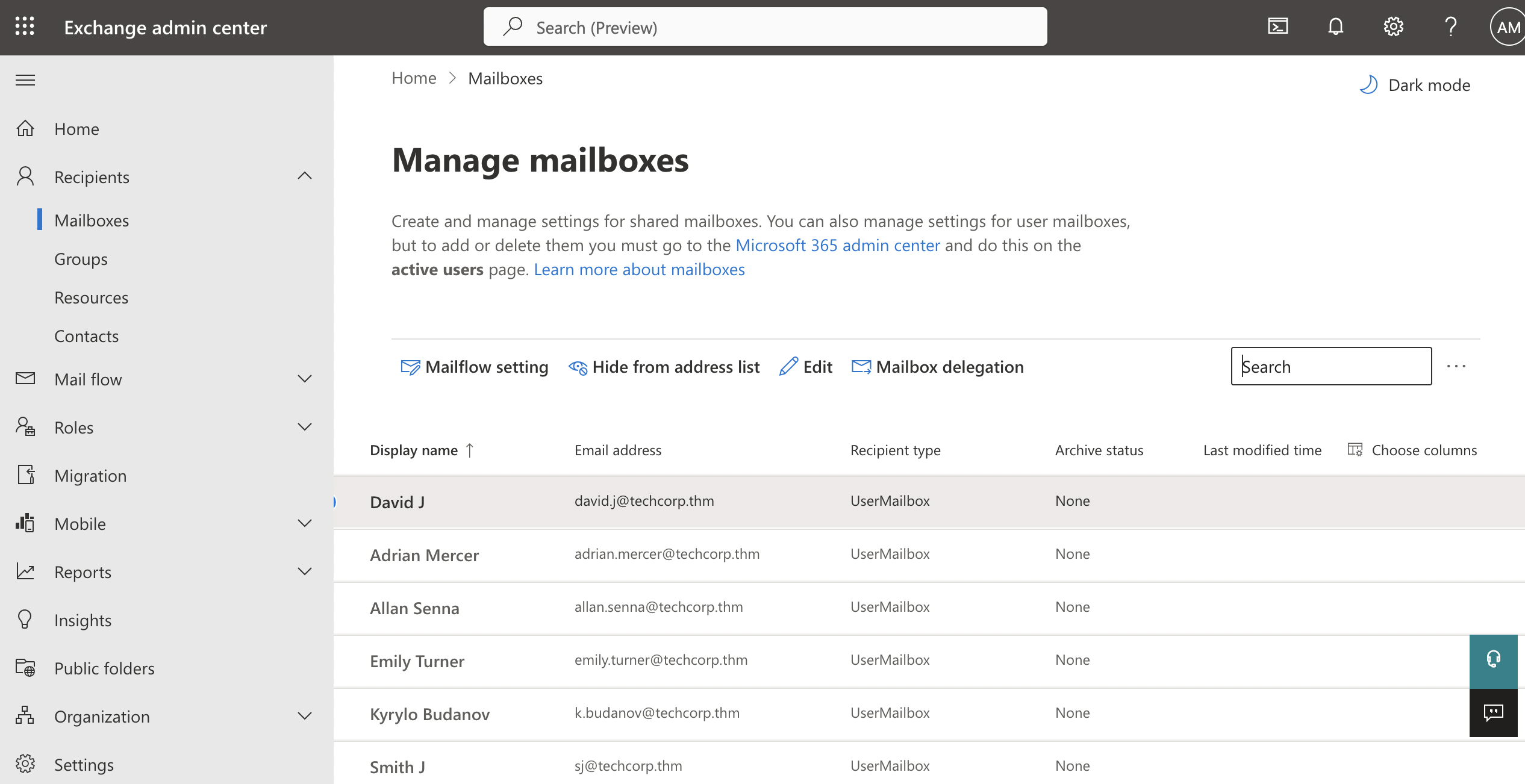
Exchange Online is Microsoft's cloud-based email and calendaring service, part of the Microsoft 365 suite. You may also know it as Outlook. Unlike traditional on-premise Exchange servers, which require organisations to manage their own mail infrastructure, Exchange Online is fully hosted and maintained by Microsoft.
What Happens When Exchange Online is Compromised?
Email is a critical part of every organisation. It contains sensitive business communications, financial data, credentials, and personal information. This makes Exchange Online a prime target for attackers. Once inside a mailbox, an attacker has access to a goldmine of information and a powerful platform to launch further attacks.
While every attack is different, security researchers and SOC analysts have observed a common pattern in Exchange Online compromises. A typical attack chain looks like this:
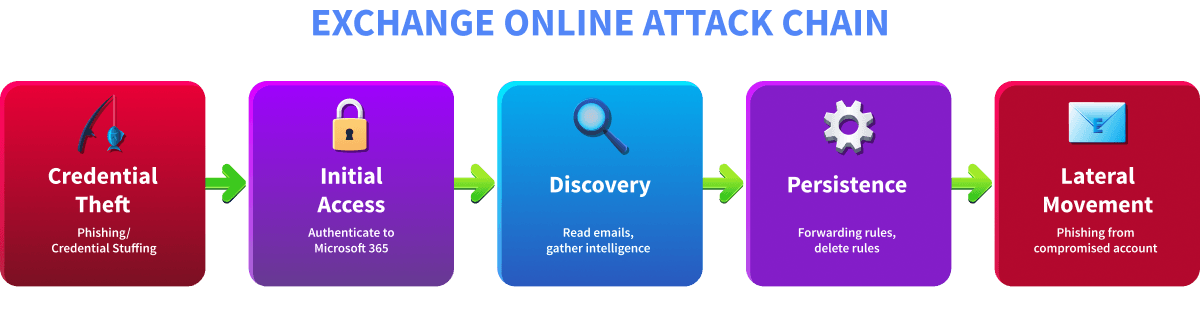
Credential Theft: Before gaining access, the attacker first obtains valid credentials. This typically happens through phishing emails, credential-stuffing attacks using leaked password databases, or the purchase of stolen credentials from dark web marketplaces.
Initial Access: Using the stolen credentials, the attacker authenticates to Microsoft 365 and gains access to the victim's Exchange Online mailbox. This authentication is processed through Entra ID and leaves a trace in sign-in logs.
Discovery: Once inside, the attacker explores the mailbox. They read emails to understand the organisation, identify sensitive information, find other potential targets, and gather intelligence that can be used for further attacks.
Persistence: To maintain long-term access even if the victim changes their password, the attacker sets up mechanisms to keep receiving data. This includes creating forwarding rules to silently copy all incoming emails to an external address, or setting up inbox rules to delete specific emails so the victim stays unaware.
Lateral Movement: Finally, the attacker weaponises the compromised account. By sending phishing emails from a trusted internal address, they can bypass email security filters and trick colleagues into clicking malicious links or revealing their own credentials.
Not every attacker follows this exact sequence, and some steps may be skipped or reordered. However, understanding this pattern gives SOC analysts a solid foundation for investigating Exchange Online incidents. In the upcoming tasks, we will explore the logs generated by each of these activities, learn how to detect them in Splunk, and ultimately investigate a real-world Exchange Online compromise from start to finish.
Answer the questions below
Which attack stage involves sending phishing emails from a compromised account to other employees? Lateral Movement
Exchange Online Logging
SOC analysts investigate Exchange Online compromises using three main log sources: Exchange Online sign-in logs, M365 unified audit logs, and message trace logs. Each reveals a different aspect of the incident.
Note: Before we explore the Splunk queries for these logs, it is important to note that all of these queries are intended to be applied for "All time" in this room.
Exchange Online Sign-In Logs
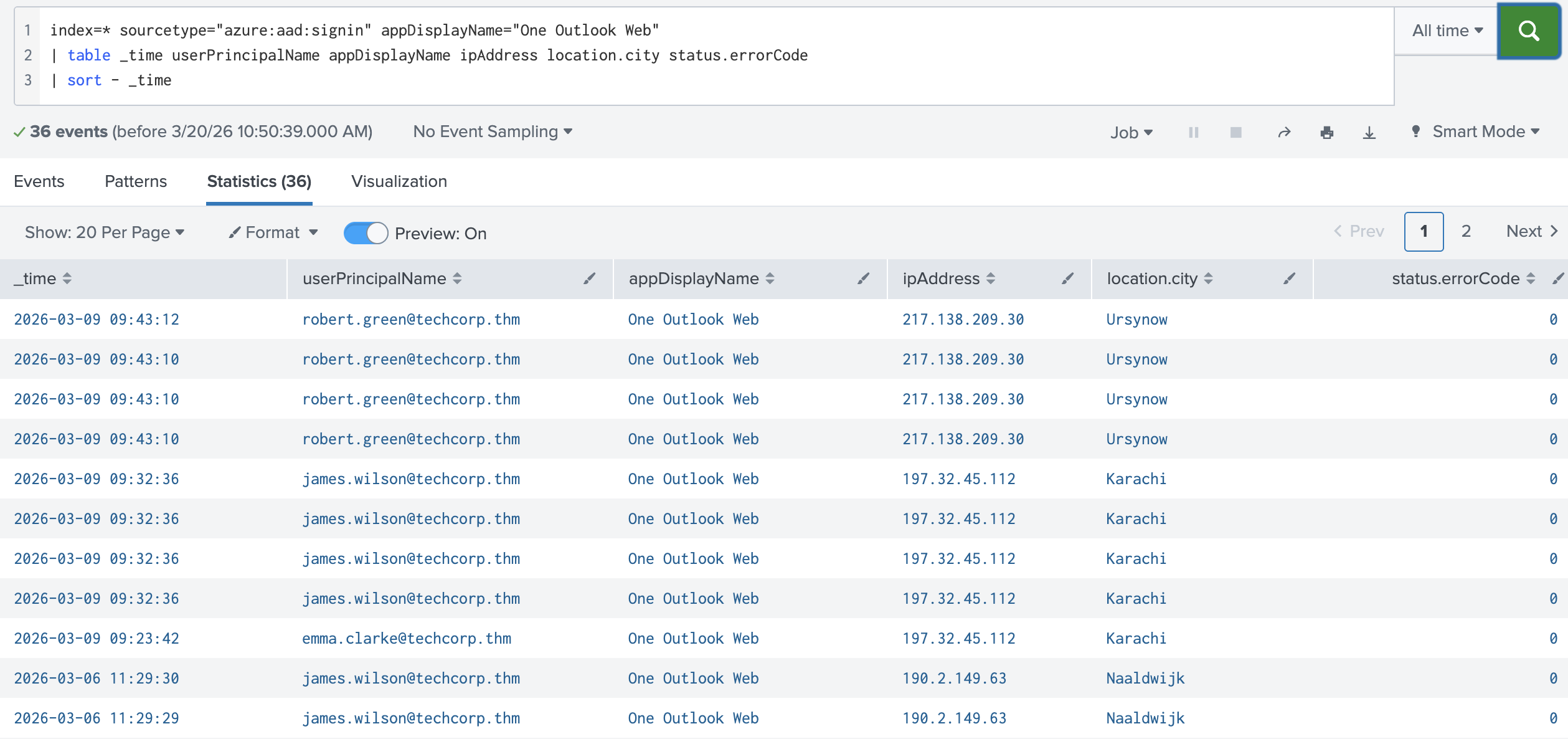
Every time a user accesses Exchange Online, they first authenticate through Entra ID. This authentication generates a sign-in event regardless of whether the login was successful. These logs are invaluable during an investigation because they tell you who tried to access the account, from which IP and location, whether the attempt succeeded or failed, and some other valuable details.
In Splunk, Exchange Online sign-in logs can be queried using:
| Investigate Exchange Online Sign-in Logs |
|---|
index=* sourcetype="azure:aad:signin" appDisplayName="One Outlook Web"
| table _time userPrincipalName appDisplayName ipAddress location.city status.errorCode
| sort - _time
M365 Unified Audit Logs
Once authenticated, any action the user performs inside Exchange Online is recorded in the Microsoft 365 unified audit logs. These logs capture mailbox activities such as emails sent, inbox rules created, forwarding settings changed, and mailbox access events.
In Splunk, Exchange Online audit logs can be queried using:
| Investigate Exchange Online audit logs |
|---|
index=* sourcetype="o365:management:activity" Workload=Exchange
| table _time UserId Operation Workload
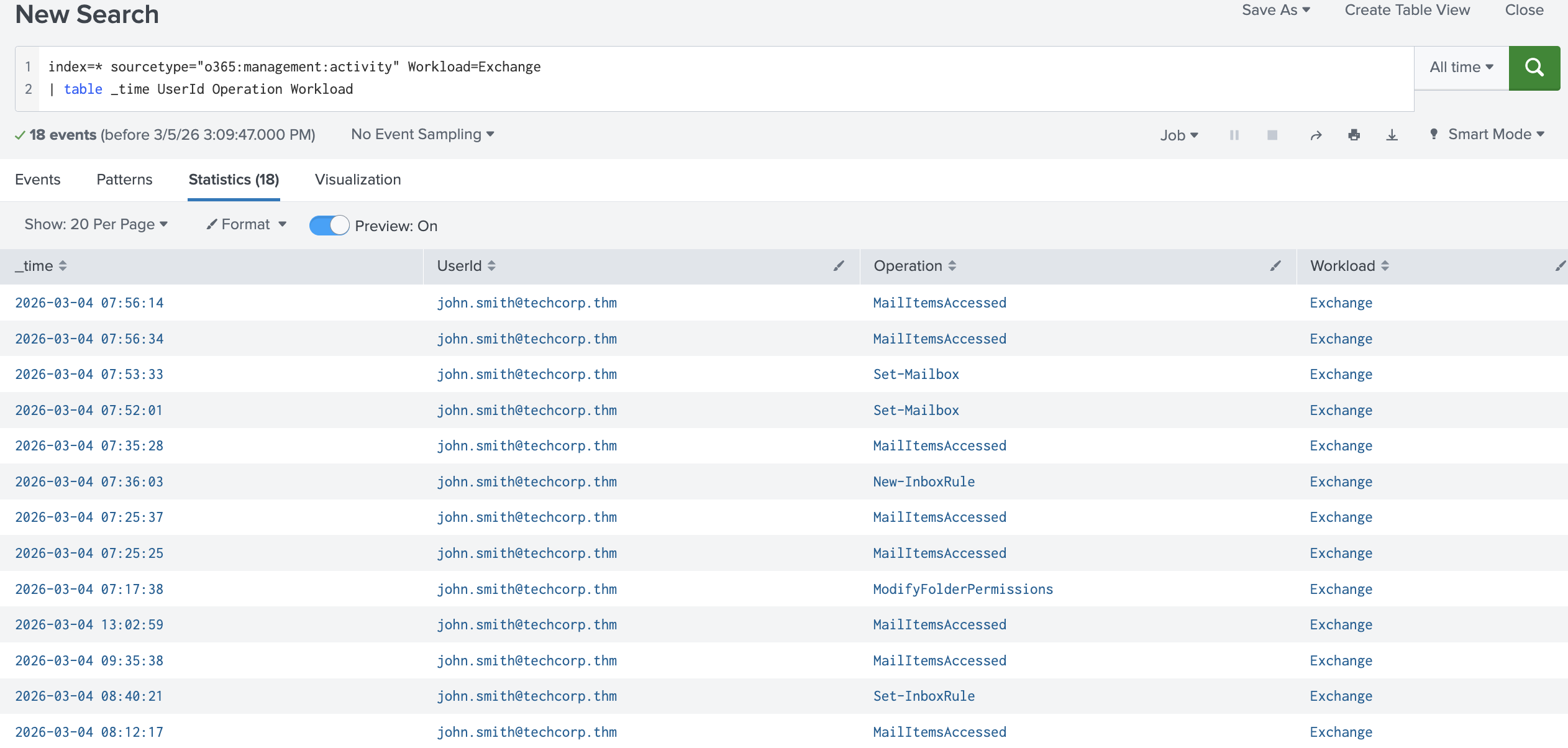
The Workload field identifies which Microsoft 365 service generated the event. For Exchange Online activities, this will always be Exchange. The Operation field tells you exactly what action was performed. The most important operations to know for this room are:
| Operation | Description | Why does it matter? |
|---|---|---|
MailItemsAccessed |
Someone accessed and read emails in the mailbox | Helps identify if an attacker has read sensitive emails after gaining access |
Send |
An email was sent from the mailbox | Detects phishing emails sent from a compromised internal account |
New-InboxRule |
A new inbox rule was created | Attackers create rules to delete replies or forward emails to hide their activity |
Set-InboxRule |
An existing inbox rule was modified | Attackers may modify existing rules to avoid detection instead of creating new ones |
Set-Mailbox |
Mailbox settings were changed, including forwarding | Used by attackers to configure silent email forwarding to an external address |
Add-MailboxPermission |
Delegate access was granted to another user | A common persistence method by which attackers grant themselves access to return to the mailbox even after a password reset |
Message Trace Logs
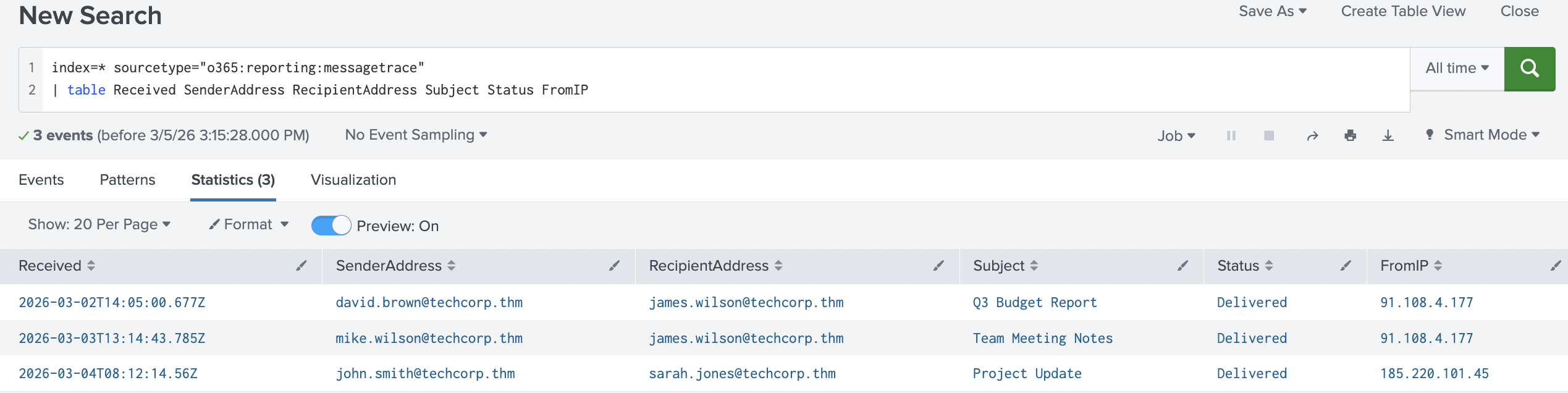
While the unified audit logs indicate that an email was sent, they don't indicate who received it. This is where message trace comes in. Message trace is a separate log source that tracks the full delivery journey of every email, including the sender, recipient, subject, delivery status, and timestamp.
This makes message trace particularly useful in two scenarios. First, when scoping a phishing campaign, if you identify a suspicious email that was sent from a compromised account, message trace tells you exactly how many people received it and whether it was delivered successfully. Second, for timeline construction, message trace provides precise delivery timestamps that help piece together the sequence of events during an incident.
In Splunk, message trace logs can be queried using:
| Investigate Message Trace logs |
|---|
index=* sourcetype="o365:reporting:messagetrace"
| table Received SenderAddress RecipientAddress Subject Status FromIP
Answer the questions below
Which appDisplayName value confirms that a user accessed their Exchange Online mailbox?
index=* sourcetype="azure:aad:signin" appDisplayName="One Outlook Web" | table _time userPrincipalName appDisplayName ipAddress location.city status.errorCode | sort - _time

Which Exchange Online feature can attackers abuse to automatically delete replies to phishing emails? New-InboxRule
Detecting Mailbox Rule Abuse
The attacker is in. They have successfully authenticated to the victim's Exchange Online mailbox and spent time reading emails. Now their priority shifts: they need to stay hidden and keep receiving data, even if the victim becomes suspicious. To achieve this, attackers typically abuse three powerful Exchange Online features: inbox rules, email forwarding, and delegate access.
Inbox Rules
Inbox rules are a legitimate Exchange Online feature that allows users to automatically manage incoming emails. A user might create a rule to move newsletters to a specific folder, flag emails from their manager, or forward emails from a particular sender. These are normal day-to-day actions.
When a user creates inbox rules, their activity will appear in Splunk under two operations:
New-InboxRuleis logged when a new inbox rule is createdSet-InboxRuleis logged when an existing inbox rule is modified
New-InboxRule
When a new inbox rule is created, it will appear as a New-InboxRule operation. Attackers typically create inbox rules for one of two purposes:
Delete rules: The attacker creates a rule that automatically deletes incoming emails matching certain criteria. The most common use case is deleting replies to phishing emails sent from the compromised account. When colleagues receive a suspicious email and reply to ask if it is legitimate, those replies are silently deleted before the victim ever sees them. This keeps the victim unaware that their account is being abused.
Forwarding rules: The attacker creates a rule that automatically forwards incoming emails matching specific conditions to an external address they control. For example, forwarding only emails containing words like "invoice", "payment", or "credentials" to avoid raising suspicion through high email volumes.
In Splunk, use this query to find inbox rule creation events:
| Investigate inbox rule creation |
|---|
index=* Workload=Exchange Operation=New-InboxRule
| table _time UserId Name DeleteMessage ForwardTo SubjectContainsWords
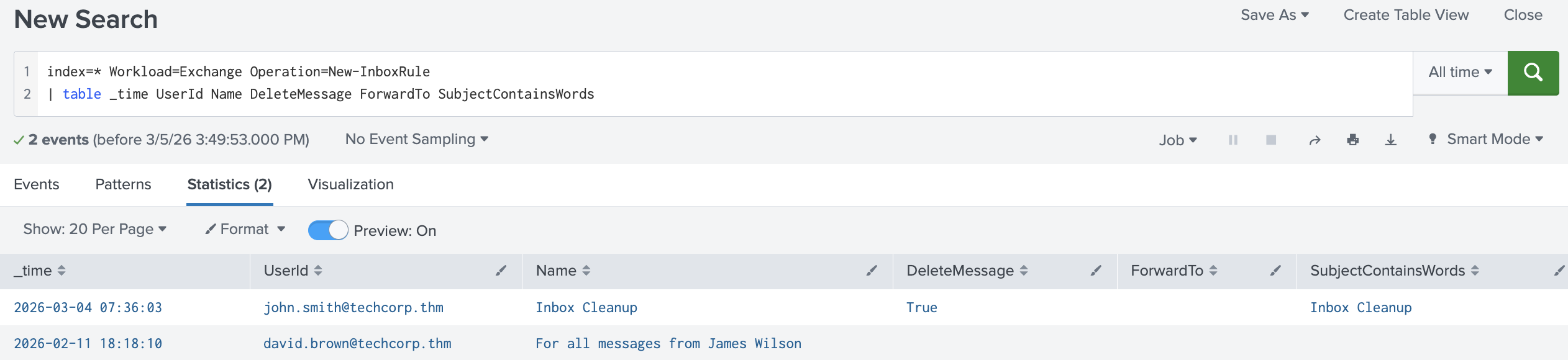
The parameter fields in a New-InboxRule log contain the full details of what the rule does. The most important parameters to look for are:
| Parameter | Description |
|---|---|
Name |
The name given to the rule |
SubjectContainsWords |
Condition: triggers if the subject contains specific words |
DeleteMessage |
Action: if True, matching emails are deleted |
ForwardTo |
Action: forwards matching emails to a specified address |
The key red flag is DeleteMessage = True; this is rarely a legitimate use case and should always be investigated.
Set-InboxRule
When a user modifies an existing inbox rule, it will appear as a Set-InboxRule operation. An important distinction here is that Set-InboxRule only logs the fields that were changed, not the full rule configuration. This means the absence of a field does not mean that the action no longer exists on the rule.
Red flags to watch for across both operations:
DeleteMessage = True, indicating the attacker is hiding repliesForwardTopointing to an external domainRules created or modified outside business hours
Rule names that look generic or system-like to avoid suspicion
Mailbox-Level Email Forwarding
Unlike the forwarding rules we saw above, which only forward emails matching specific conditions, mailbox-level email forwarding applies to every single incoming email unconditionally. The attacker configures this directly in the mailbox settings, meaning that every email the victim receives, regardless of sender, subject, or content, is silently copied to the attacker's external address.
In Splunk, mailbox-level email forwarding appears as a Set-Mailbox operation.
| Investigate mailbox-level email forwarding |
|---|
index=* Workload=Exchange Operation=Set-Mailbox
| table _time UserId ForwardingSmtpAddress DeliverToMailboxAndForward
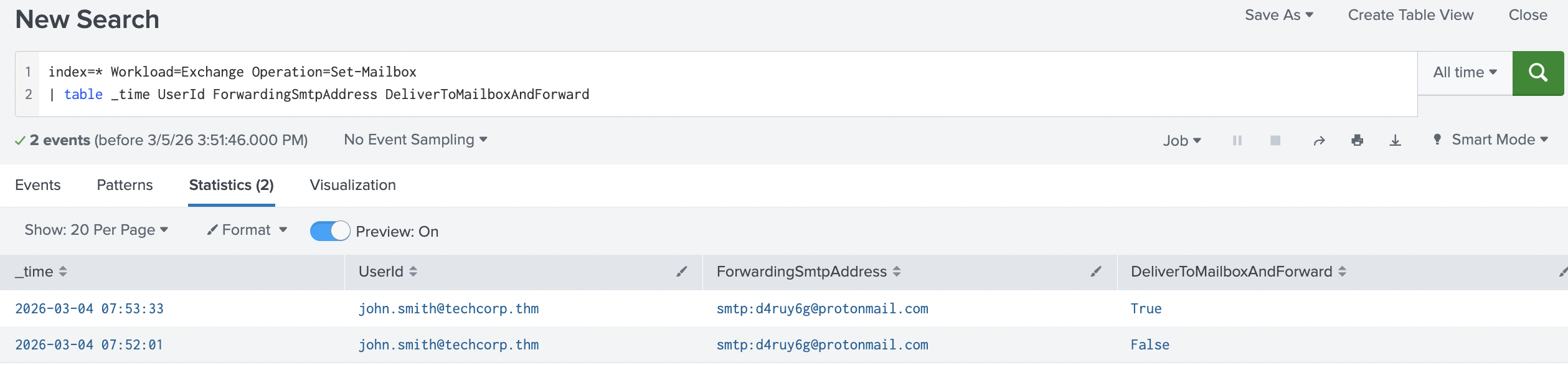
Red flags to watch for:
ForwardingSmtpAddresspointing to an external domain like Gmail or ProtonMailDeliverToMailboxAndForward = FalseForwarding configured shortly after a suspicious sign-in
DeliverToMailboxAndForward = False is particularly suspicious; it means the victim will not even see the emails in their own inbox. Everything goes silently to the attacker.
Delegate Access
Delegate Access abuse is not very common, but it is a highly effective persistence technique. Attackers add themselves or another account they control as a delegate to the victim's mailbox, thereby gaining persistent access even after the victim changes their password. Unlike forwarding rules, delegate access gives the attacker full interactive access to the mailbox; they can read, send, and manage emails as if they were the victim.
Delegate access changes appear in Splunk as an Add-MailboxPermission operation. The Trustee field shows which account was granted access. Any unexpected delegate, especially one added outside business hours or shortly after a suspicious login, should be investigated immediately.
Remediation
Upon detecting mailbox rule abuse or unauthorised forwarding, a SOC analyst should take the following steps:
Identify and delete any suspicious rules immediately
Remove any unauthorised forwarding addresses from the mailbox
Force a password reset to lock out the attacker
Revoke all active tokens and sessions for the compromised account
Determine how long forwarding was active and what emails may have been exfiltrated
Check if any unexpected delegates were added and remove them
Practice
To answer the questions, use the provided Splunk instance.
You will use the index=task4_5 query. Search for All Time and start investigating.
Answer the questions below
A suspicious inbox rule was created by a user. What is the name of the rule that forwards emails to an external address?
index=* Workload=Exchange Operation=New-InboxRule
| table _time UserId Name DeleteMessage ForwardTo SubjectContainsWords

What word does this forwarding inbox rule trigger on in the subject? Verify
The same user configured mailbox-level email forwarding. To which external address were emails being forwarded?
index=task4_5 DeliverToMailboxAndForward

Detecting Phishing from Compromised Mailbox
Now the attacker wants to expand their reach. With persistent access established and mechanisms in place to stay hidden, the compromised mailbox becomes a weapon. Sending phishing emails from a legitimate internal account is one of the most effective techniques in an attacker's arsenal. The email comes from a trusted colleague, bypasses external email security filters, and is far more likely to be clicked than a message from an unknown sender.
MailItemsAccessed
Before launching a phishing campaign, a sophisticated attacker will first spend time reading the victim's emails. By understanding ongoing conversations, the attacker can craft highly convincing phishing emails that reference real projects, real colleagues, and real business context. This reconnaissance activity is captured in the MailItemsAccessed operation.
MailItemsAccessed logs are generated whenever emails in a mailbox are accessed or read. From a SOC analyst's perspective, this operation is important for two reasons. First, it can reveal that an attacker was actively reading emails before launching further attacks. Second, it is critical for data exposure assessment. If sensitive emails were accessed, the organisation may have a data breach notification obligation under GDPR or other regulations.
In Splunk, use this query to investgate mail items accessed:
| Investigate Mail Items Accessed |
|---|
index=* Workload=Exchange Operation=MailItemsAccessed
| table _time UserId ClientIPAddress OperationCount
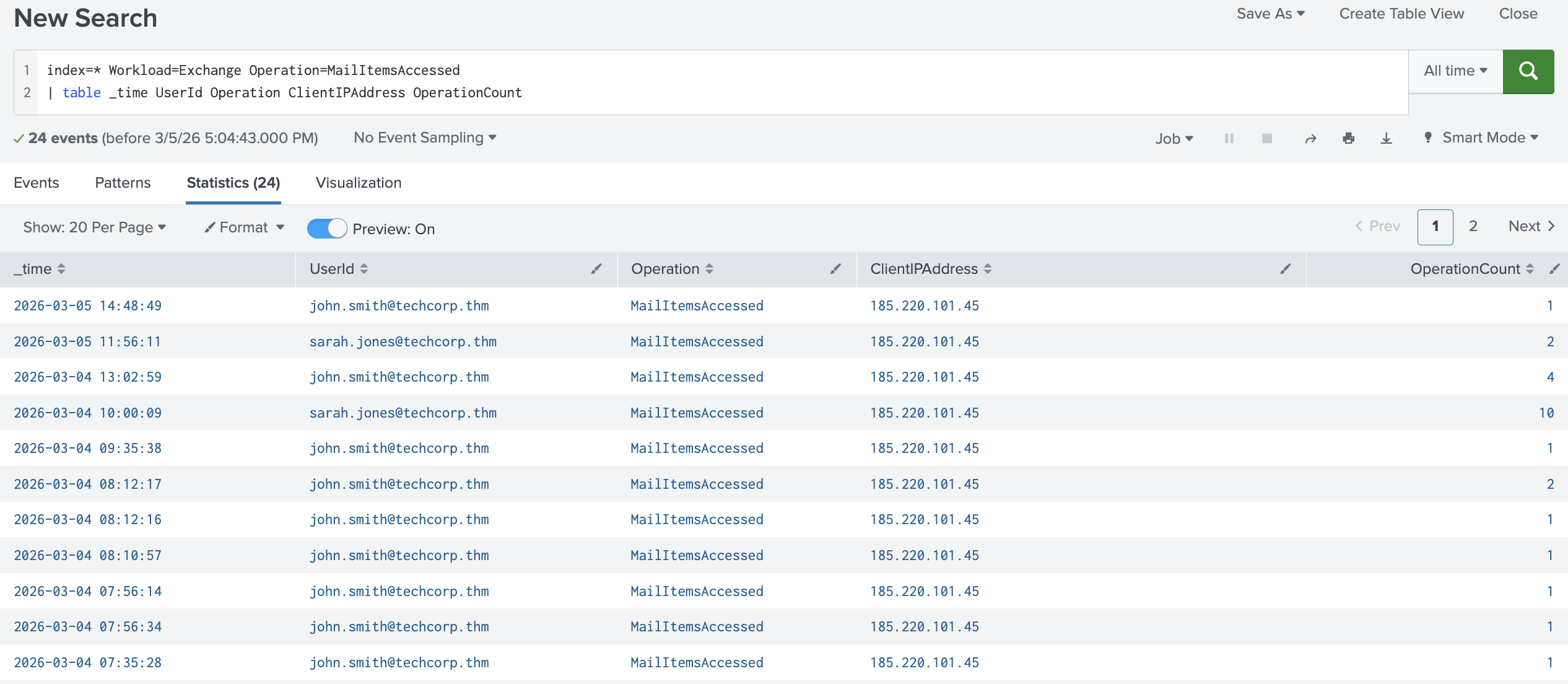
Red flags to watch for:
MailItemsAccessedevents from an unusual IP address or locationHigh
OperationCountindicating a large volume of emails being readAccess occurring outside business hours
Send Operation
When the attacker sends phishing emails from the compromised account, each email generates a Send operation in the Exchange audit logs. This is how SOC analysts can identify that a compromised account was used to send suspicious emails.
The key fields in a Send log are:
| Field | Description |
|---|---|
UserId |
The account that sent the email |
Item.Subject |
The subject line of the email sent |
Item.SizeInBytes |
Size of the email |
ClientIP |
IP address from which the email was sent |
SaveToSentItems |
Whether the email was saved to Sent Items |
SaveToSentItems=False is a red flag. Attackers sometimes configure this to prevent the sent email from appearing in the victim's Sent folder, further hiding their activity.
In Splunk, use this query to investigate sent emails:
| Investigate Sent Emails |
|---|
index=* Workload=Exchange Operation=Send
| table _time UserId Item.Subject ClientIP SaveToSentItems
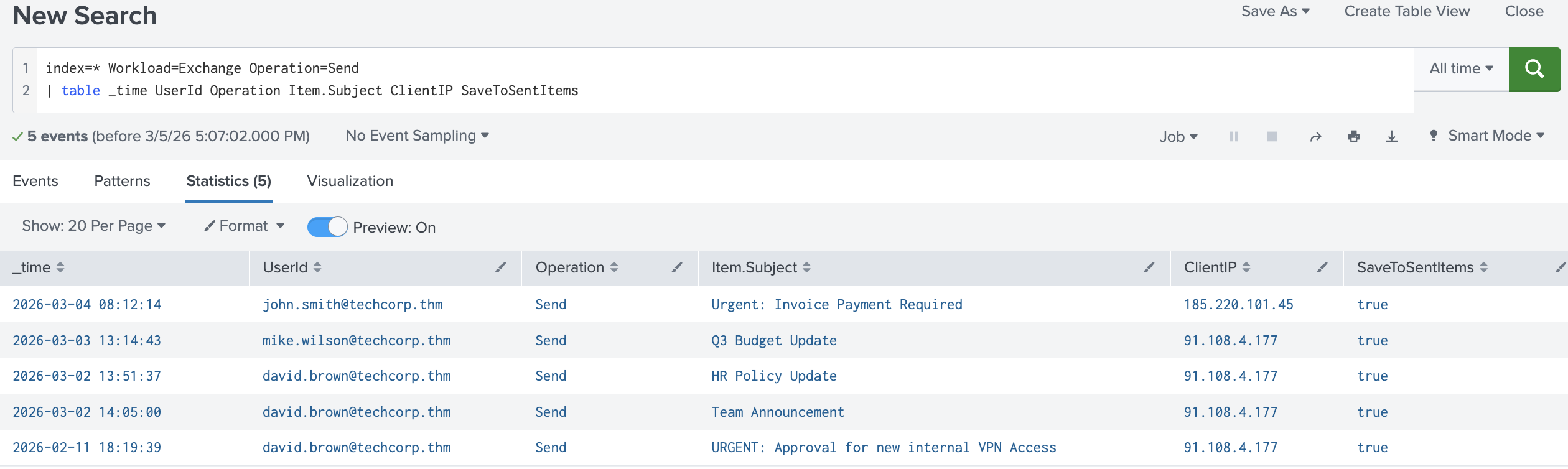
Red flags to watch for:
High volume of
Sendoperations in a short time windowSaveToSentItems=FalseSendevents from an IP that does not match the victim's normal sign-in IPSuspicious subject lines like invoice updates, password resets, or urgent requests
Message Trace
The Send operation shows that an email was sent and its subject, but it does not indicate who received it. To understand the full scope of the phishing campaign,
how many people received the email, and whether it was successfully delivered, a SOC analyst pivots to message trace.
In Splunk, use this query to investigate message trace:
| Investigate Message Trace Logs |
|---|
index=* sourcetype="o365:reporting:messagetrace"
| table Received SenderAddress RecipientAddress Subject Status FromIP
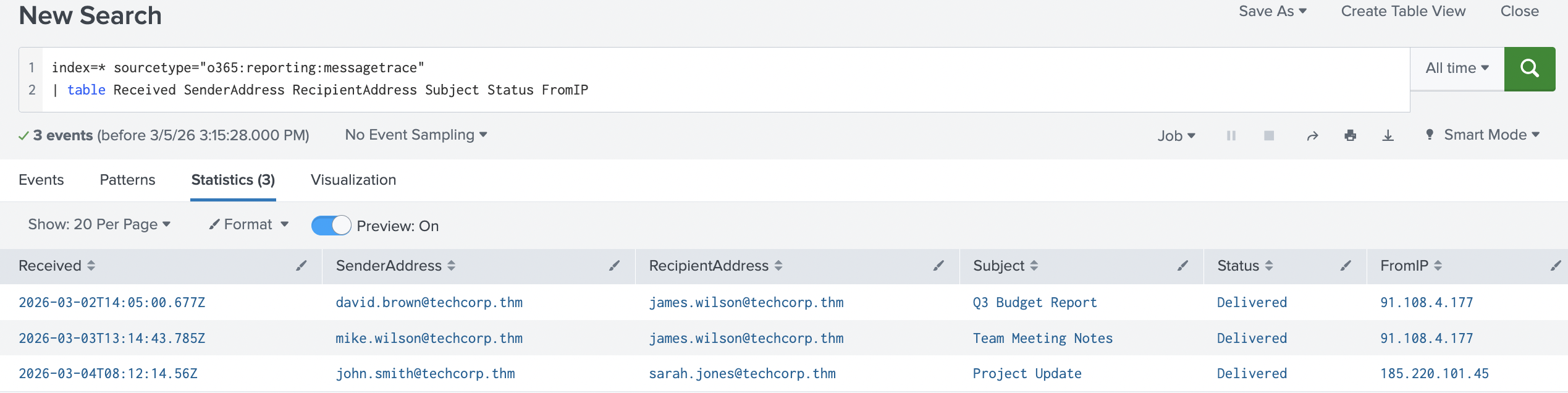
By filtering on the suspicious sender and the phishing email subject, you can quickly identify every recipient, confirm delivery status, and build a list of potentially compromised users who need to be contacted and warned.
Red flags to watch for:
Multiple recipients receiving the same email from a compromised internal account in a short time window
Status = Delivered, confirming the phishing email reached the recipient's inboxRecipients across different departments, suggesting a broad campaign
Remediation
Upon detecting phishing activity from a compromised mailbox, a SOC analyst should take the following steps:
Block the compromised account immediately to prevent any further emails from being sent
Identify all recipients of the phishing email by using message trace
Notify all recipients and warn them not to click any links or open any attachments from that email
Check for further compromised accounts, as any recipients who replied or clicked links may also be compromised
Review sent items and check the compromised account's sent folder for any other suspicious emails that may have been missed
Practice
To answer the questions, use the provided Splunk instance.
You will use the index=task4_5 query. Search for All Time and start investigating.
Answer the questions below
All TechCorp employees work from the same office network. A colleague reported receiving a suspicious email from an internal account. What was the subject line of this email?
index=task4_5 action=delivered

How many colleagues received the phishing email according to message trace?
index=task4_5 action=delivered Subject="Urgent: Verify Your Account"
Based on the output, there are three events, but two of the recipients are the same email; that's why it's only two

From which IP address were the suspicious emails sent?
index=task4_5 james.wilson@techcorp.thm


Incident Investigation
An unusual sign-in alert for Robert Green, Finance Manager at TechCorp, was triaged by a Level 1 analyst earlier today. The sign-in originated from an unfamiliar location and has been escalated to you as the Level 2 analyst on shift. Review the available logs in your Splunk and answer the questions below.
To answer the questions, use the provided Splunk instance. You will use the index=task6 query and search for All Time.
Note: All TechCorp employees work from the same office network.
Tip: When investigating a sequence of events, sort your results by time using | sort - _time at the end of your Splunk queries. This ensures events are displayed in chronological order, making it easier to follow the attacker's timeline.
Answer the questions below
From which city was the malicious login performed?
index=task6 sourcetype="azure:aad:signin" appDisplayName="One Outlook Web" | table _time userPrincipalName appDisplayName ipAddress location.city status.errorCode
| sort - _time

Needed help to justify the status.errorCode that represents the performance of a malicious login


What was the name of the suspicious inbox rule created by the attacker?
index=task6 robert.green@techcorp.thm Operation=New-InboxRule

The attacker configured email forwarding. What was the email in ForwardingSmtpAddress?
index=task6 ForwardingSmtpAddress

Robert's colleagues received a phishing email. What was the subject line?
index=task6 robert.green@techcorp.thm action=delivered


It seems the attacker was using a VPN. From which IP address did the attacker send the phishing emails?
index=task6 robert.green@techcorp.thm action=delivered Subject="Action Required: Password Reset"

One of the recipients replied to the phishing email. Which user replied?
"adrian.mercer@techcorp.thm"

"allan.senna@techcorp.thm"

"emma.clarke@techcorp.thm"
Looking through each of the emails to check if they sent anything on the queries, none of them did except Emma

Conclusion
In this room, you investigated how attackers abuse Microsoft Exchange Online after compromising a mailbox. You learned how to identify suspicious sign-in activity using Entra ID logs, detect mailbox rule abuse and email forwarding through Exchange audit logs, identify phishing campaigns launched from compromised accounts, and scope the impact of an attack using message trace.
In the next room, SharePoint Online Monitoring, we will explore SharePoint Online and how attackers abuse it to exfiltrate data and maintain persistence within a compromised Microsoft 365 environment.
About the author
- Software Developer | Learning Cybersecurity | Open for roles * If you're in the early stages of your career in software development (student or still looking for an entry-level role) and in need of mentorship, you can reach out to me.
Comments
Join the discussionNo comments yet. Be the first to comment.