Detecting AD Lateral Movement (TryHackMe)

Introduction
In an AD environment, attackers who compromise a single account rarely stop there. They use built-in protocols like SMB and RDP to move from the initial foothold to servers that hold what they actually want, like domain controllers, file servers, and databases. The tricky part for defenders is that these are the same protocols administrators use every day.
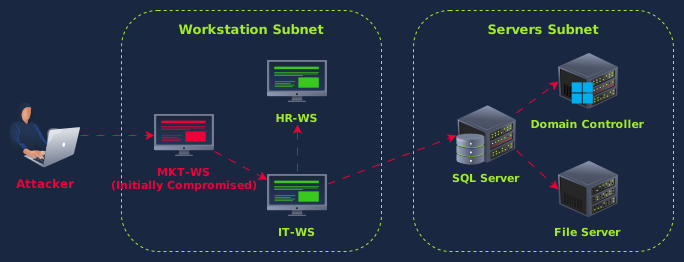
This room covers three lateral movement techniques and the log artifacts they produce. We'll start by looking at normal traffic for each protocol, then investigate a simulated attack that uses SMB, PsExec, and RDP to move from a compromised workstation to the Domain Controller.
Learning Objectives
Detect AD discovery commands through process creation and PowerShell Script Block logs
Identify SMB-based lateral movement through admin share access patterns
Identify PsExec usage through service installation artifacts, named pipe creation, and correlate source and destination events
Detect RDP-based lateral movement using Logon Type 10 and trace multi-hop chains through Logon ID correlation and process artifacts
Correlate artifacts across source and destination systems to trace an attacker's path
Prerequisites
Active Directory monitoring: AD architecture, authentication protocols, Windows Event Log structure (Monitoring Active Directory room)
Initial access detection: How attackers gain their first foothold (Detecting AD Initial Access room)
Windows Event Logs: Event Viewer navigation, log channels, Event IDs (Windows Event Logs room)
Splunk basics: SPL queries, filtering, stats commands (Splunk: Exploring SPL room)
Discovery and Reconnaissance
Although our main focus in this room is lateral movement, we need to start with discovery.
As shown in the image below, when attackers first gain access to a network, they don't know what's in it. They don't know which servers exist, which accounts have elevated privileges, or how the network is organized. So the first thing they do is run commands to map everything out. This helps them understand the environment they've compromised, identify valuable targets, and plan their next move.

In this task, we're focusing specifically on AD discovery, meaning commands that query Active Directory for information about domain accounts, groups, trusts, and networked systems. General host-level reconnaissance (like systeminfo or whoami) also happens during this phase, but AD discovery is what gives attackers the map they need to plan their lateral movement.
What Discovery Looks Like
Let's look at some Active Directory discovery commands commonly used in real-world attacks. The table below lists the commands you'll encounter most often:
Let's look at some Active Directory discovery commands commonly used in real-world attacks. The table below lists the commands you'll encounter most often:
| Category | Command | What It Reveals |
|---|---|---|
| Domain/Trust | nltest /dclist:domain | Domain controllers in the environment |
| Domain/Trust | nltest /domain_trusts | Trusted domains the attacker could pivot to |
| Accounts/Groups | net user /domain | All domain user accounts |
| Accounts/Groups | net group "Domain Admins" /domain | Members of the Domain Admins group |
| Accounts/Groups | net group "Enterprise Admins" /domain | Members of the Enterprise Admins group |
| Accounts/Groups | net localgroup administrators | Local admin accounts on the current machine |
| Systems | net view | Machines visible on the network |
| Systems | net view \THM-SHR-SRV /all | Shares on a specific remote system |
| PowerShell | Get-ADUser -Filter * | AD user enumeration via PowerShell |
| PowerShell | Get-ADGroupMember "Domain Admins" | Admin group members via PowerShell |
| PowerShell | Get-ADComputer -Filter * | All computer accounts in the domain |
None of these commands requires admin privileges. Active Directory grants read access to all authenticated domain users by default, which means any compromised account, even one belonging to a marketing or HR user, can enumerate every user, group, trust, and machine in the domain. This is by design, not a misconfiguration, and it's one of the reasons lateral movement planning might sometimes be easy for attackers.
The table above covers the most common built-in commands. Also, attackers use third-party tools like adfind.exe (heavily used by ransomware groups like Conti and FIN7), dsquery, and PowerShell's [System.DirectoryServices.DirectorySearcher] class for raw LDAP queries.
Volt Typhoon, the Chinese state-sponsored group, is known for this exact approach. CISA advisory AA24-038A(opens in new tab) documents their heavy use of commands like net user, nltest, netsh, and wmic for discovery, a technique known as "living off the land" (LOTL). Native commands don't trigger antivirus and blend in with normal administrative activity, which is exactly why they work.
Detecting Discovery With Sysmon and PowerShell Logs We detect these commands through two log sources:
Sysmon Event 1 captures process creation, where the CMD/PowerShell commands appear in the command line. PowerShell Event 4104 captures Script Block Logging, which records the PowerShell commands and cmdlets executed.
Scenario
Let's say we want to investigate or hunt for Windows built-in discovery commands in our environment. We would start with Sysmon Event 1 to see what commands were executed:
index=win EventCode=1 | search CommandLine IN ("nltest", "net * user", "net * group", "net * view", "net * localgroup") | table _time, host, User, Image, CommandLine, ParentImage | sort _time
Sysmon Event 1 query results showing discovery commands executed on THM-MKT-WS
The results show when the commands ran, what host they were executed on, and the User who ran them. The CommandLine field reveals what commands the attacker executed and what information they were after.
Seeing discovery commands executed on a workstation that isn't expected to have them executed in a specific time frame is highly likely to indicate malicious discovery activity. And always remember that "context is everything".
We can apply the same idea here for PowerShell-based discovery, but by filtering for Event 4104 (Script Block Logging) captures PowerShell cmdlets:
index=win EventCode=4104 | search Message IN ("Get-ADUser", "Get-ADGroupMember", "Get-ADComputer")
| table _time, Message
| sort _time
Splunk results for PowerShell Script Block Logging Event 4104 showing Get-ADUser and Get-ADGroupMember cmdlets
The Message field captures the full script block content, including the cmdlet and all its parameters.
Script Block Logging
Script Block Logging can generate a high volume of events, so some organizations enable it only on high-value targets or during active investigations. If it's not available, we can fall back to Sysmon process creation events (Event ID 1) or Windows Security process creation events (Event ID 4688) with command-line auditing enabled. The tradeoff is that Sysmon and 4688 capture the powershell.exe process launch, but if an attacker runs cmdlets interactively within a session, each individual cmdlet won't generate a separate process creation event. Script Block Logging captures every command inside the session, regardless.
Tip: Attackers sometimes encode or obfuscate discovery commands to evade detection rules. Base64-encoded PowerShell (powershell -enc ...) or cmd.exe character escaping still generates a Sysmon Event 1 for the process creation, though the CommandLine may show the encoded form. Script Block Logging is more resilient here because PowerShell logs the decoded script block after it is processed.
On the Splunk instance, investigate the discovery activity and answer the following questions.
Answer the questions below
What is the first discovery command the attacker executed? Note: The command has an extra whitespace; ensure you copy as it appears in Splunk. nltest /domain_trusts
index=win EventCode=1 | search CommandLine IN ("nltest", "net * user", "net * group", "net * view", "net * localgroup") | table _time, host, User, Image, CommandLine, ParentImage | sort _time

What is the full PowerShell command used to enumerate domain users?
Import-Module ActiveDirectory; Get-ADUser -Filter * -Properties MemberOf | Select-Object Name, SamAccountName
index=win 4104

How Lateral Movement Works
Now that we've seen the discovery phase, let's talk about what happens after the attacker has mapped out the network. They know which servers exist, which accounts have admin rights, and which machines are worth targeting. Their next step is to move to those targets so they can get closer to what they actually want, whether that's the Domain Controller, a database server, or a file share containing sensitive data.
Every lateral movement technique follows the same basic pattern, where the attacker authenticates to a remote machine using stolen or misused credentials, then executes something on it. The technique might differ, but that authenticate-then-execute sequence is always there.

The Source and Destination Model
Every remote connection creates artifacts on two machines:
One is the source, where the attacker initiates the connection. It also only sees which credentials were used and which target was chosen.
The other is the destination, where the session lands and the action happens. The destination sees that someone connected and what they did.
If we only check the destination, we know the attack happened, but might not know where it originated. If we only check the source, we know the intent but not whether it succeeded.

Logon Type: The First Thing to Check
When someone connects to a remote machine, Windows logs Event 4624 on the destination. The Logon_Type field tells us how they connected.
| Logon Type | Meaning | Common Protocol | What It Tells Us |
|---|---|---|---|
| 3 | Network logon | SMB, PsExec | Remote access without an interactive session |
| 7 | Unlock/Reconnect | RDP | Session reconnect or workstation unlock |
| 10 | RemoteInteractive | RDP | Full desktop session |
Type 10 is straightforward because it always means RDP. Type 3 is trickier because SMB and PsExec both generate Type 3 logons, so we need additional artifacts to tell them apart. We'll cover those in the upcoming tasks.

Note: If an attacker connects via RDP while the same account already has an active or disconnected session on that host, Windows reconnects them to the existing session instead of creating a new one. This generates a Type 7 (Unlock) logon instead of Type 10. During an investigation, if we see a Type 7 with a remote IP address (not 127.0.0.1), that indicates an RDP reconnection, not a physical workstation unlock. Keep this in mind when searching for RDP activity: filtering only for Logon_Type=10 will miss these reconnections. Also note that a reconnection assigns a new Logon_ID even though the RDP session itself persists, so Logon_ID-based correlation can break at disconnect/reconnect boundaries.
Event 4648: Tracing the Source
Event 4648 (Logon Using Explicit Credentials) fires on the source machine when a process uses credentials other than those of the currently logged-in user.
For example, as shown in the screenshot below, if liam.patel runs net use \\THM-SHR-SRV\ADMIN$ /user:luke.sullivan, Event 4648 is logged on THM-MKT-WS and records the original account (liam.patel), the alternate account (luke.sullivan), and the target server name (THM-SHR-SRV).
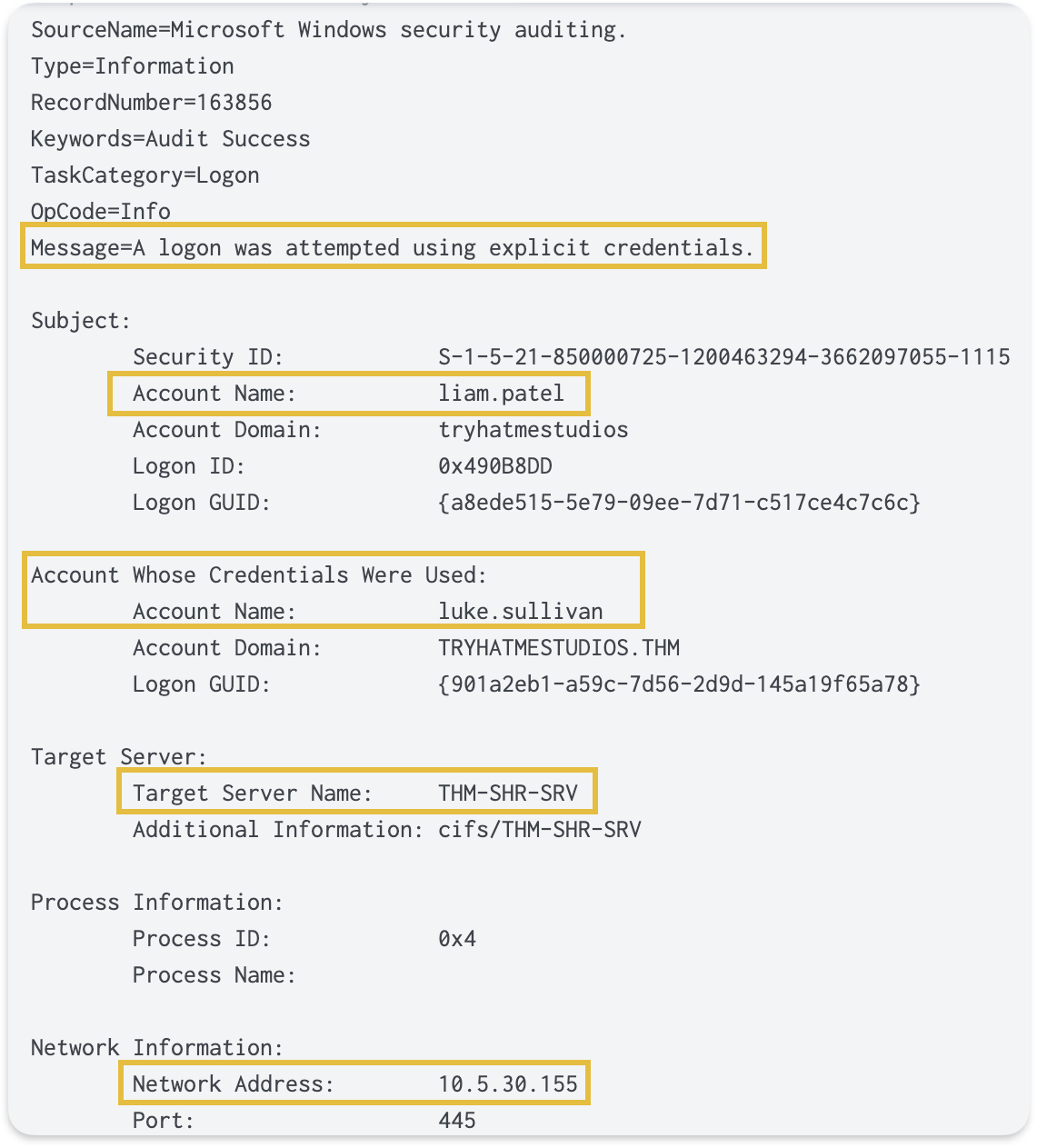
This tells us directly which machine initiated the connection and what credentials were used. Most destination-side logs only show who connected, not who was sitting at the keyboard when the event occurred.
Sysmon Event 1 (Process Creation) also captures the net.exe process with the full command line, including the target server and the account specified in the /user: flag and the password.
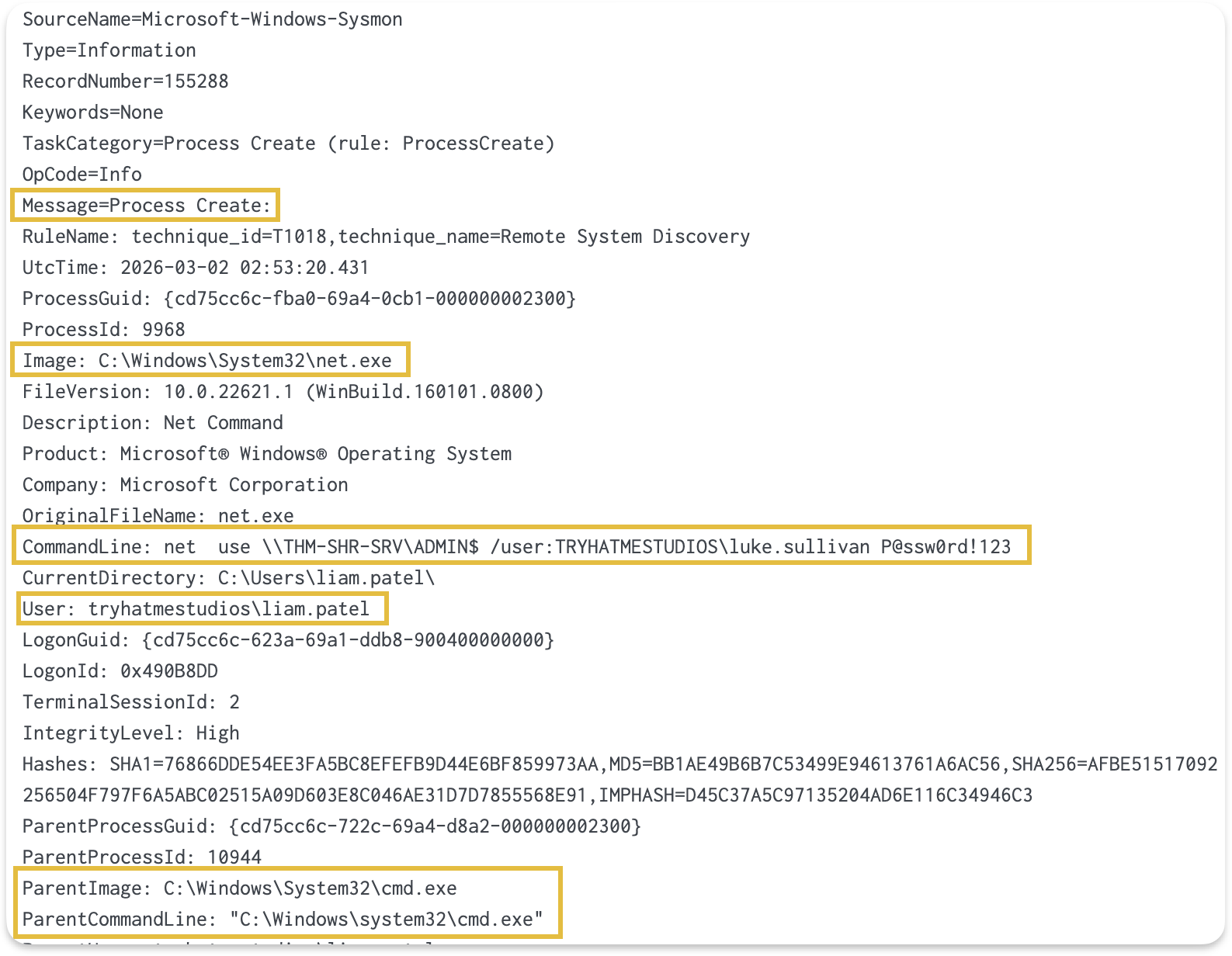
Together, these two source-side events provide better context for the same activity.

Warning: Event 4648 only fires when credentials are explicitly provided, such as with net use /user:, runas, or entering credentials in an RDP dialog. It doesn't fire for Pass-the-Hash, Pass-the-Ticket, or Kerberos single sign-on, because those techniques reuse cached credentials without explicitly providing them.
Normal vs Suspicious: Same Events, Different Context
A legitimate admin session and an attacker's lateral movement generate the same Event IDs. Both produce Event 4624, both can generate Event 4648, and both are "successful authentication to a remote host." What separates them is context.
| Factor | Likely Legitimate | Worth Investigating |
|---|---|---|
| Source | IT admin workstation (THM-IT-DESK) | Marketing workstation (THM-MKT-WS) |
| Account | luke.sullivan (IT admin) | michelle.smith accessing admin shares |
| Time | Business hours | 2 AM on a Saturday |
| Target | Servers the admin normally manages | Workstation-to-workstation connections |
| Pattern | Single server, sustained session | Rapid connections to many servers |
We'll apply this concept of checking context around events throughout the rest of this room.
Why Lateral Movement Succeeds
Lateral movement mainly works because of common misconfigurations:
Password reuse across local admin accounts means that a compromised credential can unlock many machines (Microsoft LAPS is designed to prevent this)
Shared administrative accounts
Overly permissive group memberships
Bad network segmentation between hosts
Leaving RDP enabled on machines that don't need it widens the attack surface
A single compromised credential can unlock an entire network when these misconfigurations exist. Detection is important, but hardening the environment to limit where credentials can be used is just as valuable.
Answer the questions below
What Logon Type in Event 4624 indicates a remote desktop session? 10
What Event ID, logged on the source system, records when a process uses alternate credentials to connect to a remote resource? 4648
Detecting SMB Lateral Movement
SMB is the most common protocol used for lateral movement, and it's also the noisiest. Every time someone maps a network drive, opens a shared document, or prints to a network printer, SMB is involved. Group Policy updates and backup agents generate constant SMB traffic. There's a lot of legitimate SMB activity on any network, which is exactly why attackers like using it.
Admin Shares
Windows systems maintain default Administrative Shares (C$, ADMIN$, IPC$) created by the Server service at boot. These shares leverage the SMB protocol (Port 445) to allow remote management:
C\(: Maps to the root of the system drive; additional drives follow the same pattern (D\), E$, etc.).
ADMIN$: Points to %SystemRoot% (typically C:\Windows).
IPC$: A logical share for Inter-Process Communication via named pipes, essential for remote RPC calls.
Accessing these shares usually triggers two events: Event 5140 (A network share object was accessed) and Event 4624 (An account was successfully logged on).
Regular users don't access these during normal work. They use named shares like Marketing, Shared, or IT. When we see admin share access, it's either an administrator doing maintenance or an attacker moving laterally.
Earth Kurma, an APT group documented by Trend Micro in 2025(opens in new tab), used admin shares extensively during their campaigns across Southeast Asian government networks. They authenticated with stolen credentials via net use \target\c$, copied malware to the target, then created remote services with sc to execute payloads, all through built-in Windows tools and SMB.
Splunk results showing admin share access via Event 5140 with source address, account, and share name
Investigating Suspicious Admin Share Access
Investigating Event 5140 File Share Access
Let's start by checking which sensitive shares were accessed from workstation IPs and which accounts were used:
index=win EventCode=5140 Share_Name IN ("\ADMIN\(*", "\C\)*") | table _time, host, Source_Address, user, Share_Name | sort _time
Splunk query results for Event 5140 filtering ADMIN$ and C$ share access showing host, source address, user, and share name
Event 5140 gives us everything we need in a single event:
The host shows which server was targeted
The Source_Address shows where the connection came from
The user field shows which credentials were used
The Share_Name shows which admin share was accessed
The results show an account accessing ADMIN\( on multiple servers from a single IP. A single source IP accessing ADMIN\) on multiple servers and workstations is a strong lateral movement indicator, especially if the source workstation isn't one that normally does that.
But how do we know this is actually suspicious? Let's check the baseline activity for that user.
Understanding Baseline Activity
To determine if this activity is suspicious, we need to compare it against what this user normally does. Let's look at all share access for this user:
Replace {USER_ACCOUNT} with the user you identified from the share access events.
index=win EventCode=5140 user={USER_ACCOUNT}
| table _time, Source_Address, Share_Name, host
| sort _time
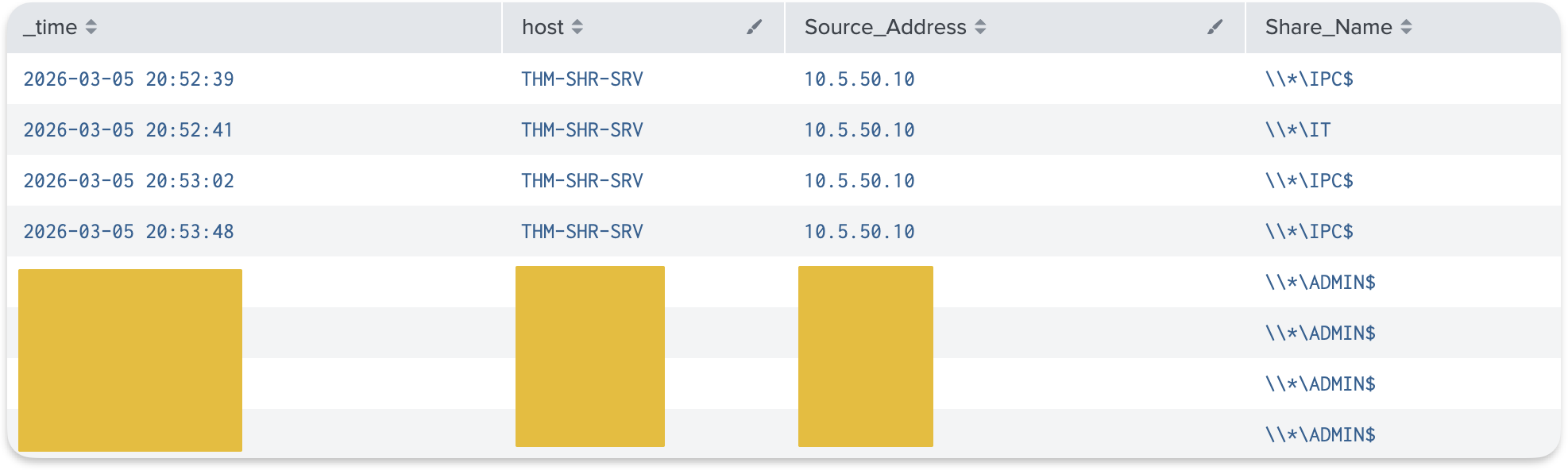
Normally, this is an IT user who only accesses the IT share from their THM-IT-DESK workstation (10.5.50.10). On the other hand, seeing the same user accessing multiple ADMIN$ shares of different machines in a short time frame from a single IP not associated with this user's normal activity is a strong indicator of malicious activity.
Tracing Back Activity to the Source
Now that we've confirmed the share access is suspicious, we need to investigate the source machine. We have the Source_Address IP, but we need the hostname to pivot our investigation on that machine.
In Active Directory, every computer authenticates with a machine account that matches its hostname and ends with $. We can use this to map any IP to its hostname by searching for Event 4624 logons from that IP:
Replace {SOURCE_IP} with the Source_Address from the share access events.
index=win EventCode=4624 Source_Network_Address={SOURCE_IP} user=*$
| stats count by user, Source_Network_Address
| sort -count

The user ending with \( reveals the machine's hostname. Drop the \) suffix and you have the hostname to use in the next queries.
Finding the Commands on the Source
The source hostname tells us something important. From the baseline, we know this user is an IT admin who normally works from THM-IT-DESK. But their credentials are being used from a completely different machine, a marketing workstation. An IT admin has no reason to be logged into that workstation, which means someone on that machine likely has this user's credentials and is using them for lateral movement. We need to pivot to the source machine and find out who was actually at the keyboard.
Since we're investigating ADMIN\( access, we search Sysmon Event 1 (Process Create) on the source machine for any process that references ADMIN\) in its command line:
Replace {SOURCE_HOST} with the hostname identified above.
index=win EventCode=1 host={SOURCE_HOST} CommandLine="ADMIN$"
| table _time, User, Image, CommandLine
| sort _time

Now we can see the actual commands, the tool used to access the shares, the User who ran them, and the credentials in the CommandLine.
The User field shows who was sitting at the keyboard, while the CommandLine reveals the compromised credentials they used. These are two different accounts, which is a key indicator of credential misuse.
If we search for Event 4648 (Explicit Credential Usage) on the source machine, we'll find a corresponding event for each share connection, confirming the same alternate credentials were used against each target server. This is the source-side counterpart to the Event 5140 share access we found on the destinations.

Tip: The net use command is just one way attackers access admin shares. C2 frameworks like Cobalt Strike and Metasploit have built-in SMB modules that connect to shares without spawning net.exe, meaning they won't generate Sysmon Event 1 process creation events. In those cases, Event 4648 on the source machine can still reveal which credentials were used and which servers were targeted, even when the command itself doesn't appear in process creation logs. Event 5140 on the destination side also still fires regardless of how the connection was made.
On the Splunk instance, investigate the SMB admin share access using the Security logs.
Answer the questions below
What account was used to access the ADMIN$ shares? luke.sullivan
index=win EventCode=5140 Share_Name IN ("\ADMIN\(*", "\C\)*")
| table _time, host, Source_Address, user, Share_Name
| sort _time

Which user account was responsible for executing the lateral movement commands?michelle.smith
index=win EventCode=4624 10.5.50.12 | stats count by user, Source_Network_Address | sort -count


Detecting PsExec Lateral Movement
In the previous task, we looked at raw admin share access through net use. That approach lets an attacker copy files and browse directories remotely, but it doesn't execute anything on the target. PsExec changes that. It's a Sysinternals tool that combines SMB admin share access with Windows service installation to run commands on remote systems.
It's worth understanding how PsExec works under the hood, because it leaves a very specific trail of artifacts. Even when attackers rename the binary, the underlying behavior stays the same.
How PsExec Works
When an attacker already has an authenticated SMB session (via net use) and runs PsExec.exe \\target cmd.exe, the following happens:
PsExec connects to the target's
ADMIN$share over SMBIt copies a service binary (
PSEXESVC.exe) to the target'sC:\WindowsdirectoryIt creates and starts a new Windows service on the target (System Event 7045)
The service creates named pipes for
stdin/stdout/stderrcommunication (Sysmon Event 17)That service executes whatever command the attacker specified
When the session ends, PsExec removes the service and cleans up the binary
Event 7045 (A New Service Was Installed) in the System log is the signature artifact for PsExec, logged on the destination machine. This is what distinguishes PsExec from plain SMB access.
The diagram below shows exactly this sequence.

Why Attackers Use PsExec
PsExec is a legitimate administration tool. Sysadmins use it daily to push patches, run scripts, and troubleshoot remote machines. From a protocol perspective, PsExec traffic appears identical to normal SMB administration traffic. The only difference is context: which account, from which machine, at what time, and how it was used.
Wizard Spider, the group behind Ryuk and Conti ransomware, used PsExec extensively for deployment. In incidents documented by Red Canary(opens in new tab), they would compromise one machine, harvest credentials with Mimikatz, then use PsExec to push ransomware to every reachable server in minutes. Each lateral hop created a service via ADMIN$, recorded by Event 7045.
Investigating PsExec Activity
Detecting PsExec: Destination Side
The destination side is where PsExec's unique signature appears. Let's check Event 7045 (service installation):
index=win EventCode=7045
| table _time, host, Service_Name, Service_File_Name, Service_Type, Service_Start_Type, Service_Account
| sort _time

In its default configuration, the service name is PSEXESVC and the binary path points to C:\Windows\PSEXESVC.exe (equivalent to %SystemRoot%\PSEXESVC.exe). The Service_Account field tells us which account the service runs under.
By default, PsExec runs the remote command as the authenticating user. When run with the -s flag, the service runs as LocalSystem, granting SYSTEM-level access on the target.
What Commands Did the Attacker Run?
Once we've identified the PsExec service through Event 7045, and the host it was created on, the next step is to find what commands the attacker actually executed through it.
Since PSEXESVC.exe is the service that spawns the attacker's remote commands, we can use process creation events (e.g., Sysmon Event 1) and filter by ParentImage to find processes created or commands executed by the service binary:
index=win EventCode=1 host={DESTINATION_HOST} ParentImage="*PSEXESVC*"
| table _time, host, User, ParentImage, Image, CommandLine
| sort _time

The ParentImage field shows which process spawned each command. By filtering for PSEXESVC, we see only the commands that were executed remotely through PsExec.
Named Pipe Artifacts (Sysmon Event 17)
PsExec uses named pipes to relay stdin, stdout, and stderr between the source and destination. Sysmon Event 17 (Pipe Created) captures these on the destination:
index=win EventCode=17 Image="*PSEXESVC*"
| table _time, host, Image, PipeName
| sort _time

PsExec creates pipes with names like \PSEXESVC-<hostname>-<pid>-stdin, -stdout, and -stderr. These pipe names are useful because even if an attacker renames the PsExec binary, the pipe naming convention often remains unchanged (unless they modify the source code).
Tracing PsExec Usage with Event 5145
We've identified the service and the commands it executed. Now we need to identify who initiated this and where they connected from.
Event 5145 (Detailed File Share) goes further, where it logs the specific files and objects accessed through that share, which are shown in the Relative_Target_Name field. For PsExec, this event is a goldmine.
Replace {DESTINATION_HOST} with the target machine that we found earlier in the investigation.
index=win EventCode=5145 host={DESTINATION_HOST} Relative_Target_Name="PSEXE"
| table _time, user, Source_Address, Share_Name, Relative_Target_Name
| sort _time
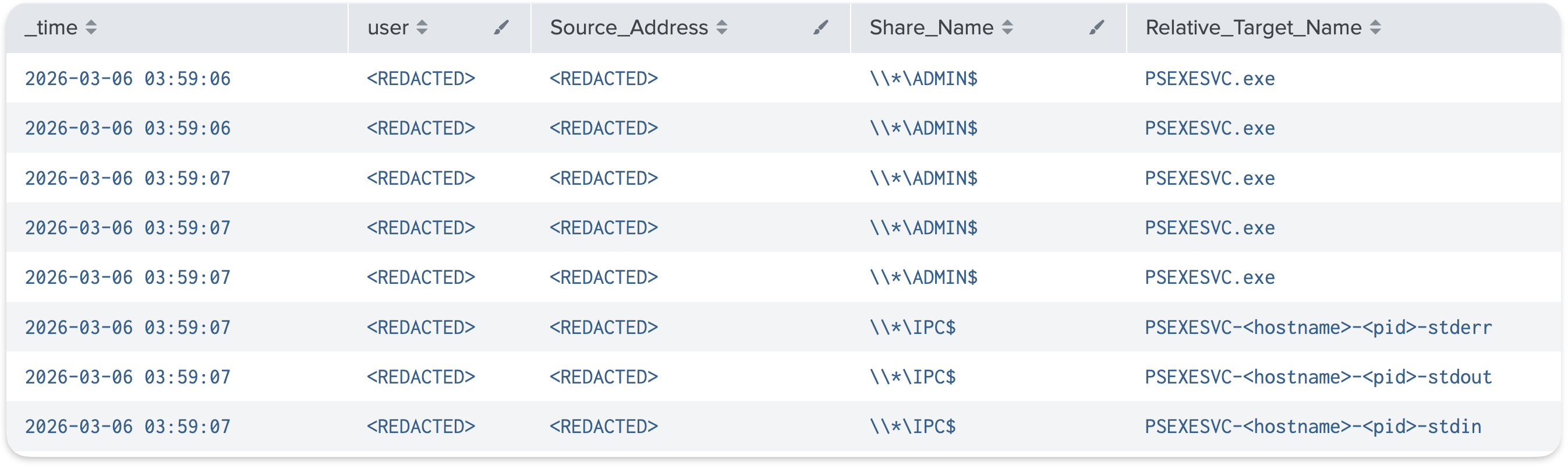
Notice that the named pipe names contain the source hostname, revealing which machine the attacker is operating from.
Tip: Events 5140 and 5145 require "Audit File Share" and "Audit Detailed File Share" to be explicitly enabled via Group Policy. If we search for these events during an investigation and get zero results, it doesn't necessarily mean the activity didn't happen. It may mean the audit policy isn't enabled in that environment.
Detecting PsExec: Source Side
Once we find the commands executed and the service name, we can easily track the source host from which PsExec was executed. Sysmon Event 1 captures the process creation with the full command line:
index=win EventCode=1 host={SOURCE_HOST}
| search Image="*PsExec*"
| table _time, host, User, Image, CommandLine
| sort _time

The CommandLine field shows which target was specified and what command is being run remotely.
By correlating source and destination PsExec artifacts, we now have the full picture of what actually happened.
By correlating source and destination PsExec artifacts, we now have the full picture of what actually happened.
Hunting for Renamed PsExec
Attackers know that security tools look for PSEXESVC by name. PsExec's -r flag lets the operator specify a custom service name, so running PsExec -r renamed_psexec \target cmd creates a service called renamed_psexec instead of PSEXESVC.
Other tools like Impacket's psexec.py or Cobalt Strike's PsExec module generate random service names by default. But Event 7045 still fires regardless of the name.
The pattern to look for is any new service with Service_Type of "user mode service" and Service_Start_Type of "demand start." The service name and binary might differ, but the demand-start, user-mode-service signature remains.
On the Splunk instance, investigate the PsExec lateral movement using the Sysmon and System logs.
Answer the questions below
What was the destination host the attacker targeted via PsExec?THM-SQL-SRV
index=win EventCode=7045 | table _time, host, Service_Name, Service_File_Name, Service_Type, Service_Start_Type, Service_Account | sort _time

What is the first command that the attacker executed from the source machine using PsExec? Note: The command has an extra whitespace; ensure you copy as it appears in Splunk.
C:\Tools\PsExec.exe -accepteula \THM-SQL-SRV cmd /c "hostname & whoami & ipconfig"
index=win host=THM-SQL-SRV ParentImage="PSEXESVC"
| table _time, host, User, ParentImage, Image, CommandLine
| sort _time

index=win Tools


Detecting RDP Lateral Movement
RDP gives the attacker a full interactive desktop session, but it doesn't leave the same kind of obvious hunting artifacts as the previous techniques. There's no service installation, no share access pattern, no unique process on the destination that says "this was RDP." So we rarely start an investigation by hunting for RDP sessions directly. Instead, we usually find RDP as the delivery mechanism after something else catches our attention.
RDP's primary detection artifact is Event 4624 with Logon_Type=10 (RemoteInteractive), logged on the destination. It records the account name, the source IP address, and the session timestamp. While SMB and PsExec both produce Type 3 network logons, a successful RDP session produces Type 10, making it immediately distinguishable in the Security log. However, NLA introduces a variation worth understanding, covered in the info box below.

Info: Modern Windows enables Network Level Authentication (NLA) by default. With NLA, the user authenticates at the network level before the RDP session is established, which generates a brief Type 3 logon right before the Type 10. If we see a Type 3 from the same source IP appearing seconds before a Type 10, that's the NLA prelude, not a separate SMB or PsExec connection. The lab environment in this room has NLA enabled, so you may see these Type 3 events alongside the Type 10 logons in your query results.
BlackSuit (the successor to Royal ransomware, covered in the updated CISA advisory AA23-061A(opens in new tab)) relies on RDP as a primary lateral movement method. According to the FBI, BlackSuit actors combine RDP, PsExec, and SMB to move through victim networks and, in one confirmed case, used a legitimate admin account to reach the domain controller directly.
Normal vs Suspicious RDP Traffic
Before we start investigating, it helps to have a mental model for which RDP connections are normal and which ones should raise questions. The direction of the connection matters:
| Pattern | Typical? | Why |
|---|---|---|
| Workstation → Server | Yes | IT admins RDP from their workstations to manage servers. This is the standard pattern. |
| Workstation → Workstation | Rare | Regular users don't RDP into each other's machines. Helpdesk might, but only from designated IT workstations. |
| Server → Server | Suspicious | Servers don't initiate outbound RDP on their own. If a server is RDPing to another server, someone is sitting inside an active session on that server and pivoting outward. |
These patterns aren't rules. There are environments where server-to-server RDP is normal (e.g., jump boxes). But as a starting point, any RDP session originating from a server rather than a workstation warrants a closer look.
Investigating RDP Lateral Movement
We wouldn't normally jump directly into RDP logs because they can be very noisy. Instead, let's say we received an alert for discovery commands being executed on our Domain Controller. We start by looking at process creation logs:
index=win EventCode=1 host=THM-DC
| search CommandLine IN ("*nltest*", "*net * user*", "*net * group*", "*net * view*")
| table _time, host, User, Image, CommandLine, LogonId
| sort _time
index=win EventCode=1 host=THM-DC
| search CommandLine IN ("*nltest*", "*net * user*", "*net * group*", "*net * view*")
| table _time, host, User, Image, CommandLine, LogonId
| sort _time

We can see a discovery command being executed on the Domain Controller. The LogonId field tells us which session these commands belong to. Let's use it to find out how this session was created.
Identify How the Attacker Reached the Domain Controller
We take the LogonId from the suspicious commands and correlate it with Event 4624 (successful logon) on the same host:
Replace {LOGON_ID} with the LogonId from the Sysmon event above.
index=win EventCode=4624 Source_Network_Address={SOURCE_IP} user=*$
| stats count by user, Source_Network_Address
| sort -count

The user ending with \( reveals the machine's hostname. Drop the \) suffix and use it in the next step.
Find Evidence of the Outbound RDP Connection on the Source
When someone initiates an RDP connection from a machine, mstsc.exe (the Windows Remote Desktop Client) runs on that machine. If Sysmon is capturing process creation on that host, we can search for it:
Replace {SOURCE_SERVER} with the hostname identified above.
index=win EventCode=1 host={SOURCE_SERVER} Image="*mstsc.exe*"
| table _time, User, Image, CommandLine, LogonId
| sort _time

This confirms that someone launched an outbound RDP connection from that server targeting the Domain Controller.
Now we can trace how the attacker got onto this server in the first place.
Trace How the Attacker Reached the Intermediate Server
Using the same correlation technique, we take the LogonId from the mstsc.exe process and match it against Event 4624 on the same server:
index=win EventCode=4624 host={SOURCE_SERVER} Logon_ID={LOGON_ID}
| table _time, user, Logon_Type, Source_Network_Address, Logon_ID

We can see another RDP login, but this time, from a different user and a different source than the one we saw on the Domain Controller.
The attacker started on a compromised workstation, used RDP to reach the server, then, from within that session, opened another RDP connection to the Domain Controller using a different, more privileged account.
This pattern is called RDP chaining, and it's common when attackers pivot through intermediate machines to reach sensitive targets like Domain Controllers. Each hop uses RDP, but the source IP address changes at each hop because the connection originates from the intermediate machine rather than the original workstation.
The diagram below shows how RDP chaining works.

On the Splunk instance, investigate the RDP lateral movement using the Security and Sysmon logs and answer the following questions.
Answer the questions below
What is the source IP address of the RDP session that landed on the Domain Controller? 10.5.30.120
index=win EventCode=1 host=THM-DC
| search CommandLine IN ("nltest", "net * user", "net * group", "net * view")
| table _time, host, User, Image, CommandLine, LogonId
| sort _time

index=win EventCode=4624 host=THM-DC Logon_ID=0x508C55A | table _time, user, Logon_Type, Source_Network_Address, Logon_ID

Tracing backward through the chain, what is the original source IP where the RDP chain began? 10.5.50.12
index=win EventCode=4624 Source_Network_Address=10.5.30.120 user=*$ | stats count by user, Source_Network_Address | sort -count
index=win EventCode=4624 host=THM-DC
| table _time, user, Logon_Type, Source_Network_Address, Logon_ID

Investigation Challenge
Scenario
The SOC team received an EDR alert for a suspicious service installation (svcupdate) on THM-SHR-SRV. The service name doesn't match any known software deployments, and no change requests were scheduled for that evening. Your task is to investigate this lateral movement activity and trace it back to its origin.
Machine Access
The challenge data is on the same Splunk instance you've been using, but in a different index.
Info: Use index=challenge for all queries in this task. This index contains a separate dataset from the walkthrough scenarios.
Answer the questions below
What is the full path of the service binary that was installed on the target?
Remember to install when we run exe executable files
index=challenge exe 7045

What account was used to access the ADMIN$ share on the target server?
index=challenge EventCode=5140 Share_Name IN ("\ADMIN\(*", "\C\)*")
| table _time, host, Source_Address, user, Share_Name
| sort _time

What is the source IP address of the lateral movement to THM-SHR-SRV?

What is the first remote command the attacker executed on the target machine? (Answer Format: as shown in the CommandLine field)
index=challenge EventCode=1
| search CommandLine IN ("nltest", "net * user", "net * group", "net * view", "net * localgroup")
| table _time, host, User, Image, CommandLine, ParentImage
| sort _time

index=challenge cmd.exe commandline User="tryhatmestudios\ryan.chen"


index=challenge cmd.exe commandline User="tryhatmestudios\ryan.chen”
| table _time, host, User, ParentImage, Image, CommandLine
| sort _time

What host did the attack originate from?
index=challenge User="tryhatmestudios\ryan.chen"

Conclusion
This room covered three lateral movement techniques (SMB, PsExec, RDP), how each authenticates against Active Directory, and the traces they leave on both source and destination machines.
Takeaways
Discovery commands in process creation logs are often the first indicator that triggers a lateral movement investigation. Spotting enumeration early can lead to catching lateral movement before it reaches sensitive targets.
The same Event 4624 fires for a legitimate admin and an attacker. Source workstation, account, timing, and target pattern are what distinguish them.
Type 10 means RDP. Type 3 covers SMB and PsExec, where additional artifacts (Event 5140, Event 7045, Sysmon Event 17) separate the two.
Event 4648 ties the initiating user to the target connection by recording alternate credential use on the source, but only for explicit credentials, not Pass-the-Hash or Kerberos SSO.
Admin share access (
ADMIN\(,C\)) from unexpected sources is a strong lateral movement indicator. Event 5140 captures who accessed which share and from where.Sysmon Event 17 detects characteristic PsExec pipe patterns that persist even when the binary is renamed. Event 7045 (service installation) is PsExec's signature artifact.
Link RDP sessions with
Logon_IDand look formstsc.exeon intermediate hosts to trace chained hops. Each hop changes the source IP, so tracing the full chain requires checking both source and destination logs.